Open the Gas Network Workspace
Open the gas network workbench from Workbench Spaces in the NexusFlow Personal Center, then create or open a gas network model.
This page covers workspace access and the gas-specific modeling areas. See the Platform User Guide for login, model management, and general canvas operations.
For login and Personal Center navigation, see Log In and Find the Main Entrances. General model operations are covered in Create, Open, and Save Models.
Open the Workspace
- Log in to NexusFlow, enter the Personal Center, and select Workbench Spaces on the left.
- Find the row whose workbench prefix is Gas Network, and click Open.
- Click New/Open in the workbench toolbar to create a gas network model or open an existing one.
- After loading, confirm that the header identifies the gas network simulation software, Model is selected on the left, and Parameters is selected on the right.
If the gas network entry is missing, the account usually lacks access to that workbench space. Ask the platform administrator to check organization membership and workbench authorization.
Confirm the Workspace
The image shows an empty gas network model: the gas component library is on the left, the model canvas in the center, and the parameter panel on the right.
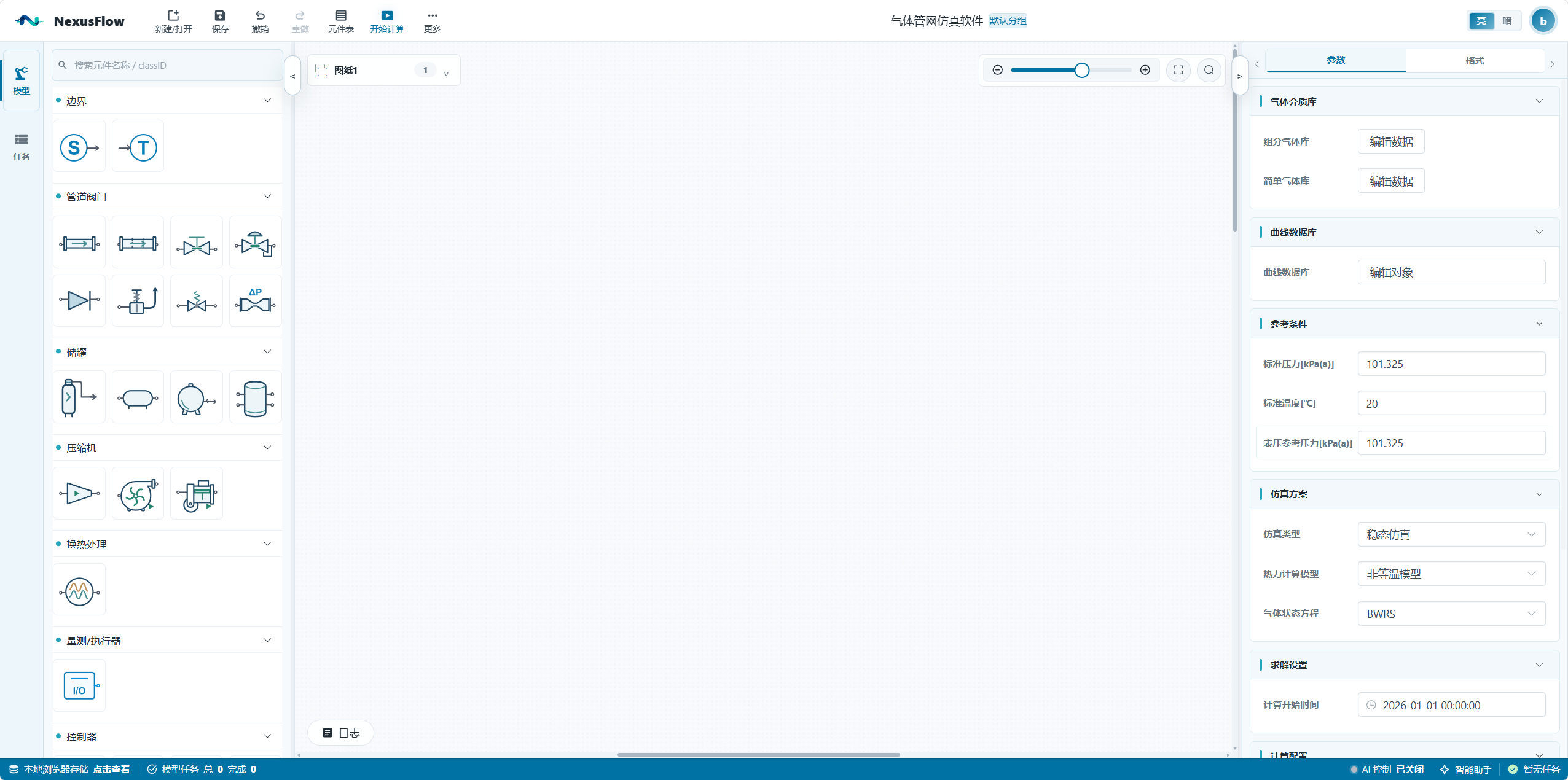
| Area | Use in gas network modeling |
|---|---|
| (1) Gas component library | Browse categories or search by component name or classID, then add components to the canvas. |
| (2) Model canvas | Place components and connect fluid ports and control signals on sheets such as Sheet 1. |
| (3) Parameter panel | With no component selected, shows global settings such as gas libraries, curve databases, reference conditions, and simulation schemes. With a component selected, shows its parameters. |
Toolbar operations, zoom, undo, redo, and saving work similarly across workbenches. See Workbench Basics for these shared operations.
Check Before Modeling
- The library includes boundaries, pipes and valves, compression equipment, and other gas-specific components.
- Clicking a blank canvas area shows gas and global simulation settings on the right.
- Selecting a component switches the panel to its parameters.
- Keep Model selected while editing; switch to Jobs to inspect calculations and results.
You can then start your first gas network model.
Next Step
Continue with Configure Gas and Global Settings, then build the first single-pipeline steady-state model.