Logging in and Finding Your Way Around
This article explains how to log in to NexusFlow, and how to find models, jobs, Simulation Workbench, and management features after logging in. After completing the operation on this page, you should be able to enter the Workbench you have permission to use and determine whether the account permissions are normal.
What to Prepare Before You Start
Before logging in, please have the following information ready:
- Platform access address provided by the administrator;
- Your username or bound email address;
- Login password for the current account;
- The type of simulation to use, such as liquid pipeline simulation or gas network simulation.
It is recommended to use a desktop browser supported by the platform and ensure that the browser can properly access the platform address. If you do not have an account yet, are not sure which Simulation Workbench you should enter, or your account has expired, please contact the administrator first.
Login Platform
Open the platform address provided by the administrator in a browser. If you are not currently logged in, the page will display a login form; if you enter from a model or job link, you will usually continue to open the original target page after successful login.
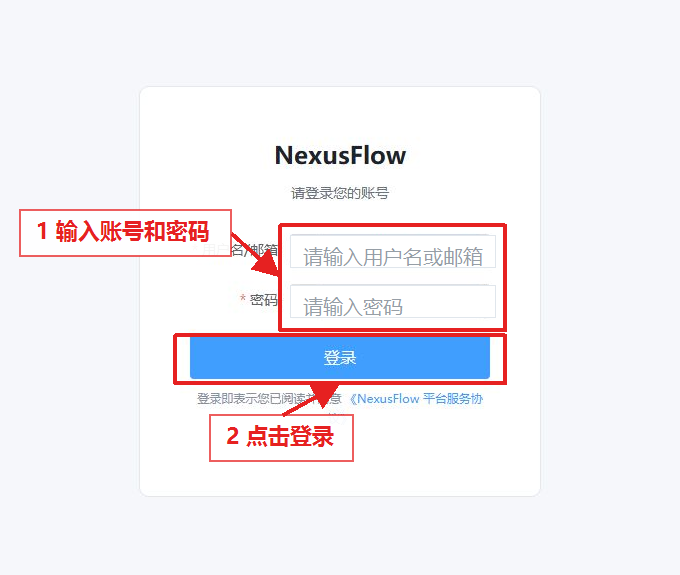
Log in with Username
- Fill in the user name in the Username/Email input box.
- Fill in the password in the Password input box.
- Click Login, or directly press the
Enterkey to submit.
After successful login, the page will display a success prompt and enter the Personal Center or the page you prepared to visit before logging in.
Log in Using Email
If the account has been bound to an email address, you can also fill in the complete email address in the Username/Email input box, then enter the password and log in. The email address needs to be exactly the same as the address saved in the account.
If email login fails, but the user name can be logged in normally, first check in personal information whether the email address has been bound and whether the spelling is correct; if you cannot confirm it yourself, please contact the administrator to check the account information.
Common Reasons for Failed Logins
When the login fails, read the complete prompt on the page first, and then handle it according to the table. Don't try a large number of possible passwords in succession to avoid masking the real problem.
| Page Phenomenon | Possible Reasons | Treatment Method |
|---|---|---|
| Prompt "Please enter username or email address" | The account input box is empty | Fill in your username or complete email address and resubmit. |
| It prompts "Please enter your password" or the password length is insufficient. | The password is empty, or the input content is less than the length required by the page. | Re-enter the complete password, being careful not to include leading or trailing spaces. |
| Prompt user name, email or password is incorrect | The account information is incorrectly filled in, or the password has been changed. | Check the capitalization and input method; if you still cannot log in, contact the administrator to reset the password. |
| Prompt that the account is unavailable or has expired | The account has been deactivated, or the temporary account has expired. | Contact the administrator to confirm account status and validity period |
| Prompt No permission to access the target page | The login has been successful, but the account does not have access rights to the corresponding resources. | Return to Personal Center to confirm the visible entrance, and contact the administrator to supplement the organization or Workbench authorization |
| The page does not respond for a long time or prompts a network error | The browser cannot connect to the platform, or the platform service is temporarily abnormal. | Refresh the page and confirm the network and platform address; if it is still not restored, record the time and prompts and contact the administrator. |
| After logging in, return to the login page | The login status is not saved properly, or the login credentials have expired. | Close the repeatedly opened login page and log in again; if the problem persists, refer the browser, time and operation steps to the administrator for troubleshooting |
Only enter the account number and password in the platform address provided by the administrator. Don't send your passwords to others, and don't let browsers store login information long-term on public computers.
Meet the Personal Center Home Page
Personal Center is the single entry point after login. The page usually consists of left navigation, top account area and homepage content area. What content is displayed on the home page depends on account permissions and current platform configuration.
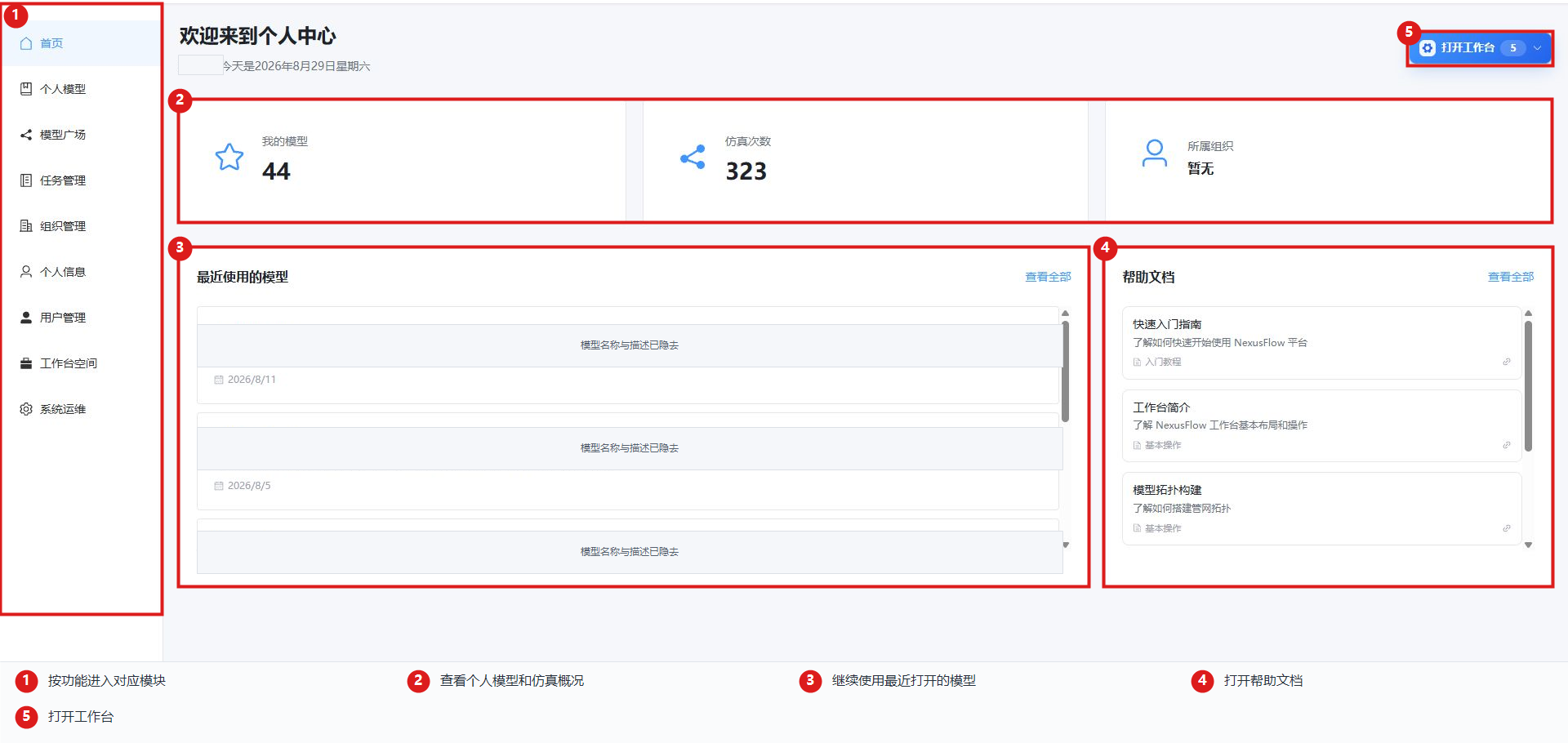
Workbench Entrance
The Simulation Workbench that the current account can directly access will be displayed at the top of the homepage. Button names usually include the simulation type, such as "Enter Liquid Pipeline Offline Simulation Platform." After clicking the button, the corresponding modeling and calculation interface will open.
Only workbenches that meet the following conditions will display the entrance:
- The current account or organization has obtained access rights;
- The administrator has opened the homepage entrance for this Workbench.
Therefore, portals visible to other users may not appear on your homepage.
Recently Used Models
"Recently Used Models" lists models that you have recently opened or modified. Clicking on a model name takes you directly to the Simulation Workbench that matches that model type. When you need to find an earlier model, click View All, or enter Personal Models from the left.
Statistics
The home page card is used to quickly understand personal resource status, which usually includes the number of personal models, number of simulations, and organization. The numbers here are for overview; when you need to view a specific model or job, you should enter the corresponding list page.
Help Documentation
The Help documentation area provides quick access to frequently used guides. Click the document title to open the corresponding instructions; when you need to find a specific button, error message, or operation method, you can also use the site search after entering the complete knowledge base.
Use the Left Navigation Menu
The left navigation is used to enter pages related to models, jobs, organizations, and accounts. The menu will be automatically adjusted based on the account role and authorization scope. Not seeing a certain menu does not necessarily mean that the page is faulty.
Normal User Menu
Ordinary users can usually see the following entrance:
| Menu | Purpose |
|---|---|
| Home Page | Return to the Personal Center home page to view the Workbench entry, statistics, and recent models |
| Personal Models | Organize, search, open or delete the models you created by model grouping |
| Model Marketplace | Browse shared and public models of your organization that you have permission to view |
| Job Management | Query simulation jobs within the scope of authority, view job status, snapshots and logs, and handle abnormal jobs |
| Organizational Management | View the organizations you have joined, personal roles, and organization members |
| Personal Information | Check the account, organization and validity period, maintain your name, mobile phone number, and change your login password |
Some deployment environments will hide unopened entry points based on business needs. Please refer to the current page.
For what fields in personal information can be modified and what rules the password needs to meet, please refer to Maintain Your Profile and Password. For specific usage of job filtering, snapshots and logs, see Find and Handle Tasks in the Account Center.
Administrator Menu
In addition to the normal user menu, administrators may also see the following entries or more operations:
| Menu or Ability | Applicable Roles | Purpose |
|---|---|---|
| Member Operations in Organization Management | Organization administrator, super administrator | Add or remove members and adjust members' roles in the organization |
| User Management | Administrators with user management rights | Create, edit, deactivate account or reset password |
| Workspace | Administrators with Workbench management rights | Configure Simulation Workbench entry, access scope, and available components |
| Extended Queries in Job Management | Organization administrator, super administrator | View jobs created by other users within the scope of permissions |
| System Operation and Maintenance | super administrator | View service status and logs, maintain update packages and running environment variables |
Permissions may also differ between administrators. For example, an organization administrator can maintain members of the organization, but may not necessarily be able to create platform users or manage system services. Please refer to Manage Users, Organizations, and Permissions for specific boundaries.
Enter Simulation Workbench
When There Is Only One Workbench
If there is only one Workbench entrance on the home page, just click on it. After entering, first confirm that the simulation type and component library displayed on the page match the current job, and then create or open the model.
When There Are Multiple Workbenches
The platform can provide multiple Simulation Workbench at the same time. When choosing, you should first read the entrance name clearly, and do not judge based on the button location alone.
- Prepare to Create a New Model: Select a Workbench based on the objects to be simulated and the type of calculations. For example, a liquid pipe model should go into the Liquid Pipes class Workbench.
- Prepare to Continue Editing Existing Models: Prioritize opening from Personal Models or "recently used models". The platform will enter the corresponding Workbench according to the type of model, which can reduce the situation of selecting the wrong entrance.
- Ready to View Existing Jobs: Open the target job from Job Management, confirm the Workbench to which the job belongs, and then enter the job view.
- Still Not Sure: Check the Workbench type in the model or job record; if there is no existing record, confirm with the administrator or model provider.
The components, parameters, and computing capabilities of different Workbench are not universal. After entering the wrong Workbench, the required component may not be found, or an existing model may not be opened. At this time, return to Personal Center and use the model list or the correct Workbench entry instead. Do not force type conversion by modifying the model file.
When the Required Workbench Cannot Be Seen
First check in order:
- Confirm that you are logged in with the correct account.
- Refresh the Personal Center homepage and see if the portal appears.
- Confirm whether you have joined the appropriate organization in Organizational Management.
- Ask the administrator of the same organization if the Workbench has been opened to the organization and the homepage portal has been enabled.
After the administrator completes the authorization, log in again or refresh the page. If you still can't see the entry, please provide the administrator with your username, organization, and the name of the workspace you need to access; do not send a password.
Return to Personal Center and Log Out
In Simulation Workbench, open the account menu in the upper right corner of the page and select the entrance to return to Personal Center. Some pages also provide home page icons or return portals, and you can also return to Personal Center after clicking them. The specific name of the entrance is based on the current page.
When logging out, open the account menu in the upper right corner of the current page, and then select the logout portal. The entrance names on different pages may be slightly different, whichever is displayed on the current page.
After logging out, the current login status in the browser will be cleared and the login page will be returned. Logging out will not stop the submitted simulation job; if the job is still running, you can continue to view it from the job management after logging in next time. When using a public computer, exit when you are done working and close the browser tab containing the model or results.
How to Confirm That Login and Permissions Are Normal
After logging in, check the following checklist:
- Your username is displayed in the upper right corner of the page;
- Personal Center can display the homepage content normally without repeatedly jumping back to the login page;
- Daily menus such as Personal Models, Model Marketplace and Job Management can be opened;
- The home page displays at least one Simulation Workbench entrance that meets the work needs, or the corresponding Workbench can be entered from an existing model;
- After entering the Workbench, you can see the component library that matches the current simulation type;
- It is normal for the administrator account to be able to see the management menu within the scope of responsibility, but not to see unauthorized high-privilege functions.
If only certain menus or resources are not visible, it is usually a permission or Workbench configuration issue and there is no need to change the password again. Simply note the missing menu, model or Workbench name and contact the administrator.
After confirming that the login and permissions are normal, you can continue to complete Your First Liquid Pipeline Simulation and go through the complete process of creating a model, configuring parameters, running jobs and viewing results.