Use the built-in intelligent assistant
The intelligent assistant is a conversation window inside NexusFlow. Use it to ask about platform workflows, discuss an image or PDF, and continue with follow-up questions. Access to the current model requires separate Workbench page authorization.
| Your goal | Guide |
|---|---|
| Ask questions inside the platform, attach files and manage conversations | This guide |
| Connect your own AI client to the current Workbench page | Connect an external AI assistant through MCP |
Documentation questions do not require AI Control or an MCP address. Available features depend on the deployment and your sign-in status. Guests can only ask questions about the knowledge base.
Open the assistant
- Click the assistant launcher in the portal, Personal Center or knowledge base. In Workbench, use Intelligent assistant in the bottom status bar.
- Wait for the platform connection to finish and the input box to become available.
- Type your question and click Send message, or press
Enter. UseShift+Enterfor a new line. - Continue in the same conversation to add details. Welcome-page suggestions fill the input box; send them when ready.
Use Expand window for longer content. Drag the title bar to keep the model or document visible, and use Close conversation to hide the window.
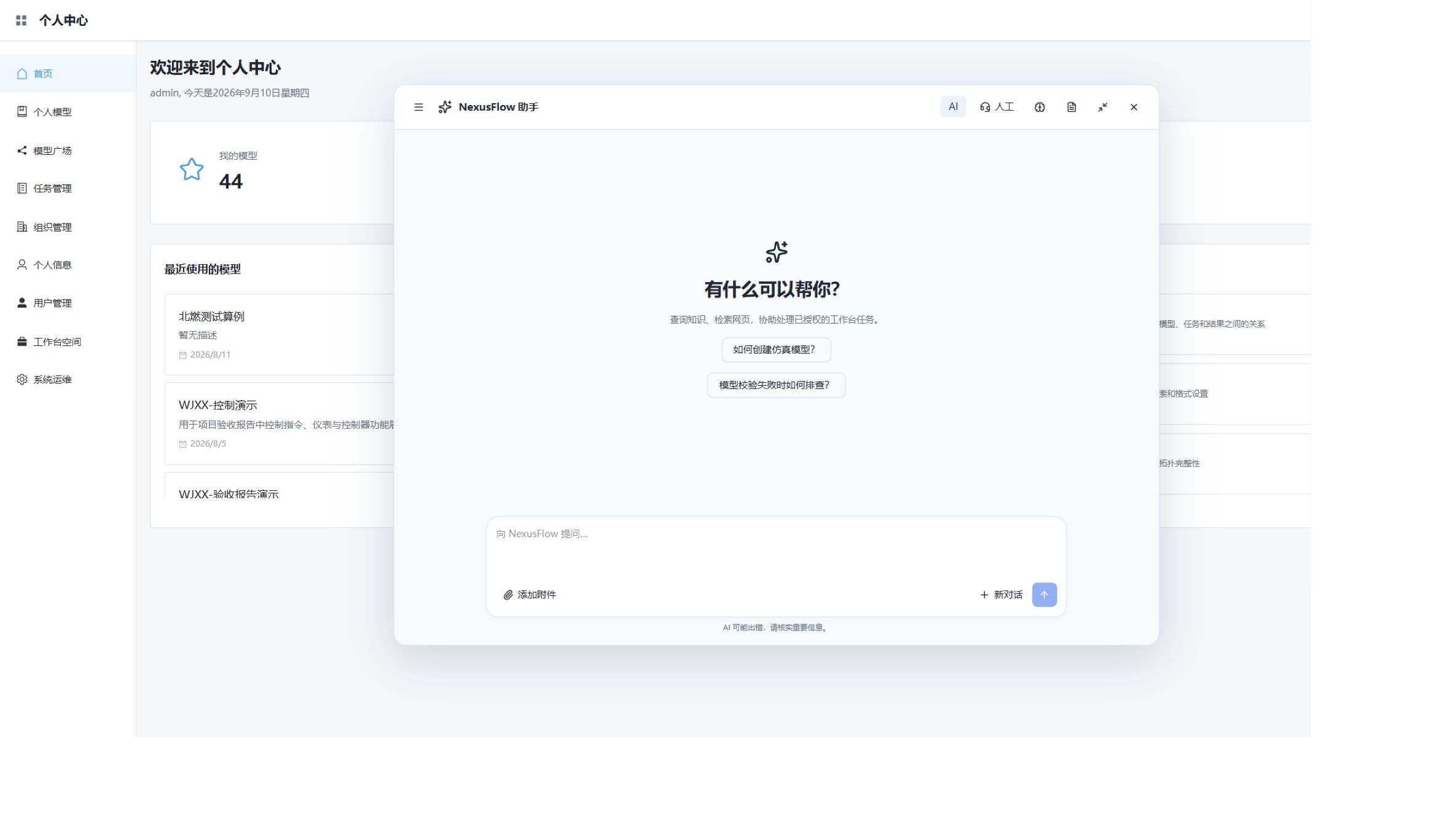
Screenshots show the signed-in Chinese interface on the local platform, captured at high browser resolution. Controls depend on deployment configuration.
Ask a useful question
Include your goal, current situation and preferred output. For example:
I am new to NexusFlow. Based on the platform documentation, explain how to
create a model, add components, configure parameters and start a simulation.
Include documentation links. Explain the workflow without operating Workbench.
For troubleshooting, include the exact error and a relevant screenshot. Ask the assistant to identify the locations to check or produce a short checklist.
The answer may show tool steps while searching or working. Expand them to inspect progress. Follow documentation references and verify important conclusions against the original text, actual model and parameter units.
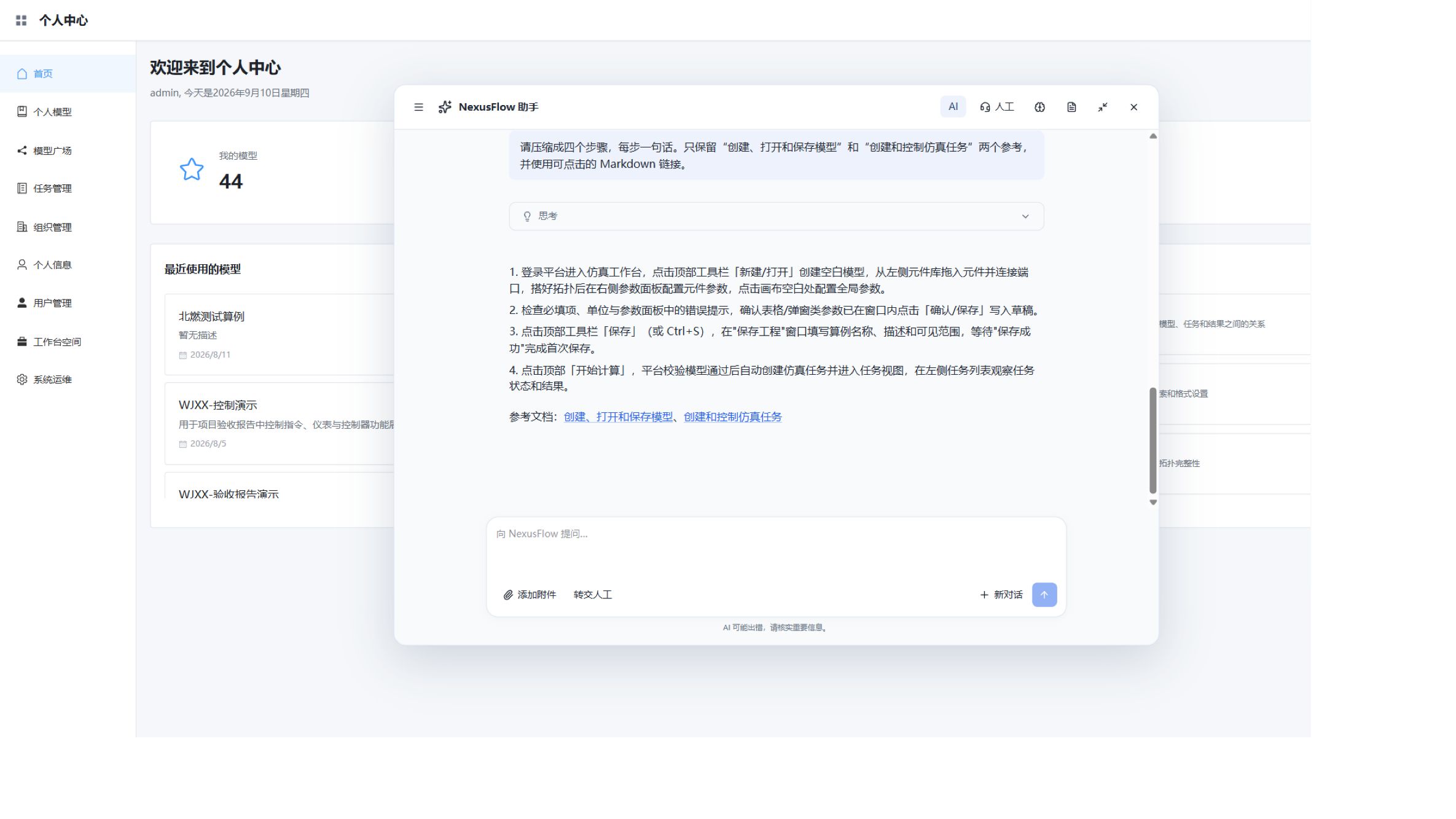
Use follow-up requests such as “focus on this error” or “compare the options in a table”. Click Stop generation to interrupt an answer.
Closing the window does not delete the conversation or cancel work. Reopen it to recover the conversation and running status. Stopping generation does not undo completed model edits, created jobs or commands already sent.
Attach images and PDFs
When signed in and Add attachment is available:
- Select PNG, JPEG, WebP images or PDFs.
- Check the attachment list and remove any unwanted files.
- Explain what to do with them, such as interpreting a validation error or extracting a parameter checklist.
- Send the message and wait for upload and processing to finish.
Each message supports up to 10 attachments, totaling 20 MB. A file-only message receives a general request to analyze the attached material. Keep unrelated passwords and tokens out of attachments.
Conversations and files
Use Conversation history at the top left to reopen a conversation, or New conversation for an unrelated topic. Keep follow-up conditions for the same problem together.
Open Files and artifacts to find current-conversation attachments, generated files and Download full conversation (Markdown). Select a file and use its download link. Some text and Markdown files can be viewed in the panel; download Word and PDF files and open them in a suitable application.
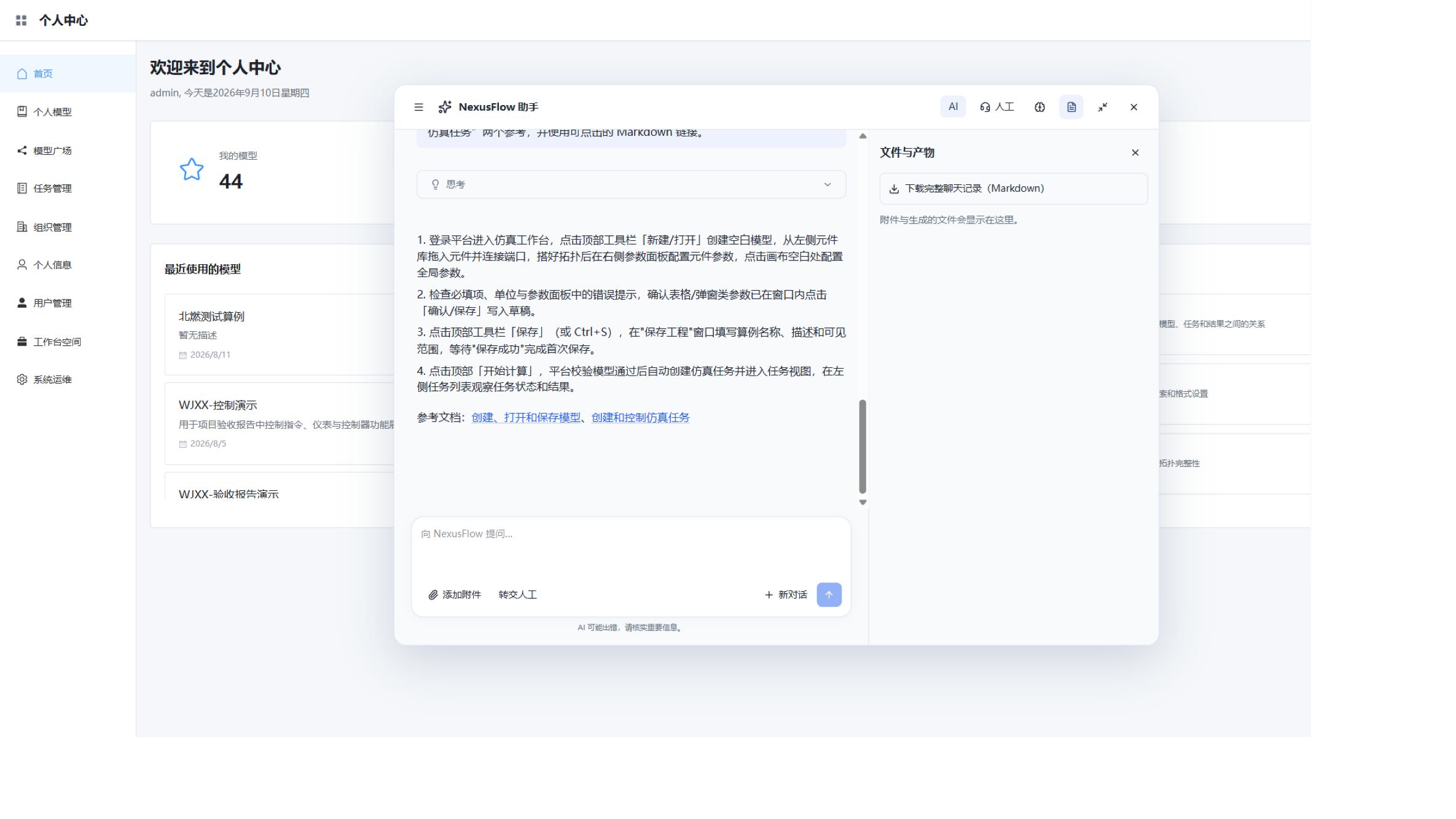
If file generation is available, explicitly request an output such as a Word checklist. Confirm that an actual downloadable file appears; an answer describing a file is not proof that it was created.
Deleting a conversation requires confirmation and deletes its files. This cannot be undone; download anything you need first. Deleting an AI conversation does not delete the separate human-support conversation.
Personal memory
Open Personal memory and optionally enable Automatically organize and use cross-conversation memory. It is off by default and is intended for lasting preferences such as language, response format or units.
Once enabled, it organizes preferences from subsequent messages for your other conversations. It does not retrospectively process old conversations or share memory with other users. Include temporary task conditions in the current conversation.
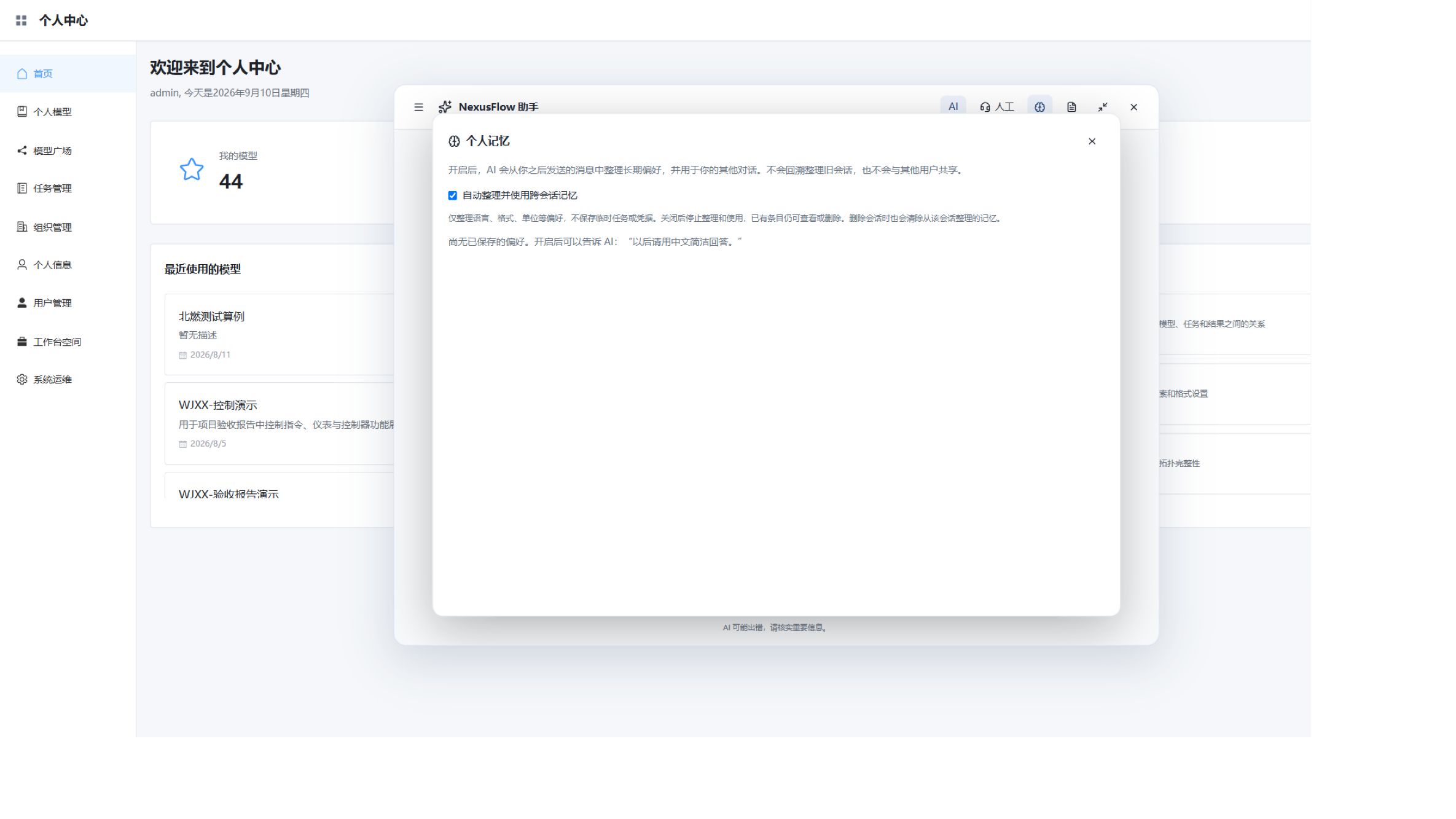
The pictured account already has memory enabled; new accounts default to disabled.
Turning it off stops collection and use. Existing entries remain available to view or delete. You can delete individual entries or clear all memory. Deleting a conversation also removes memory derived from it.
Use the Simulation Workbench
Asking how to configure a parameter is a documentation question. Reading an actual model requires page authorization:
- Open the target model or draft in Workbench.
- Open AI Control, check Current object, choose permissions and enable the switch. For inspection, select only Read, results and screenshots. See permission scopes.
- Open the assistant on that same page and select Use the current authorized Workbench near the input box.
- Send the request. The built-in assistant uses the page authorization without manually copied connection information.
- Inspect the canvas, parameters and job state. Undo unexpected edits and save the model manually when satisfied. See review changes and undo changes.
Start with a read-only request:
Read the current authorized Workbench and report the model name, active sheet
and loaded jobs. Only summarize; do not edit, validate or start a simulation.
For edits, specify component names, target parameters, values and units. Ask for a plan before execution. The platform does not display another universal confirmation for each permitted operation; conversational instructions do not replace permission limits.
The assistant is limited to the authorized page, current draft and loaded jobs. It cannot open other models or save the draft for you. Refreshing, switching models or authorization expiry requires new authorization. Only one client can be connected to a page at a time; disconnect an external client in AI Control before connecting the built-in assistant.
To use your own client, see Connect an external AI assistant through MCP.
Ask for human help
When Human is available, it opens human support. To include selected AI conversation messages:
- Click Transfer to human near the input box.
- Select relevant messages across one or more turns.
- Review and edit the preview.
- Copy and open human support, then paste, review and send the text yourself.
Only selected text and attachment names are copied. Messages and attachments are not sent automatically. Upload original images or PDFs separately if support needs them.
Troubleshooting
| Symptom | What to check |
|---|---|
| No assistant launcher | Ask the administrator whether the assistant is enabled |
| Connection does not finish or input is unavailable | Check sign-in and network state, reopen the assistant and retain any error message |
| No attachment or memory control | Check sign-in and deployment features; guests only have documentation questions |
| Upload fails | Check file types, count and total size |
| Another run or usage-limit message | Return to the active conversation and wait or stop it; follow the limit message or contact the administrator |
| Cannot read the model | Enable AI Control on that model's page, select the authorized-Workbench option and check for another connected client |
| Answer disagrees with the page | Request the original reference and provide a screenshot, Workbench type and exact error |