NexusFlow Platform Overview
NexusFlow puts model construction, simulation calculations and result analysis on the same platform. You can complete the entire process from creating the model to viewing the results in the browser, and you can also save the model for subsequent calculations or team collaboration.
This page first introduces the overall structure of the platform. After reading this, you should be able to tell where to start each job and understand the relationship between the model, simulation job, and calculation results.
What Problem Does NexusFlow Solve?
A complete simulation usually involves more than just running the calculation program, but also includes preparing the model, configuring parameters, checking the topology, tracking the calculation process, and organizing the results. NexusFlow provides a single entry point for these jobs, mainly used for:
- Build models graphically, eliminating the need to manually maintain model files.
- Centrally set component parameters and global simulation parameters, and check the model before calculation.
- Create and manage simulation jobs, and view job status, logs, and calculation results.
- Save, copy, import and export models to reduce repetitive modeling.
- Share models by individual, organization or public scope to support team reuse.
- Manage users, organizations, workspaces and platform services based on account permissions.
Which simulation types, components, and computing capabilities the platform can provide are determined by the current deployment environment. After logging in, you will only see the entry points and functions that your account has permission to use.
What Links Does a Simulation Include?
A simulation starts with a model and ends with checkable calculation results. Usually proceed in the following order.
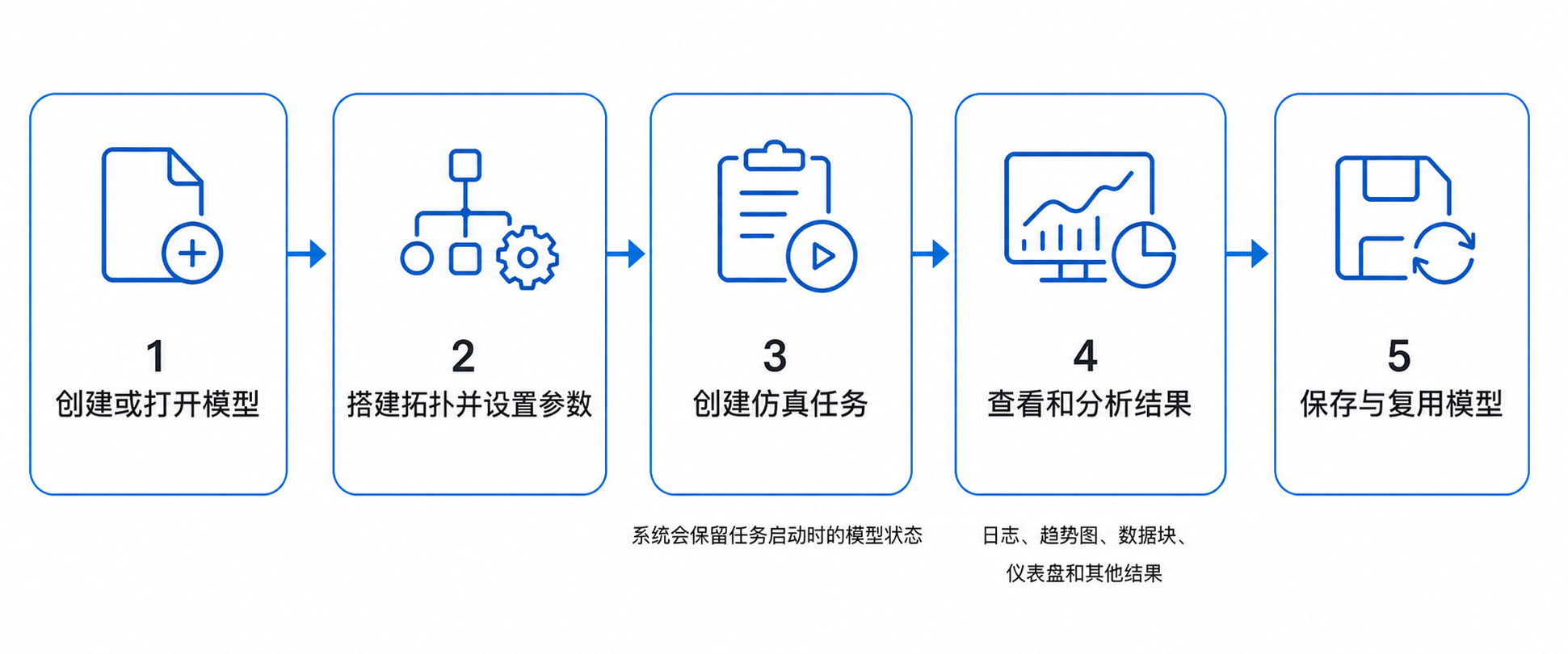
Create or Open a Model
Models are the starting point for modeling and calculations. You can create a blank model, or open a personal model, a shared model, or a model imported from locally. Shared models are usually opened read-only; when you need to modify them, you can save them as your own model.
Please refer to Create, Open, and Save Models for detailed operations.
Build the Topology and Set Parameters
After entering Simulation Workbench, add the required component from the component library, establish a connection through the port, and then set the component parameters and global simulation parameters. For larger models, you can use multiple sheet partitions to organize content.
Before starting a calculation, you should check port connections, required parameters, and global settings to avoid submitting an incomplete model as a job.
Create Simulation Job
After the model check passes, a simulation job can be created. Each start of the calculation generates an independent job and retains the model state when the job was started. Continuing to modify the model afterwards will not change the jobs that have been created.
While the job is running, you can check the status and progress. Whether pause, resume, stop, or runtime command is supported depends on the current simulation type and job status.
Please refer to Create and Control Simulation Jobs for detailed operations.
View and Analyze Results
After the job is started, you can learn about the calculation progress and errors through logs, and view calculation data through trend charts, data blocks, monitoring dashboards, or other results. The results provided by different simulation types may be in different formats. Please refer to the actual content displayed on the job page.
If you want to compare multiple conditions, it is recommended to give the job an easily identifiable name and keep the variables, units and time range consistent.
Save and Reuse Models
Once the model is saved, it can be opened again from the personal model list. When you need to keep the current version, you can save it as a new model; when you need to transfer it to other environments or accounts, you can export it locally. Before preparing to share, you should confirm whether the parameters, descriptions, and result configurations in the model are suitable for public disclosure.
Main Modules of the Platform
The platform is divided into several main modules according to different work goals. Different roles may see different menus, but the basic division of labor remains the same.
Personal Center
Personal Center is a unified portal after login, suitable for managing content related to accounts and resources. You can find it here:
- Enter the Simulation Workbench you have access to.
- View, search and manage personal models.
- Browse models that are shared within your organization or fully public.
- Query simulation jobs within yourself or within your permissions.
- Maintain your profile and view your organization.
Administrators can also access user, organization, and workspace management pages from Personal Center.
Simulation Workbench
The Simulation Workbench is the main area for daily modeling and calculations and is responsible for:
- Add components, connect ports, and clean up model topology.
- Configure component parameters and global simulation parameters.
- Create and control simulation jobs.
- View job logs, trends, data blocks, and other results.
- Save, save, import or export the model.
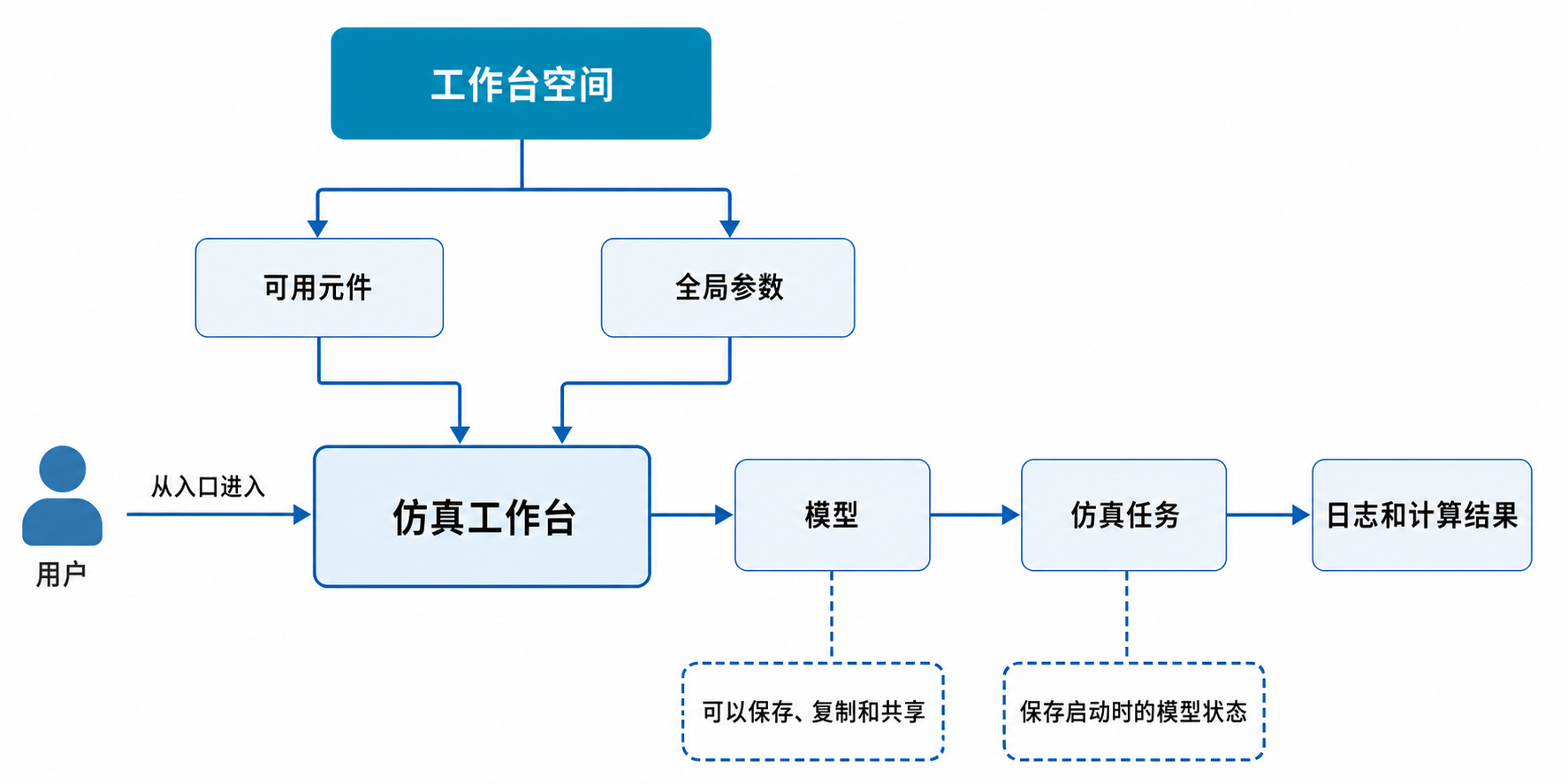
A platform can be configured with multiple workspaces. Each workspace can have different components, parameters and computing capabilities. Users can enter the corresponding Simulation Workbench from the entrance. Therefore, when opening a model you should select the Simulation Workbench that matches the model type.
Component Edit
The component editing function is used to define components that can be used in Simulation Workbench, including component names, graphics, parameters, ports, and runtime commands. It is primarily intended for developers or administrators responsible for maintaining simulation capabilities, and general modeling users generally do not need to enter.
When component definition changes, it may affect the display and calculation of new models or existing models. Component graphics, parameters, connections, and calculation behavior should be checked in a test model before official use.
System Operation and Maintenance
The system operation and maintenance function is used to view platform service status, logs, module versions, update packages and operation records, and is usually only open to super administrators. Starting, stopping, restarting services or installing update packages may affect users who are using the platform, and should be done after confirming the job status and maintenance schedule.
Please refer to Monitor Platform Status and Manage Update Packages for detailed operations.
Main Objects in the Platform
Understanding the following objects will help distinguish between "content being edited" and "calculations that have been run".
| Object | What Is It | What to Pay Attention To |
|---|---|---|
| workspace | A type of simulation resource configured by the administrator, stipulating available components, global parameters, calculation methods and access scope | The user enters the corresponding Simulation Workbench from the entrance, and the model should be opened in the Simulation Workbench matching its type. |
| component | The basic units to build the model, such as nodes, pipes, valves or control components | The components and parameters provided by different workspaces may be different |
| model | Editable content composed of sheet, component, connection relationship and parameters | Saving the model does not automatically create a simulation job |
| simulation job | A calculation created based on the state of the model at a certain moment | Each startup will generate an independent job; subsequent modifications to the model will not change existing jobs. |
| Calculation result | Logs, curves, monitoring data, tables or other output generated by job running | The results belong to specific jobs and are not equivalent to the model itself; the retention period is subject to the current deployment configuration. |
The most important difference is: The model is used for continuous editing and reuse, and the simulation job is used to record a specific calculation, and the calculation results belong to the job.
What Different Roles Can Do
Common roles on the platform include ordinary users, organization administrators and super administrators. Actual permissions will also be affected by organizational relationships, workspace authorization and deployment configuration, and should be based on the menus and operation buttons visible to the current account.
| Role | Main Work | Common Modules |
|---|---|---|
| Ordinary user | Create and edit models, run simulations, view results, and use shared models to which you have access | Personal Center 、 Simulation Workbench |
| Organization Administrators | Complete the work of ordinary users, manage members of the organization, and view models and jobs within the scope of permissions | Personal Center, organization management, job management |
| super administrator | Manage platform users and organizations, configure workspace, view platform status and perform operation and maintenance operations | User management, organization management, workspace management, system operation and maintenance |
Personnel responsible for developing simulation capabilities may also be granted component editing, interface calling, or simulation kernel access permissions. These contents are the work of developers and do not require ordinary users to master them.
If you cannot see a certain entrance, first confirm your login account, organization and workspace authorization; if the problem still cannot be solved, please contact the platform administrator.
What to Read Next
If this is your first time using NexusFlow, it is recommended to proceed in the following order:
- Read Logging in and Finding Your Way Around and confirm that the account and workspace permissions are normal.
- Follow Your First Liquid Pipeline Simulation through the complete process of modeling, calculation and viewing results.
- Read Workbench Basics to become familiar with canvas, panels and common editing operations.
- Continue to learn model management, results analysis, or multi-sheet modeling according to actual needs.
If you are responsible for team or platform management, you can start with Manage Users, Organizations, and Permissions. If you need to develop a new component, access simulation algorithms or call platform interfaces, please go to Developer Guide.