Monitor Platform Status and Manage Update Packages
System Operation and Maintenance is used to view platform service status, process service start and stop, and manage platform update packages. This entrance is only open to super administrators. Operations here may interrupt logins, model saves, or simulation jobs and should be performed by personnel who understand the scope of the platform deployment and recovery methods.
If you only maintain users, organizations or workspaces, please use the corresponding management page and do not use system operation and maintenance operations to replace permission configuration. Refer to Manage Users, Organizations, and Permissions for administrator responsibilities and authorization boundaries.
If you need to modify the running configuration of the master node or computing node, please use the environment variables page in system operation and maintenance, and read Manage Platform Environment Variables first. Environment variable modification and update package installation are two types of operations, and the impact scope and verification results should be recorded respectively.
Before stopping, restarting, installing, updating, or modifying an old version, confirm the scope of impact and maintenance window, and retain rollback points such as available update packages, configurations, and data backups. Do not repeat operations continuously after submission; wait for the current operation to end, and then check the service status, logs and key functions.
Determine Whether Processing Is Required Based on the Service Overview
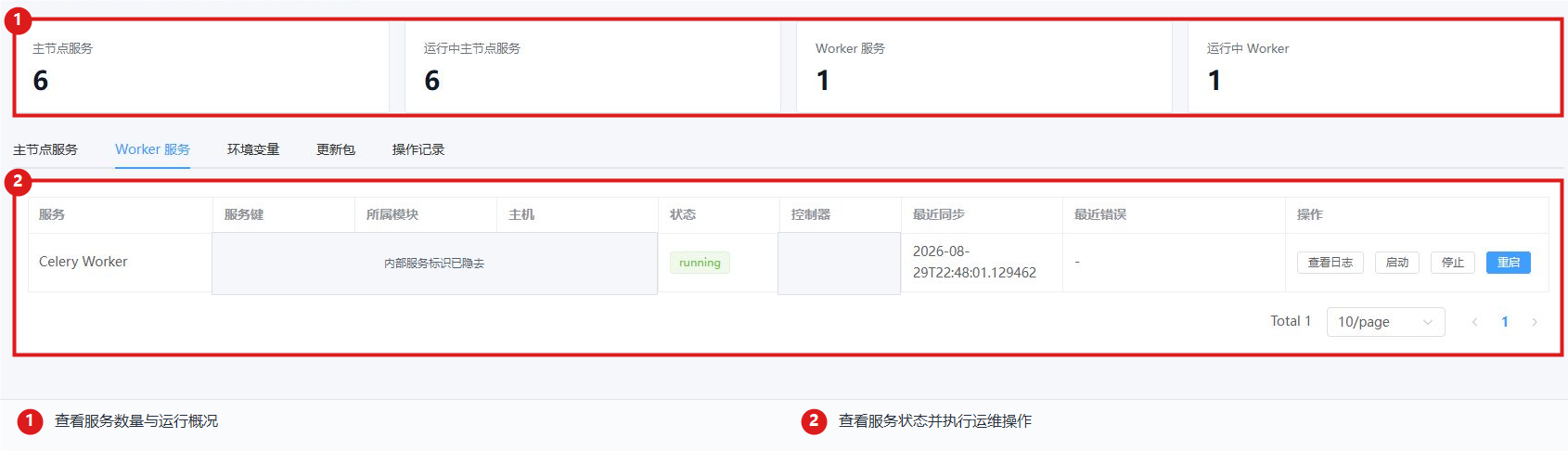
Once you enter System Operation and Maintenance in Personal Center, the following quantities are summarized at the top of the page:
- The total number of master node services and the number of them in running state;
- The total number of Worker services and the number of them running.
Summary cards are good for quickly spotting volume inconsistencies, but cannot alone prove platform health. When the number of services is normal, there may still be situations where the Worker is not synchronized for a long time, recent errors continue to occur, or a certain user function is unavailable. After discovering an exception, you should continue to check the corresponding list and logs.
The page divides services into two categories:
| Area | Key Points to Check |
|---|---|
| Master node service | Service name, module to which it belongs, current status and description |
| Worker service | The host where the service is located, current status, control method, latest synchronization time and recent errors |
The status bar may directly display the English status code. When judging whether the Worker is available, Status, Recently Synced and Recent Errors should be looked at together; if the status seems normal but has not been synchronized for a long time, it also needs to be checked.
View Service Logs
In the Master Node Service or Worker Service list, click View Log to the right of the target service. The log window reads the most recent logs first and refreshes periodically while the window remains open.
When checking, first record the service name, host and exception occurrence time, and then focus on searching:
- The first exception is stop, exit, connection failure, insufficient permissions, etc.;
- Whether the same error continues to be repeated;
- Whether updates, configuration modifications or service operations have just been performed before the exception occurs;
- Whether the worker's log time is consistent with the most recent synchronization time in the list.
Don't just copy the last line of errors. Troubleshooting materials should include the necessary context before and after the exception, but remove passwords, access tokens, host addresses, and user data. Automatic refresh will stop after closing the log window; just reopen it when you need to continue observing.
Start, Stop and Restart Services
The service list provides Start, Stop, and Restart. The visible button only means that the current account can submit the operation, but it does not mean that the action is risk-free in the current state. Check the service and host before operating and avoid operating on targets with similar names.
Confirm Before Operation
- Explain why the action is required, and save the current status, last synchronization time, and key logs.
- Identify which logins, models, jobs, or result access paths the service affects.
- Check if there are any running jobs or users using the platform and schedule maintenance windows if necessary.
- If you have just modified the configuration or installed an update package, first make sure that the modification target is consistent with the current service.
- Prepare recovery methods such as known working versions that can be reinstalled, configuration backups, and necessary data backups.
Select Action
| Action | Applicable Situations | Things to Note |
|---|---|---|
| start | The service is Stopped and its dependencies are confirmed to be available | Do not click repeatedly on services that are already running normally |
| stop | Planned maintenance or clear need to isolate fault | Related functions may be interrupted immediately. Please confirm the scope of impact first. |
| Restart | The service needs to be reloaded, or the troubleshooting steps specifically require a restart. | Restarting is not a universal fix; save logs and current status first |
After clicking the operation, the confirmation window will display the target service again. Submit after verification and wait for the result of this operation to be returned. Don’t click multiple actions in succession when the page doesn’t change immediately.
Review After Operation
- Recheck the service list to confirm that the target service reaches the expected status;
- The latest synchronization time of the Worker starts to be updated, and recent errors no longer continue to increase;
- There are no repeated starts, abnormal exits or continuous errors in the log;
- Affected critical paths such as login, Personal Center, model saving and job running can be used normally;
- Confirm that the operator, target, action, time and result are correct in Operation Record.
Maintenance is not complete until both service status and actual functionality pass inspection.
Understand the Update Package List and Version Details
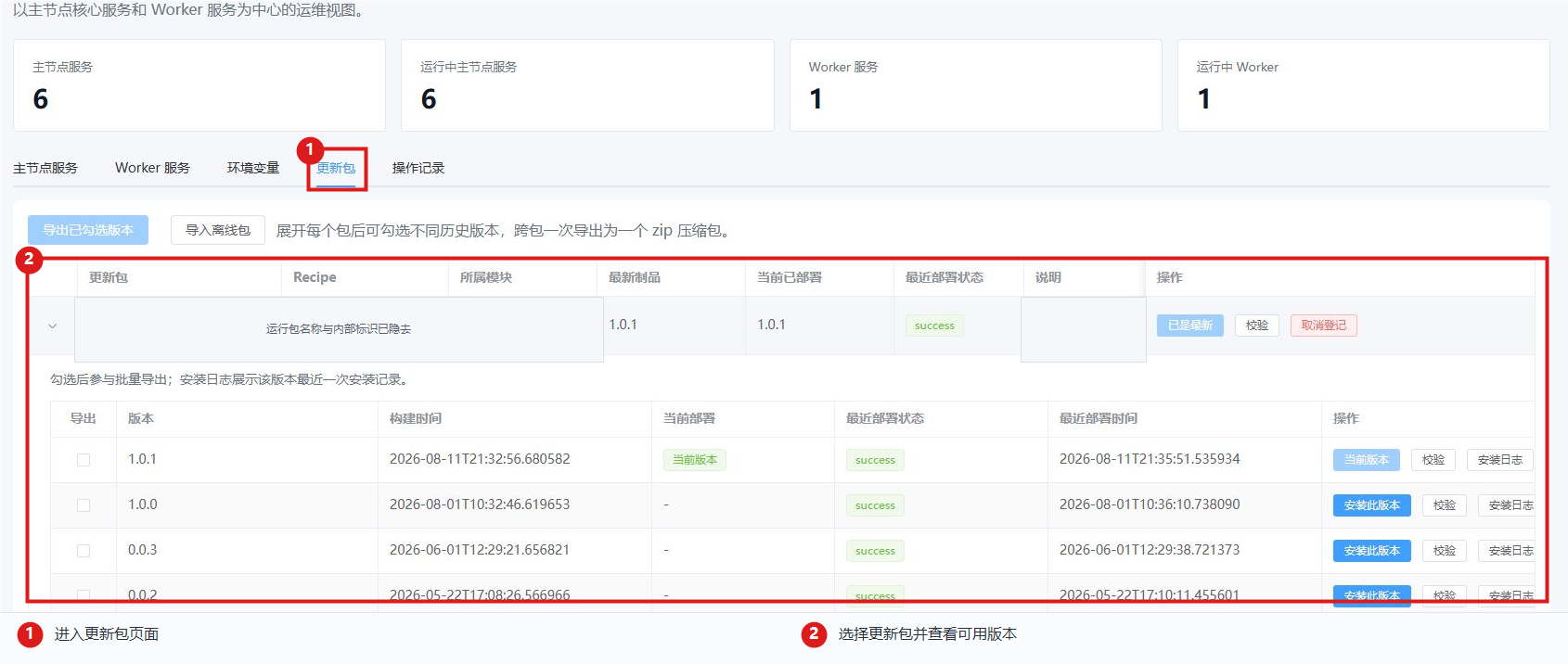
Switch to the Update Package tab. Several version fields in the list have different meanings:
| Field | Meaning |
|---|---|
| Update package | Package name for administrator identification |
| Recipe | Stability ID of the update package; should be recorded along with the package name when troubleshooting |
| Belonging module | Functional scope of the update package |
| Latest products | The latest available package version in the current repository does not mean it has been installed. |
| Currently deployed | List of currently recognized deployed versions |
| Recent deployment status | The status of the most recent deployment attempt is not equivalent to the overall health of the platform |
| Depend on | Other update packages that may need to be prepared at the same time when installing or exporting |
Click the expand button on the left side of the update package to view the historical version, build time, current version tag, recent deployment status, recent deployment time, and installation log of the package. When you need to confirm the actual version, give priority to the expanded Current Version mark; if the latest update fails, do not infer that the original version has been removed based on just one field in the main list.
Export and Import Offline Packages
Export Versions That Need to Be Retained or Transferred
- Expand the update package that needs to be exported.
- Check the exact version in the version list; selection can be made across multiple packages.
- Click on Export the Checked Version.
- If the page detects a dependency declaration, Synchronously Export Dependencies is usually selected. Only select Export Only Checked when compatible dependencies have been prepared separately.
- After the download is complete, verify that the compressed package has been saved to a controlled location.
What is exported is the selected version and the dependencies that were added by opt-in, not the backup of the entire platform. It does not contain the platform database, running jobs, user files, or any live configuration.
Upload and Import Offline Packages
There is no independent "upload product" process on the current page. Click Import Offline Package and select a .zip file. File upload and package version registration will be completed in the same import.
Successful import only means that the update package and its version have been registered, but does not mean that it has been deployed. After the import is completed, the page will list the imported package versions:
- Select Install Later to check the package list, version and dependencies first;
- Check the version to be deployed and select Install Selected. The installation job will be submitted for each version.
If the source of the offline package is unknown, the verification information is inconsistent, or the content exceeds the scope of this change, do not continue the installation. First confirm the file source, target version, dependencies and applicable platform environment.
Install, Update and Verify
The main list will show Installation , Update or Already the Latest depending on the current version. After clicking Installation or Update, the page will still ask for the version number; don't just accept the default value, check with the change record again.
When you need to accurately select the historical version, expand the update package and click Install This Version on the right side of the target version. The install button is not available for the current version.
It is recommended to perform an installation or update in the following order:
- Verify the update package name, package ID, target version, and current version.
- Check the dependency column to confirm that the required dependency version has been imported and meets the requirements.
- Read the instructions included with the update package to confirm whether it will modify services, configuration, or persistence data.
- Confirm maintenance windows, rollback points, and post-operation verification items.
- Submit the installation and wait for the deployment status to enter a clear end state.
- After the installation is successful, execute Verification again on the target version and check the service status, logs and key functions.
The installation process itself will perform verification defined by the update package, and success will be displayed only when the installation and verification are completed. A separate Verification on the page is convenient for double-checking after installation or troubleshooting, but it still cannot replace verification of actual user functionality.
Publish NexusFlow Bridge Installers
The NexusFlow Bridge Installers package (client_release_bundle) sets the recommended download in Bridge Management and supplies update information to connected Bridge installations. After publishing an artifact to OpsCenter, install that version on the target platform to make it available to users. Use the offline export and import workflow to deploy the same release to other servers.
Prepare the Installers and Release Notes
- Check the version in
package.jsonin theNexusflowBridgeproject. Runnpm ciandnpm run make -- --arch=x64in Windows and Linux build environments to produce the Windows x64 EXE and Linux x64 DEB and ZIP. Verify installation, launch, and in-place upgrade on test devices. - Collect the three installers in a single directory. Electron Forge writes its output to
out/makein each build machine’s checkout by default. You can choose a different directory to collect the artifacts, such asD:\releases\bridge-1.0.4. - Write the release notes in UTF-8 in
release-notes/1.0.4.txt. The script reads the matching version’s file by default. Use-NotesFileto supply a different file. The script writes the text toreleaseNotesinrelease.json, alongside installer formats, sizes, SHA-256 digests, and version-specific URLs. Personal Center displays the notes under Version 1.0.4 Release Notes. Bridge reads the same manifest.
Register, Install, and Check the Downloads
Open PowerShell with access to the target OpsCenter container and change to the NexusflowBridge directory. Run the following command with your artifact directory and version.
.\publish-package.ps1 -ArtifactsPath 'D:\releases\bridge-1.0.4' -Version '1.0.4'
The script publishes through the current Docker connection to the nexusflow_ops_center container by default. Use -ContainerName if your container has a different name. Match -Version to the version of the installers you built. You can also pass a previously generated release source bundle with -BundlePath.
- In Personal Center → System Operations → Update Packages, expand NexusFlow Bridge Installers and click Install This Version next to the target. Wait for installation and verification to succeed.
- Open
/downloads/client/current/release.jsonon the target platform and check the version, publication date, and release notes. Installer URLs should point to version-specific files under/downloads/client/releases/<version>/files/. - Open Bridge Management and confirm the version, notes, and all three download formats. Download and install the package for the target operating system, then check that Bridge can reconnect and read the existing compute configurations.
The recommended download changes once the new release passes verification. A verification failure preserves or restores the previous working release. Published versions are immutable, so use a new version to correct an installer or its release notes. To roll back the recommended download, expand the package and install a verified earlier release. The download page and Bridge will show that release as the recommended version. A desktop installation on a newer version will report that it is ahead of the platform recommendation.
On HTTPS connections, users of the installed Windows edition of Bridge can confirm an update to download, install, and reopen it from the app. On HTTP connections, Windows users download and run the EXE to upgrade in place. Linux users install the DEB with the system package manager or extract the portable ZIP. The desktop app allows updates once the current computation has finished.
Unload Boundary of Current Page
The current system operation and maintenance page does not have a common Uninstall button that applies to all update packages. The Cancel Registration provided on the page is not uninstalled:
- It will remove the update package's registration information and all saved version artifacts;
- What has been deployed remains unchanged;
- Original deployment records and operation records will still be retained;
- When there are jobs in execution or are still dependent on other registered update packages, the page will prevent unregistration and give reasons.
After unregistering, you lose the ability to quickly reinstall or modify these versions from the current list. When it is necessary to cancel, first export the current version and known available versions that must be retained, and then confirm that no relying party requires these artifacts.
If the goal is to remove deployed functionality, follow the maintenance instructions specific to that update package and evaluate configuration, data, and dependency impacts individually; do not use Cancel Registration as a substitute for uninstallation.
Use Historical Versions to Roll Back
There is no unified "one-click scrollback" for the current page. If the update package supports installation to older versions, you can expand the version list and click Install This Version for a verified historical version. This will execute the installation process for that version again and can be used to revert to an older version, but does not guarantee undoing data or configuration changes that have already occurred.
Keep at least the following information and recovery conditions before rolling back:
- Current version, target old version, recent deployment status, and installation logs;
- Available artifacts of the current update package and its dependent packages, export them first if necessary;
- Configuration and persistent data backup that will be changed;
- Service status, critical logs and list of currently running jobs;
- Verification items after rollback, as well as stop conditions and further recovery methods in case of failure.
If the update involves irreversible data structure or configuration changes, simply installing the old version may not be recoverable. At this point, the operation should be stopped and processed according to the update package instructions and the verified recovery plan.
View Operation Records and Asynchronous Status
Operation Record lists the target type, target, action, operator, status and details by time, suitable for confirming who submitted what operation at what time. The update package installation progress should also be judged based on the master list, expanded version status and Installation Log.
After the installation job is submitted, it will be executed in the background, and the page will be refreshed regularly. Common statuses include:
| Page Status | Coping Style |
|---|---|
running | The job is being executed or the final result has not yet been formed. Continue to wait and do not submit again. |
success | Installation and package verification have been completed, continue to check services and key functions |
failed | Check the installation log and operation details to find out the cause before deciding to retry or roll back. |
- | There are currently no deployment records to display for this version |
After the page continues to be tracked for a period of time, it may prompt "The installation job has not yet ended, Stopped and automatic tracking". This only means that the browser will no longer automatically refresh the job, not that the installation failed. Manually refresh the page later to view the latest deployment status and installation log of this version.
Failure Troubleshooting
When encountering a failure, first save the update package name, version, operation time, status and the first valid error, and then handle it according to the phenomenon:
| Phenomenon | Check Direction |
|---|---|
| The import was successful, but the functionality has not changed | The import only completes the registration; confirm whether the subsequent submission and completion of the installation |
The installation is at running for a long time | Refresh the version status first and check the installation log. Do not repeat it continuously; confirm whether the latest log is still being updated. |
| Installation prompts that dependencies are not met | Check the dependency column, import and install the dependency version that meets the requirements |
failed | Start troubleshooting file integrity, dependencies, permissions, storage space and service status starting from the first error in the installation log |
| Installation log button is not available | There is no installation record available for this version yet. Please first confirm whether the selected version is correct. |
| Unable to cancel registration | Check the blocking reason prompted by the button, wait for the job in progress to end, or process the registration items that still depend on the package first. |
| Recent updates failed, but original functionality is still available | Expand the version list and confirm Current Version. Do not regard the failure status as having been uninstalled. |
The status is success, but the service is abnormal | Check the status and logs of the affected services; stop expanding changes and restore according to the pre-prepared plan |
Do not try and make mistakes by repeatedly restarting or reinstalling for unknown reasons, as this will overwrite the timeline and make recovery more difficult. When you really need to roll back, first confirm that the rollback products, dependencies, backup and verification steps are in place.
Operation Completion Checklist
- The target, version, operator and time of this operation have been recorded.
- The asynchronous job has entered
successorfailed, and stopping automatic tracking is not mistaken for completion. - The Current Version of the update package is consistent with the change target, and the dependent version meets the requirements.
- The target version verification passed, and there were no persistent abnormalities in service status, worker synchronization, and logs.
- Affected key functions such as login, model saving, simulation job and results access have been reviewed.
- Update packages, configurations, and data backups used for rollback are still retained until the end of the observation period.