Create and Control Simulation Jobs
A simulation job records an independent calculation process. Each time a calculation is started, the platform saves the current model topology, component parameters, and global parameters and creates a new job accordingly. Even if you continue to modify the model thereafter, the jobs that have been created will not be changed.
This page explains how to create jobs, view running status, and pause, resume, stop, and delete jobs. See View and Analyze Simulation Results for how to view calculation results, and see Restore Jobs and Understand Result Retention for how to save and reopen jobs.
Check the Model Before Starting Calculations
Before starting the calculation, it is recommended to confirm the following in order:
- The components and connections in the topology have been completely placed, and there are no dangling ports or impermissible connections.
- The component parameters and global parameters have been filled in, and there are no unhandled errors or warnings in the parameters panel. For the parameter filling method, see Configure Component and Global Parameters.
- The current draft of the model is the version that is expected to be calculated this time. If you need to continue to maintain or share it with others, saving the model first will make it easier to trace. See Create, Open, and Save Models for the saving method.
"Start Calculation" uses the current model draft when the button is clicked, and does not require that the draft has been saved. Saving or modifying the model after creating a job will not update the calculation content of this job.
Verify and Create Jobs
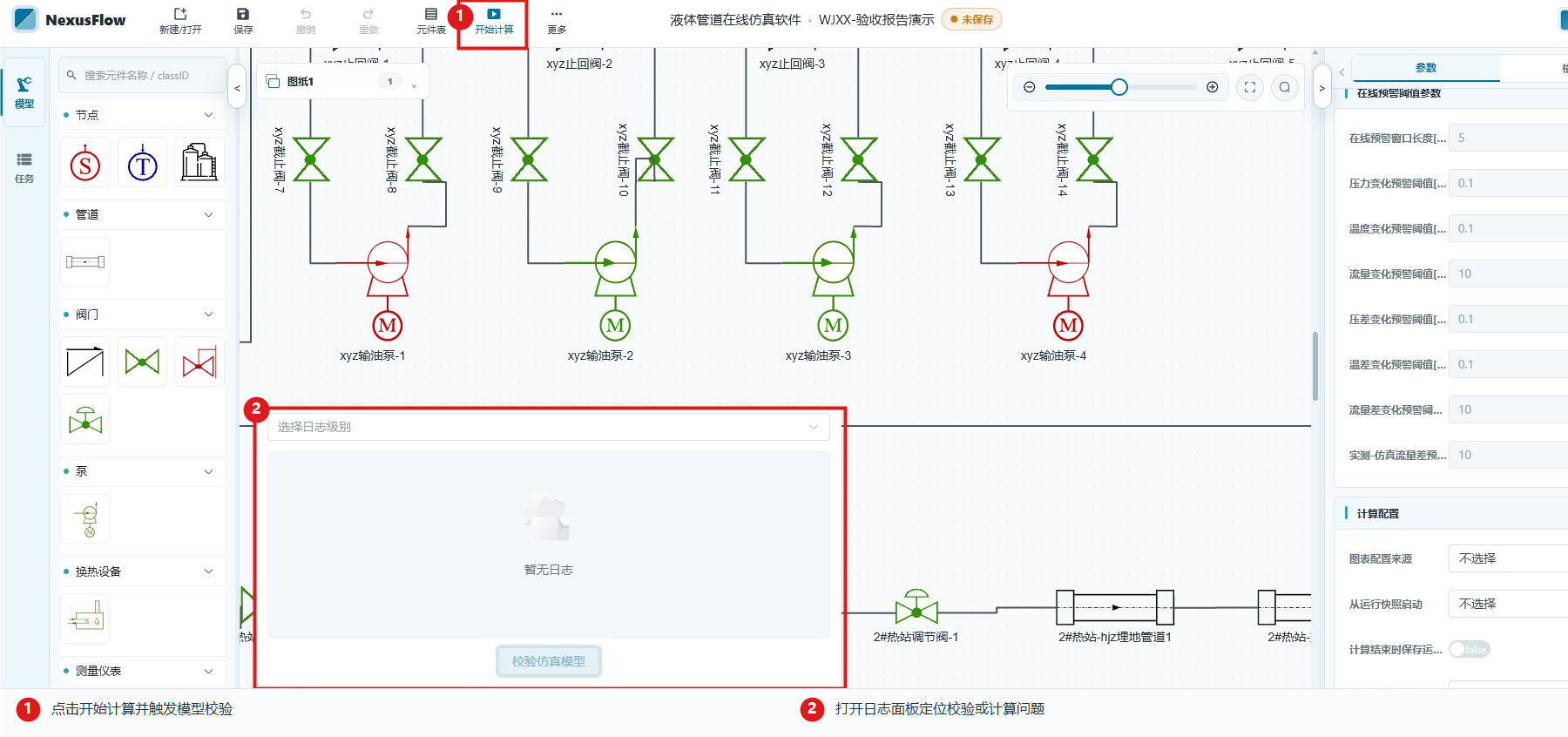
Click "Start Calculation" on the top toolbar in the model view. The platform will first perform a complete verification of the current model:
- After passing the verification, the platform creates the job and enters the job view.
- If the verification fails, the job will not be created. Open the "Log" panel at the bottom; if the component or connection name is displayed as a clickable link, the platform will switch to the corresponding sheet and select the target after clicking. When there is no positioning link, search by name or logo again, and then restart the calculation after correction.
- If you want to check the model independently before calculation, you can first use "Verify Simulation Model" in the model view.
Verification mainly checks whether the model conforms to the topology rules, component definitions and parameter constraints of the current workspace. It does not guarantee that the calculation will be successful; the data size, solution conditions or computing environment may still cause exceptions during the running phase of the job.
Understand Job Lists and Job Views
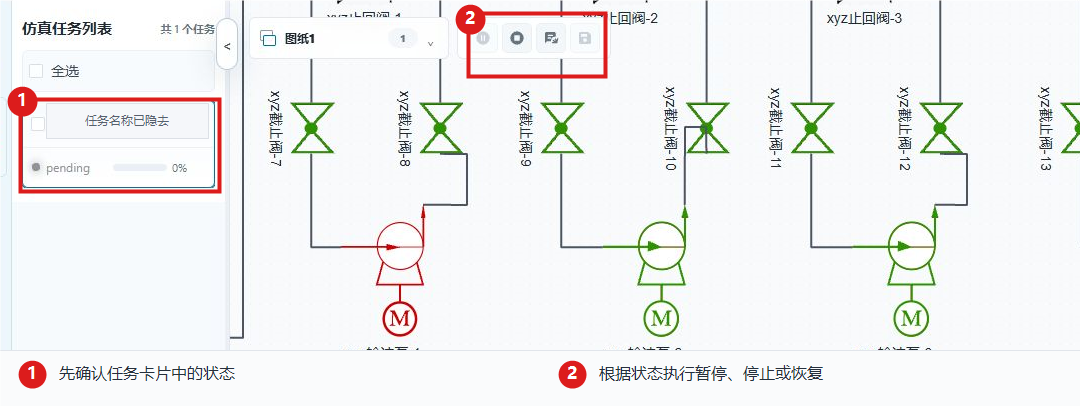
After creating a job, the left navigation switches from "Models" to "Jobs". Job lists are usually arranged by creation time, with new jobs appearing first. Each job card contains the job name, current status and calculation progress; click the card to open the corresponding job view.

The topology and parameters in the job view are read-only and are used to view the actual input used in this calculation. When you need to modify the model, click "Model" on the left to return to model view.
"Overwrite Main" on the job card will replace the current model draft with the model snapshot of the job and filter the data blocks and their connections that are only used to display the results. Please save the current model that still needs to be retained before use to prevent unsaved modifications from being overwritten.
Job Name and Job Snapshot
By default, new jobs use names such as "Computing Task_1" and "Computing Task_2". Double-click the name on the job card to modify it, press Enter or click elsewhere to complete the edit.
The job name is mainly used to distinguish the job in the current browser. It will not modify the model name, nor will it change the job ID on the server. When you change the browser or reopen the job from the server, the display name may be different, so important jobs should also be identified by combining the model name and creation time.
The read-only model saved when a job is created is called a job snapshot. It serves two purposes:
- Check the topology and parameters used when the job was calculated at the beginning;
- Match the inputs and results of different jobs to avoid using later modified models as input for this calculation.
Job snapshots are different from Save Running Snapshots in the control bar. The latter is used to save information during the running phase. For related uses and restrictions, see Restore Jobs and Understand Result Retention.
View Real-Time Status and Progress
The job card and the status bar at the bottom of the page will automatically refresh the job status and progress. Chinese statuses such as "Waiting" and "Running" are used at the bottom of the page; the job card may also directly display the status code in the current interface. Common correspondences are: pending means waiting, running means running, pausing means Pausing, paused means Paused, stopping means Stopping, stopped means Stopped, success means completed, fault indicates an exception.
A common status change is as follows:
"Pausing" and "Stopping" indicate that the request has been sent and the calculation program is still processing the state switch. Do not click the control button repeatedly at this time. If the status does not change for a long time, you can check the job log first, and then refer to Simulation Job Status Reference for troubleshooting.
How frequently and granularly the progress is updated depends on the specific calculation procedure. If the progress remains unchanged temporarily, it does not necessarily mean that the job has become abnormal. The status and log should be taken as the standard.
When Can You Use Control Operations
The control bar in the upper left corner of the job view enables or disables corresponding operations based on the current status.
| Action | Available Conditions | Operation Result |
|---|---|---|
| Start calculating | Located in model view, and the model verification passes | Create a new job using the current model draft |
| Pause calculation | Job is "running" | The status first changes to "Pausing" and then enters "Paused" |
| resume calculation | Job is "Paused" | Resume from paused position and continue running |
| Terminate calculation | The job has not ended and is not in " Stopping " | The status first changes to "Stopping" and then enters "Stopped"; the Stopped job cannot continue |
| Issue operating instructions | The job has not ended and is not in " Stopping " | Send the instructions added to the queue to this calculation |
| Delete job | The job card is still in the list | Try to stop the unfinished calculation and then delete the local job data and list items in the current browser |
"Issue operation instructions" will not be automatically disabled because the queue is empty. Instructions should be added to the component before clicking; when the queue is empty, clicking the button will not issue a valid instruction.
Whether the pause, resume, and run instructions can actually be executed depends on the component definition and computing program capabilities provided by the current workspace. If the button is clickable but the request fails, please retain the job status and log information and submit it to the platform administrator for troubleshooting.
Pause, Resume and Stop Jobs
Pause and Resume
When the job is "Running", click "Pause Calculation". After the platform accepts the request, "Pausing" will be displayed first, and "Paused" will be displayed after the calculation program completes the status switch. When you need to resume, click "Resume Calculation" and the job will continue running from the paused position and re-enter "Running".
Pausing will not return to the model editing state, nor will it allow the input of this job to be modified. It only temporarily interrupts the current calculation process.
Stop Job
Clicking "End Calculation" will end the current job. Jobs that are waiting, running, Pausing or Paused can be terminated; jobs that are already in Stopping, Stopped, completed or abnormal status cannot be terminated again.
The job does not continue where it left off after termination. If you need to adjust the model or recalculate, you should return to the model view and create a new job.
Issue Instructions to Running Components
Some calculations support adjusting components during runtime. The specific available command names, parameters and execution methods are determined by the component definition and calculation program in the current workspace.
- Select the component that needs to be operated in the job view.
- Open the "Instructions" tab in the parameter panel on the right.
- Select the instruction and fill in the parameters, and click "Add Instruction". The command will first enter the queue to be issued.
- Continue adding directives for other components if necessary.
- Click "Send Operation Instructions" in the upper left corner of the job view to send the instructions in the queue at once.
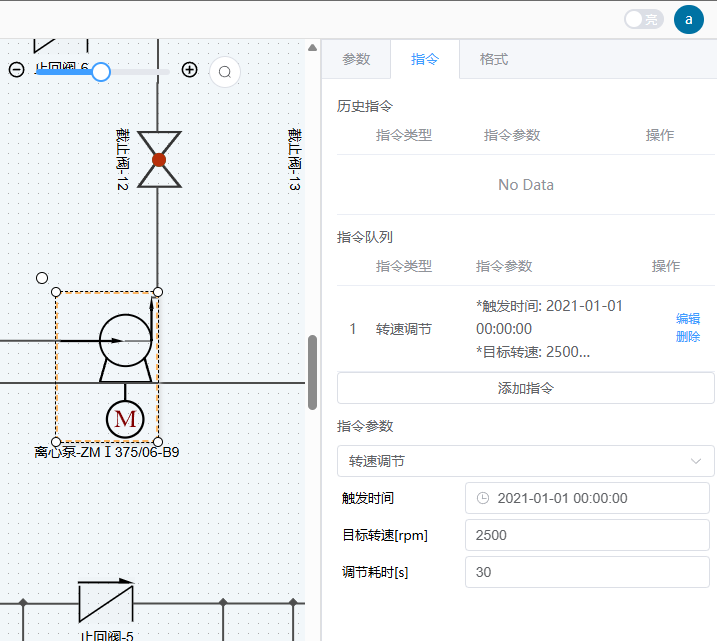
Please check the target component and parameters again before sending. After the command is sent, the queue to be issued will be cleared; whether it takes effect immediately and how it affects the calculation should be based on the job log and calculation results. If there is no "Instructions" tab, it means that the selected component does not provide run instructions that can be issued.
Delete Jobs No Longer Needed
You can remove a single job through the delete entry on the job card, or you can check multiple jobs and delete them in batches. Before deleting, you should first understand the scope of its impact:
| Data Location | Changes After Deleting Jobs |
|---|---|
| current page | Job card removed from list |
| The current browser's local storage | Delete the local data of this job in this browser |
| Server job record | Will not be deleted with local deletion |
If the job has not yet ended, the deletion operation will first try to terminate the calculation, but will not wait for the termination process to complete. To avoid status uncertainty, it is recommended to click "Stop Calculation" first and confirm that the job enters "Stopped" before deleting it.
Whether job records on the server can still be reopened depends on access rights and server retention. Do not think of deleting job cards as a way to clean up server data. See Restore Jobs and Understand Result Retention for detailed boundaries.
To find server jobs across browsers, view job snapshots or logs, or handle abnormal jobs when normal controls are unresponsive, go to Personal Center and see Find and Handle Tasks in the Account Center.
Recalculate After Modifying the Model
Snapshots in the job view cannot be edited directly. When input needs to be modified and recalculated:
- Click "Model" on the left to return to model view.
- Modify topology or parameters and handle new verification issues.
- Save the model as needed.
- Click "Start Calculation" again.
The platform will create a new job, and the original job will retain its original snapshot, status, and results. In this way, the jobs before and after modification can be checked separately at View and Analyze Simulation Results.
What to Do If a Job Does Not Run as Expected
| Phenomenon | Treatment Method |
|---|---|
| Job not created after clicking "Start Calculation" | Open the "Log" panel and fix the topology or parameter verification problem first. |
| The job keeps showing "Waiting" | Wait for a while and observe the log; if it remains unchanged for a long time, contact the platform administrator to check the computing resources. |
| Pause, Resume or Terminate buttons are not available | Confirm operating conditions against current status; wait for "Pausing" or "Stopping" to complete switching |
| The command entry is empty or there is no optional command | Confirm that component is selected; the component may not have run instructions configured |
| Job enters "Exception" | Check the first error in the job log and record the model name, job name and creation time before troubleshooting. |
| There is no change to the original job after modifying the model | This is normal behavior for job snapshots; calculations are restarted to create a new job |