Understand and use NexusFlow Bridge
NexusFlow Bridge is a desktop app that lets the workbench run your local programs. Install, pair, and configure it on the computer or compute server that will run the program. You can then start a job and view results in the workbench. Bridge launches the program on that computer and passes data between it and NexusFlow. Your programs, model files, and dependencies stay on that computer.
For example, the gas network can send a pressure reading to Simulink and use the returned valve opening to continue the simulation. It can exchange signals in the same way with a compressor motor and drive model or a heat exchanger's external cooling loop.
Decide what to run locally
| What you want to do | What the local program does | Where to set it in the workbench |
|---|---|---|
| Run the entire model with your own solver | Read the entire case, run the calculation, and return results. Bridge calls this a Full Kernel | Click the canvas background, then select Development and Debugging → Kernel Execution Mode → Bridge |
| Call Simulink or other software during a simulation | Receive selected signals at simulation intervals and return values while the main kernel runs the model. Bridge calls this a Controlled Participant | Select the Communication Interface and set Target Bridge and Compute Configuration |
Both uses start with installation and pairing. After pairing, save a compute configuration in the desktop app to tell Bridge which program or model to start. You select the configuration by name in the workbench, and Bridge uses the paths and settings saved on its computer.
1. Install Bridge on the computer that will run the program
- Sign in to NexusFlow and download the installer from Personal Center → Bridge Management. Choose the EXE for Windows x64 or the DEB or portable ZIP for Linux x64. Current System refers to the computer running the browser. You can download an installer for a different computer.
- Install and open Bridge on the computer that will run the program. If using the ZIP, extract it to a permanent folder and open the app there.
- Check that the computer can reach NexusFlow and run the program you want to connect. For Simulink, have MATLAB, Simulink, and the model file on that computer.
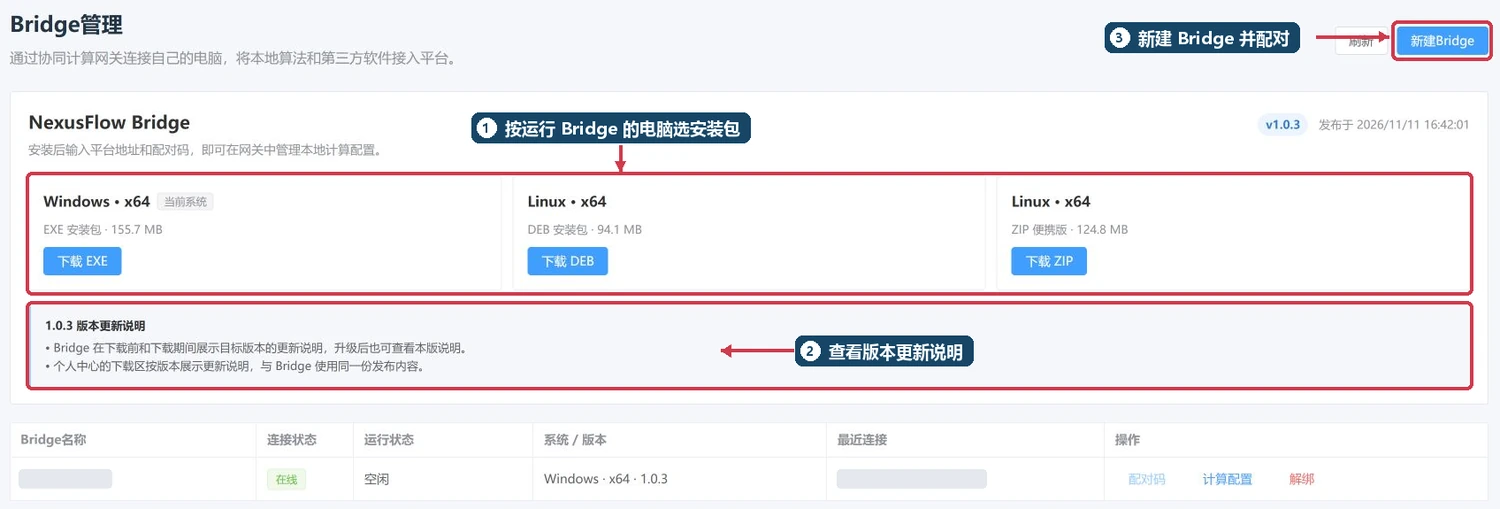
If no installers are listed, ask your administrator to confirm that the recommended version has been published.
2. Pair Bridge so the workbench can find the computer
- Get a pairing code in the browser. In Personal Center → Bridge Management, click New Bridge, give it a recognizable name such as “Controller workstation,” and click Create and Get Pairing Code. For an existing unpaired record, open Pairing Code from its row. Each code works once. Click Regenerate if it expires.
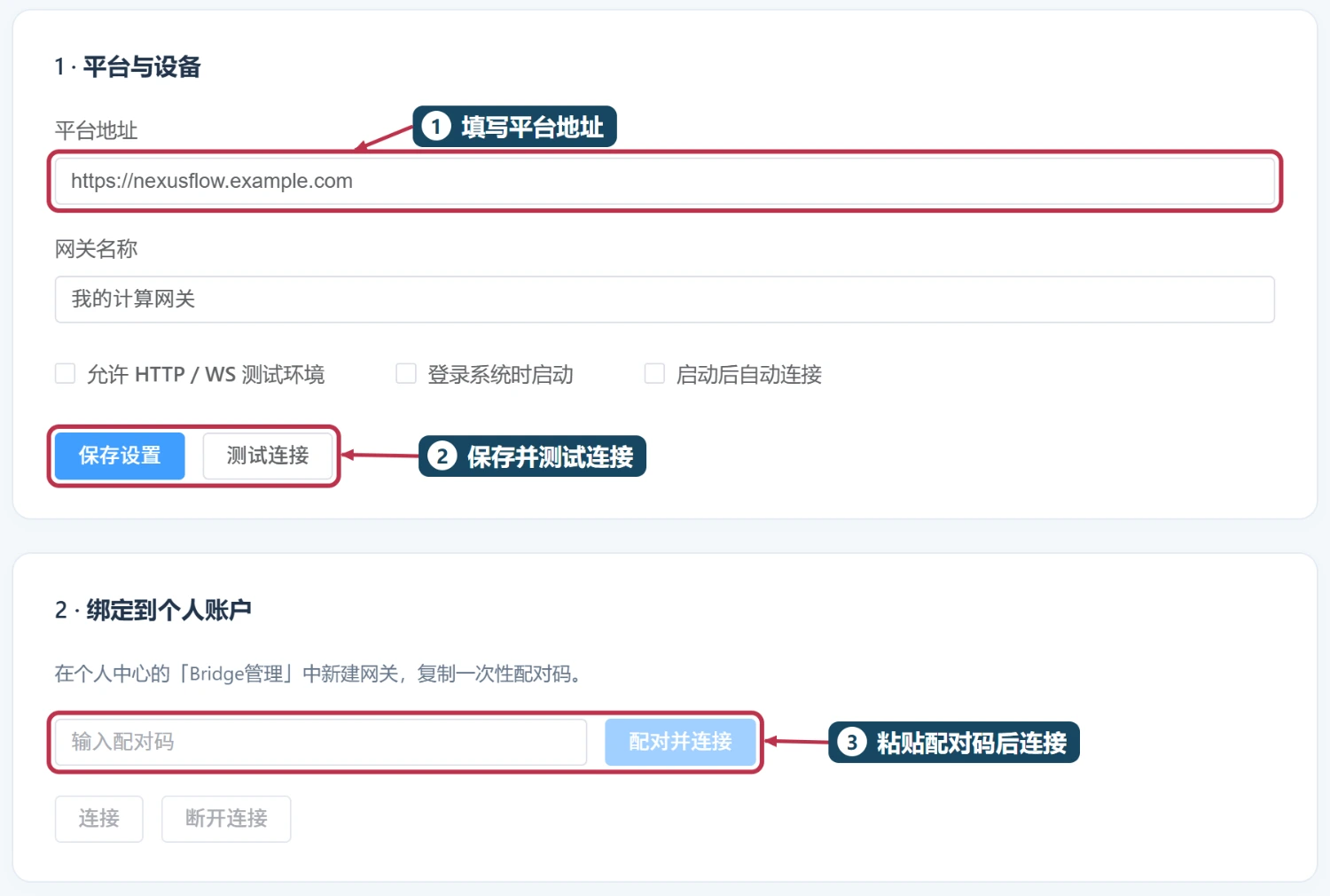
- Connect the desktop app to the platform. Open Platform Connection and enter a NexusFlow base URL the computer can reach, such as
https://nexusflow.example.com. Select Allow HTTP / WS Test Environment if you are using an HTTP test instance. Click Save Settings, then Test Connection. - Link the computer to your account. Paste the browser's code under Pair with Your Account, then click Pair and Connect. Refresh the list in the Personal Center. When the Bridge you named shows Online, you can configure a calculation.
3. Start a calculation from the workbench
Run the entire model with a local solver
- In the desktop app, open Compute Configurations → New Compute Configuration. Set Launch Mode to Custom Command and select Full Kernel. Enter the executable, arguments, and working directory for a program that implements the Bridge interface. For a script, use its interpreter as the executable and pass the script path as an argument. Click Save and Sync to Platform.
- In the workbench, click the canvas background. In the global parameters under Development and Debugging, set Kernel Execution Mode to Bridge. Select the device and the Compute Configuration you just saved.
- Run and check the results. Click Start Calculation. Bridge passes the current case to your program. The workbench task shows the status, logs, and charts the program returns.
Run a local program as part of a co-simulation
- In the workbench, add a Communication Interface to a model in the Gas Network Simulation Workbench. Configure the input channels that send signals to the external program and the output channels that receive values, then bind their signal ports. When setting up Simulink for the first time, right-click the component and select Export Compute Interface.
- In the desktop app, create a Simulink Model configuration and select the local MATLAB executable, model, and exported interface file. Generate the interface subsystem, connect its ports in Simulink, and save the model. Back in Bridge, click Save and Sync to Platform. If your program implements the participant protocol, register it as a Custom Command and select Controlled Participant.
- In the workbench, select the Target Bridge and Compute Configuration in the Communication Interface. Keep Platform Image as the Kernel Execution Mode if the main kernel runs in a platform image. Set the Communication Interval and Communication Wait Timeout, then click Start Calculation.
Explore the applications of Simulink co-simulation, or follow the integrator example to check the returned signal on an oscilloscope.
Troubleshooting
| What you see | What to check |
|---|---|
| Bridge is missing or offline | In Personal Center → Bridge Management, check that it is paired with the current account. Check the address and connection status under Platform Connection in the desktop app. Keep Bridge running during calculations. You can reopen its window from the system tray |
| A compute configuration is missing | Click Save and Sync to Platform in the desktop app, then check the device's Compute Configurations in the Personal Center. Global parameters list Full Kernel configurations, and the Communication Interface lists participant configurations |
| The workbench says the configuration is outdated | Select the configuration again and save the model. For example, changing the model from controller_A.slx to controller_B.slx in Bridge and saving updates the revision. Editing the model file in place keeps the same revision |
| A job fails after launch | Check the job log in the workbench, then open Tasks and Logs → Local Logs in the desktop app for program startup or runtime errors |
Each Bridge handles one platform job at a time. A job can use multiple local processes. If a local full kernel also schedules communication interfaces, the program must implement that protocol and have Coordinate Communication Interfaces selected.
Update or remove a device
- In the desktop app, open Platform Connection to view the release notes or Check for Updates. Wait for active jobs to finish before updating. An installed Windows Bridge connected over HTTPS can Download and Install in the app. For an HTTP test instance, use a verified EXE and exit Bridge before running the installer as the same Windows user. On Linux, use the same DEB or ZIP installation method to upgrade.
- To take a device out of service, select Unpair in Bridge Management. This revokes its connection identity and stops its active jobs. You can generate a new pairing code later if you keep the record.
- Once the device shows Unpaired, select Delete to remove its record. To use the device again, create a new record and pair it.