Manage Users, Organizations, and Permissions
User management solves "who can log in to the platform", organization management solves "which team the user belongs to and what role he plays in the team", and authorization of workspace and model determines "what can be accessed after logging in". These settings are interrelated, and you cannot check just one of them when troubleshooting permission issues.
This article is intended for organization administrators and super administrators. The menus seen by different roles and the objects that can be managed are different. Whether the button is displayed on the page is only a preliminary judgment. After the operation is submitted, the permissions will still be verified based on the current account and the target object.
First Distinguish Between Platform Roles and Organizational Roles
Platform roles and organizational roles are two different sets of identities:
- Platform Role is divided into ordinary users and super administrators, which determine whether platform-level management operations can be performed.
- Organizational Role is divided into members and organization administrators, and is only effective within the corresponding organization. The same user can join multiple organizations and have different roles in different organizations.
For example, a user is the administrator of "Organization A" and is only a member of "Organization B". He can protect ordinary members of organization A, but cannot manage organization B because of this.
| Role | Main Responsibilities | Management Boundaries |
|---|---|---|
| Ordinary user | Use the authorized Simulation Workbench to maintain your own models and jobs, and view the organizations you have joined. | You cannot manage other users or adjust other members; you can leave the organization you have joined. |
| Organization Administrators | Edit the information of the organization you manage, add or remove ordinary members, maintain ordinary users in the organization, and query models and jobs within the scope of responsibility. | Permissions only cover the organization for which you are an administrator; you cannot create or delete organizations, or set up organization administrators or super administrators. |
| super administrator | Manage platform-wide users and organizations, designate organization administrators, configure workspaces and handle platform-level maintenance | Can manage all objects and should only be granted to those who are responsible for maintaining the platform |
Prioritize the use of organization administrators for daily team maintenance. Super administrator privileges are only required when you need to create an organization, designate organization administrators, configure full platform resources, or perform system operation and maintenance.
How Permissions Work Together
Whether a user can enter a Simulation Workbench and open a model usually requires passing the following checks:
- The account is still available and has not expired.
- The current user has access rights to the target workspace.
- The current user fits within the visibility range of the model.
- If you want to edit, delete or perform management operations, you must also have the operation permissions for the corresponding objects.
Daily access can be understood as: Account Available + Workspace Accessible + Model Visible. If any of the items are not met, the entry may not be displayed, the model cannot be found in the list, or a permission prompt is displayed when opening.
Workspace Access Scope
The workspace can be configured with the following three access scopes:
| Settings | Which Users Can Enter the Corresponding Simulation Workbench |
|---|---|
| Accessible to all users | All logged in users with available accounts |
| Accessible by specified organization or user | Users who belong to any authorized organization, or who are individually authorized |
| Accessible only to administrators | Ordinary users who are not listed in the organization or user authorization cannot access; super administrators can still access |
Organizational authorization and individual user authorization are "just any one", but they do not have to be met at the same time. Organization administrators can manage the workspace owned by their own organization, which does not mean they automatically obtain permission to use the space; when they need to enter the corresponding Simulation Workbench, they should still add their organization or account to the access scope.
Whether the entrance is displayed on the homepage also depends on whether the "Homepage Entry Button" is enabled in the workspace. Therefore, "there is no entrance to the homepage" and "the account does not have access rights" are not exactly the same. For specific configuration methods, please refer to Manage Workspaces.
The Visible Range of the Model
The visible range of the model continues to take effect based on the workspace permissions:
| Model Scope | Viewing Conditions for Ordinary Users |
|---|---|
| private | Only viewable and editable by model creator |
| Organization visible | Viewers and creators belong to at least one organization in common |
| public | Other logged in users can view |
Shared models are usually opened read-only. Setting the model to "Organization Visible" or "Public" will not transfer editing rights to other users; when you need to modify it, you should save it to your own personal model.
Organization administrators manage or troubleshoot problems for the team and can query the models and jobs of the members of the organization they manage, including members' private models; super administrators can query the entire platform. Such administrative rights are used to perform administrative duties and should not be treated as ordinary sharing methods. For daily operations of model sharing, please refer to Share Models and Collaborate.
Enter the Management Page
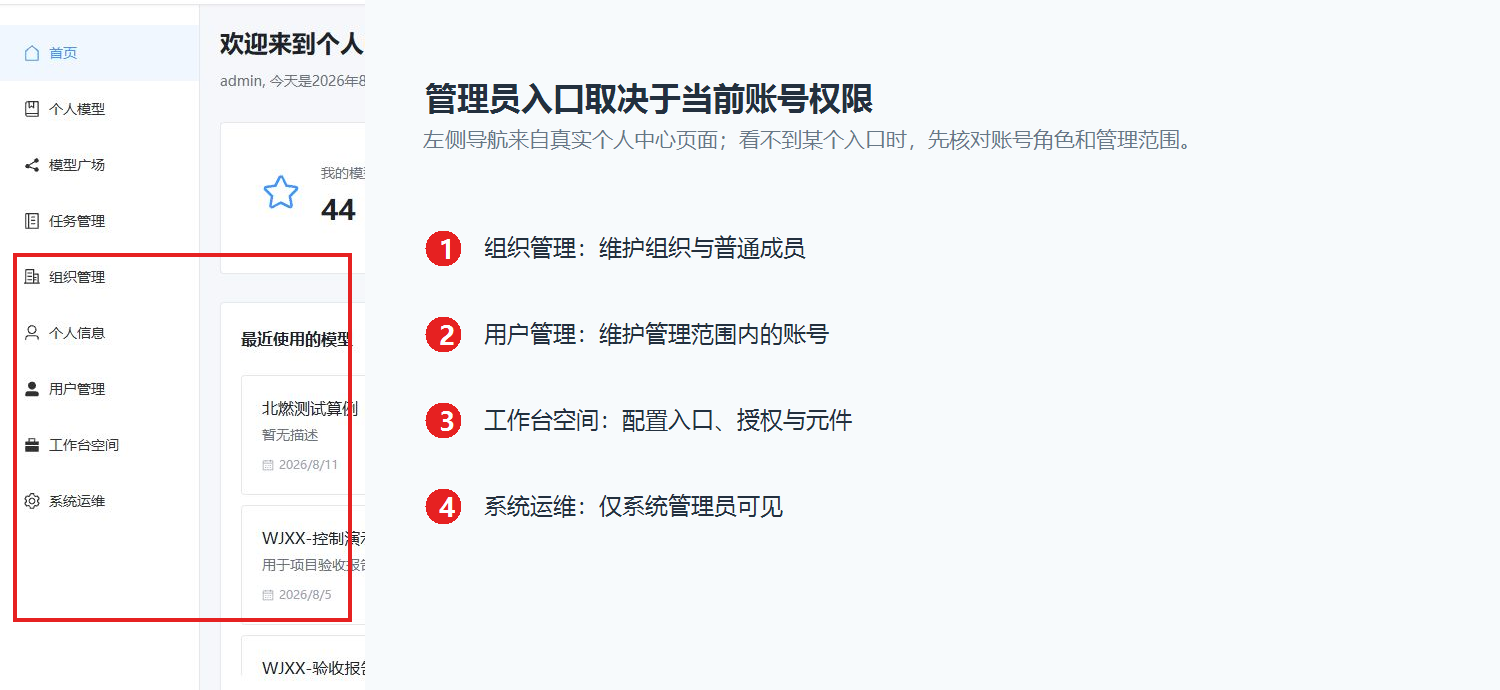
After logging in, enter the corresponding page from the left menu of Personal Center:
- Organizational Management: Visible to all users and used to view the organizations they have joined; organization administrators and super administrators can perform management operations.
- User Management: Visible to organization administrators and super administrators. Organization administrators will only see valid users within the organization they manage, while super administrators can view valid users across the entire platform.
- Workspace: Visible to organization administrators and super administrators, but the specific manageable scope still depends on the owning organization of the workspace.
- System Operation and Maintenance: Only visible to super administrators.
If the account has multiple organizational identities, you should first confirm which organization the current operation object belongs to before adjusting members or permissions.
Manage Users
Find Users
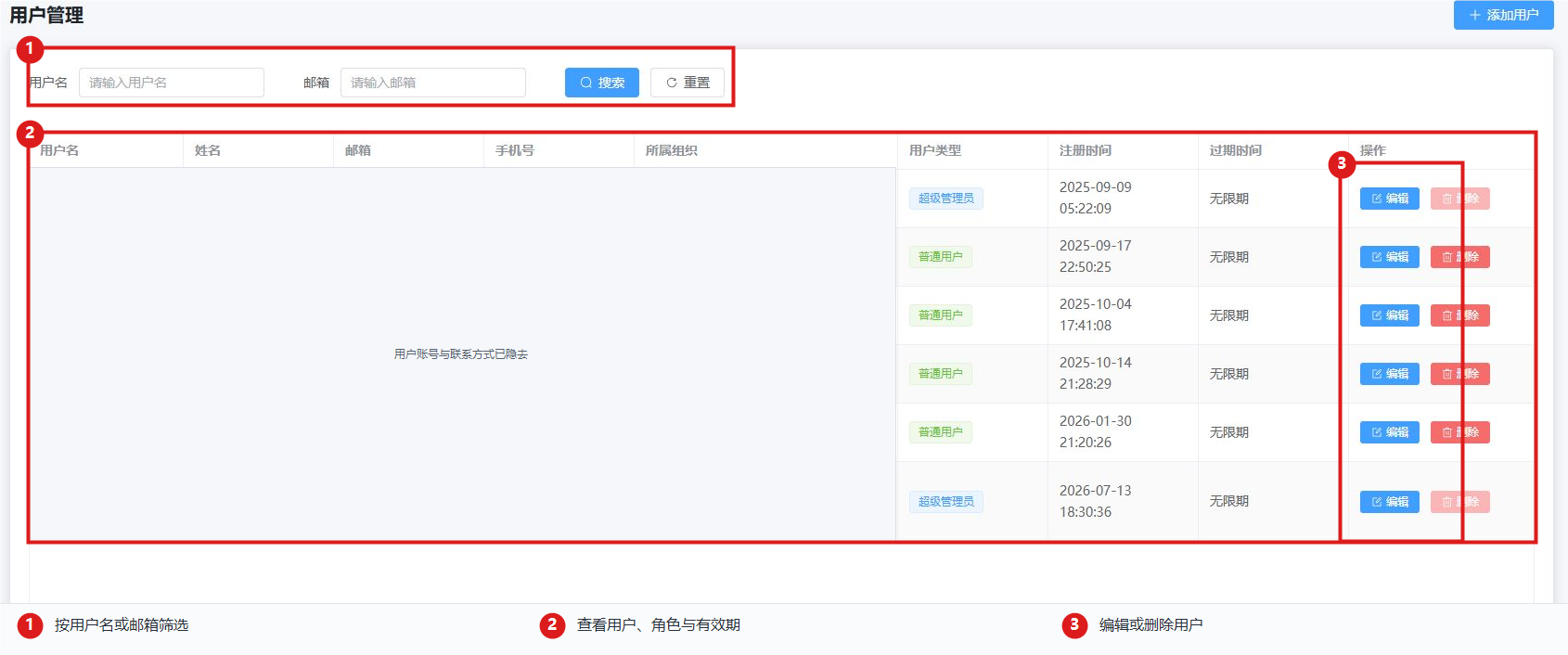
After entering User Management, you can search by user name or email. The list will display the user name, name, email, mobile phone number, organization, user type, registration time and expiration time.
What the organization administrator sees is the users within their own management scope, not the complete user list of the platform. If an account cannot be found, first confirm whether the user has joined the organization he manages, and then ask the super administrator to check whether the account exists or has been deactivated.
Create User
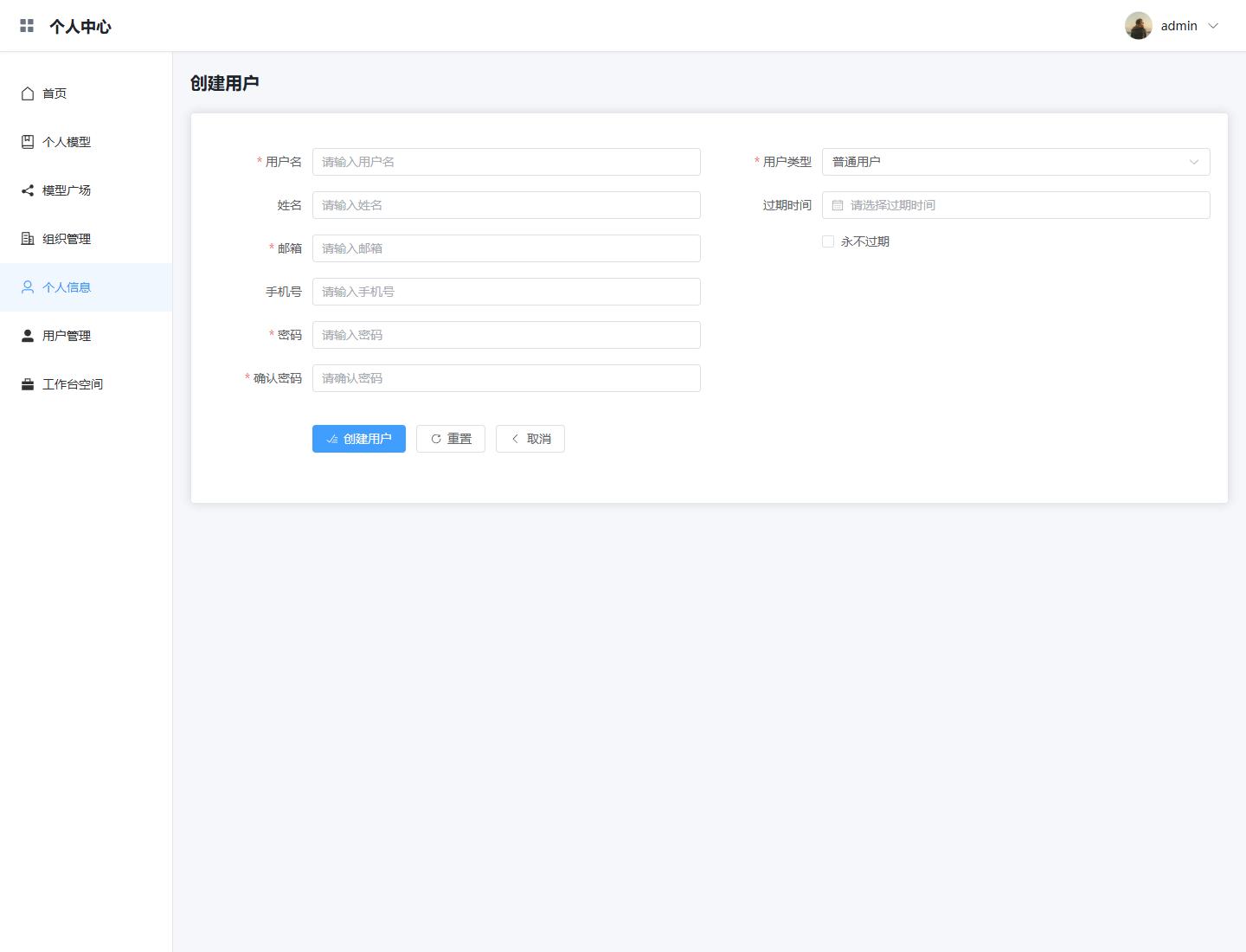
- Click Add User on the User Management page.
- Fill in your username, name, email address and mobile phone number. After the username is created, it cannot be modified on the current page and should be checked before creation.
- Set an initial password and confirm it again. The page is only for setting new passwords and will not display the passwords currently used by other users.
- Select user type. Organization administrators can only create ordinary users; only super administrators can create super administrators.
- Set the expiration time according to actual needs, or check Never Expires. It is recommended to set a clear expiration date for temporary collaboration accounts.
- Organization administrators also need to select the organization they manage in Join an Organization. After the new account is created, it will join the organization as an ordinary member.
- Click Create User and return to the list to confirm that the account number, organization and expiration time are correct.
When the super administrator creates a user, the creation page does not directly specify the organization. The account that needs to be added to the organization should be added to the organization details after creation.
Do not enter real passwords in screenshots, tickets, chat logs, or documents, and do not ask users for their current passwords. After creating or resetting a password, users should be informed individually through controlled channels and reminded to modify their personal information as soon as possible after logging in.
Edit User Profile and Expiry Date
Click Edit in the user list to modify the name, email, mobile phone number and account expiration time. Usernames remain read-only; only super administrators can adjust user types, and organization administrators cannot promote users to super administrators.
Before modifying the expiration time, you should first confirm whether the account is for long-term use or temporary use. Setting it to Never Expires will cancel the expiration date; after setting a specific date, the user management list will mark expired accounts.
After saving, return to the list, search for the user again and check the modification results. Organization membership is not maintained on this page, and you need to go to the corresponding organization details to operate.
Reset User Password
When editing a user, you can click Reset Password to set a new password for the user. Administrators do not need and cannot view the user's original password on the page.
Before resetting, check the target username to avoid misoperation on accounts with the same name or similar ones. After a successful reset, notify the person only through secure channels and do not keep the new password with public records containing the username.
Deactivate User
The operation name in the current user list is Delete. The actual effect is to make the account unavailable, which can be regarded as deactivated: the account will be removed from the effective user list and cannot continue to log in; the platform will not directly clear its historical models and jobs in this operation.
It is recommended to confirm before deactivating:
- Whether the account still bears the responsibility of organization administrator; if so, the super administrator will first arrange other organization administrators.
- Whether models, jobs, or shared content created by this user are still required by the team.
- Is it just a short-term restriction on access? There is no operation to restore a deactivated account on the current page. Do not treat deactivation as a temporary switch.
- Whether the operation target is correct. The delete button of the super administrator account is not available on the current page.
After confirmation, click Delete on the right side of the target user, check the user name again in the confirmation window and submit. Decommissioning does not automatically transfer model ownership or organizational responsibilities to other users; necessary handoffs should be completed first.
Management Organization
Create an Organization
Only super administrators can create organizations:
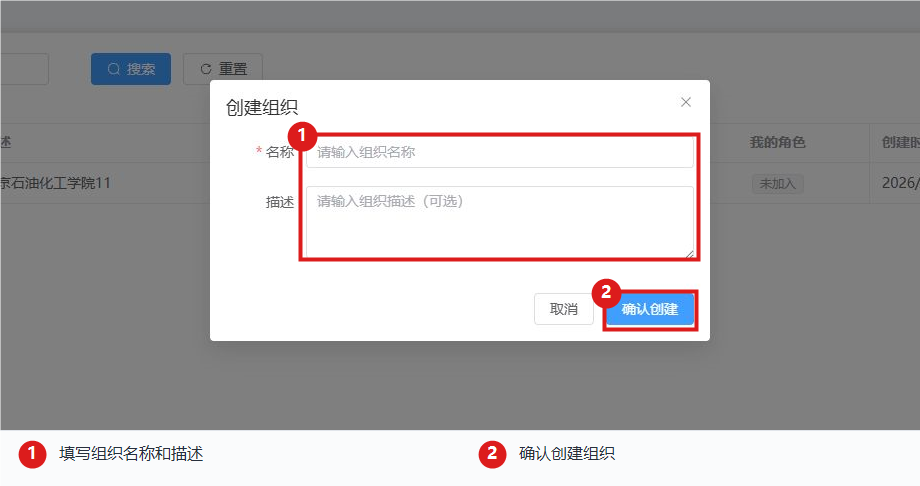
- Enter Organizational Management and click Create an Organization.
- Fill in a unique organization name and optional description.
- Click on Confirm Creation.
- Open the new organization details and continue adding members and assigning organization administrators.
Creating an organization only creates the organization itself and does not automatically complete member, workspace or model authorization. Subsequent configuration should continue to be completed before organization members can use the corresponding resources.
View and Edit Organization Information
Ordinary members can view the organizations they have joined, their basic information and member lists. Organization administrators and super administrators can click Edit in the upper right corner of the organization details to modify the organization name and description.
The organization name will be used to identify the scope of authorization for members. Before modification, you should avoid duplicating the name of the existing organization and confirm in advance whether it will affect the team's daily identification habits. Changing the name will not change existing membership relationships.
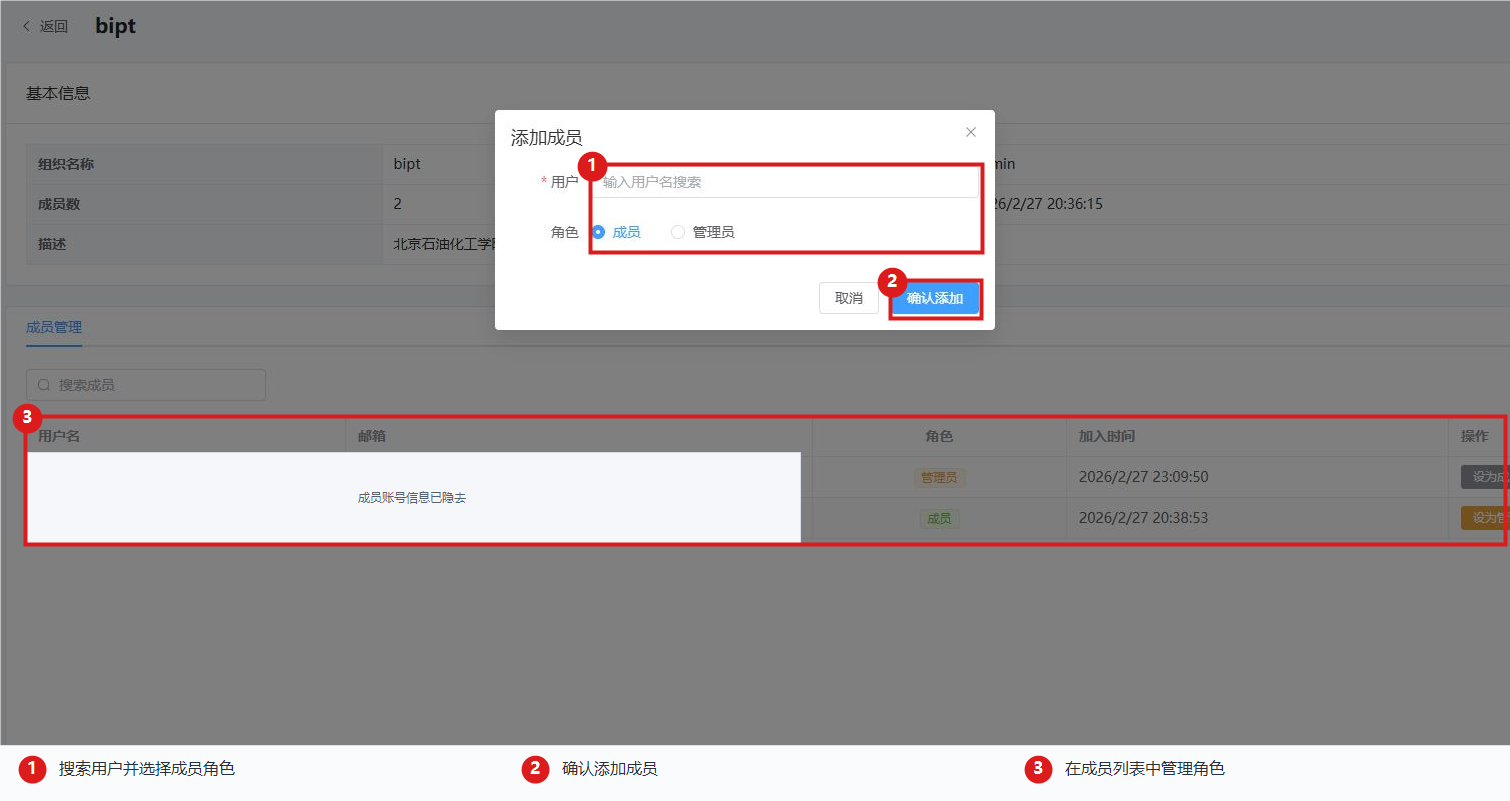
Add Member
- Open the target organization details and click Add Member in Member Management.
- Enter your username to search for existing valid accounts.
- Select the target user and set the role to Member.
- Click Confirm to Add to return to the member list to check the user name, role and joining time.
Adding members only establishes an organizational relationship and does not change their platform role. A user can join multiple organizations at the same time.
Set Up Organization Administrators
Only super administrators can promote members to organization administrators, and only super administrators can change existing organization administrators back to ordinary members or remove them from the organization. Organization administrators cannot modify their own roles, nor can they manage other organization administrators.
It is recommended to first add the user to the organization as an ordinary member, confirm that the account and organization are correct, and then have the super administrator click Set as Administrator. The scope of the organization for which the administrator is responsible should be clear before authorizing, as he or she can then maintain organization information, ordinary members, and users, models, and jobs within their scope of responsibility.
Removing Members and Leaving an Organization
The organization administrator can remove ordinary members from the member list, and the super administrator can remove any member who is not the current operating account. Removing a member immediately removes the user from the organization and may also affect:
- workspace access through the organization;
- View permissions for models visible to the organization;
- Users, models, and job scopes queryable by organization administrators.
Users can also actively click Exit an Organization in the organization list. If the current user is the only administrator of the organization, exit is blocked; the super administrator should first designate another organization administrator.
Removing or leaving an organization does not deactivate the account or delete the user's own models. You should still check before operating whether it will cause the Workbench or shared model in use to suddenly become invisible.
Delete Organization
Only super administrators can delete organizations. Deletion will remove all membership of the organization and is considered an irreversible operation on the current page. Workspace authorization, organization visibility model, and member responsibilities should be checked before execution to avoid deleting organizations that are still in use.
If you will only temporarily stop accepting new members, do not delete the organization instead of adjusting permissions; you can first remove the authorizations you no longer need and keep the organization records for confirmation.
Common Reasons for Not Having Permissions
Can Log in, but Cannot See the Simulation Workbench Entrance
Check in the following order:
- Whether the user account has been deactivated or expired.
- Whether the target workspace is authorized for this user, his or her organization, or all users.
- Whether the user is still a member of the authorized organization.
- Whether workspace is enabled Home Entrance Button.
If only the home page portal is not open, but the user does have access, portals in models or other pages may behave differently. Don’t judge full permissions based on the homepage button alone.
Can Enter Simulation Workbench, but Cannot Find the Shared Model
Check whether the model belongs to the current workspace, and then check the model scope: Organization-visible models require that the viewer and creator share at least one organization; public models still need to be accessible to the corresponding workspace. When a model has just modified the sharing scope, save the settings and refresh the Model Marketplace.
You Can See the Organization, but You Cannot Modify the Members
Ordinary members can view organization information and member lists, but cannot edit them. Confirm that the current user's role in this specific organization is "Organization Administrator" and do not use their administrator status in other organizations to infer permissions.
If an organization administrator attempts to make a member an administrator, modify another administrator, or remove an administrator, the operation will still be denied; these operations require a super administrator.
User Management Can Be Seen, but Target Users Cannot Be Searched
The organization administrator's user list only contains valid users within the organization he manages. The target account may not have joined the organization, may have been disabled, or may belong to another organization. First check the organization member list. If you still cannot confirm, please ask the super administrator to check.
I Can See the Button, but It Still Prompts That I Don’T Have Permission After Submitting.
Menus and buttons are displayed based on the current login information, and the server also performs final verification with the target user, target organization, and workspace owning organization. When encountering this situation, do not submit repeatedly or use other people's accounts. You should record:
- Current account and its role in the target organization;
- Operation page and target object name;
- Click operation and complete error message;
- The time when the problem occurred and screenshots of desensitization.
Do not include passwords, access tokens, full mobile phone numbers, or other unnecessary personal information in troubleshooting materials.
Post-Management Checklist
- New users can log in using their own accounts, and the account validity period is in line with expectations.
- The user has joined the correct organization and has consistent member or admin roles and responsibilities.
- The organization has at least one organization administrator available, and critical organizations recommend avoiding having only one administrator.
- The workspace required by the user has been authorized to the user or his or her organization.
- Whether the homepage entry is displayed in line with the workspace configuration.
- Organization-visible models are created and viewed by the correct organization members, and the visibility is not set too wide.
- Models, jobs, and management responsibilities have been transferred before deactivating a user or removing a member.
- There are no passwords, access tokens, or undesensitized personal information in the screenshots and communication logs.
Next Steps
- To configure the workspace’s owning organization, access scope, and home page entrance, please read Manage Workspaces.
- To set the private, organization-visible, or public scope of a model, read Share Models and Collaborate.
- To view service status, operation logs or install update packages, please read Monitor Platform Status and Manage Update Packages.