Share Models and Collaborate
After the model is saved to your personal model, you can set who can see it. You can keep it for yourself, share it with members of the same organization, or make it available to all logged in users.
The collaboration method mentioned on this page is: other users view the shared model in the Model Marketplace, and then save it as their own model when they need to modify it. Shared models in the Model Marketplace are opened in read-only mode and the original model will not be directly modified.
Choose the Right Visibility
The platform supports three visibility scopes. Typically, the model is kept private while being adjusted; made visible to the organization when it needs to be reviewed or reused by the team; and then made public after it is confirmed to be suitable for all users.
| Page Name | Code Value | Who Can See | Applicable Scenarios |
|---|---|---|---|
| private | private | Model creator only | Personal drafts, debugging models, unconfirmed solutions |
| Organization visible | depart_public | A member of the same organization as the creator | Internal team review and intra-organizational reuse |
| public | public | All logged in users | Common examples, standard templates, and models that can be shared externally |
In the Model Marketplace, "Organization Visible" models typically appear in the Disclosure Within the Organization view, and "Public" models typically appear in the Full Disclosure view. The text on the page may be slightly different depending on the version, and the meaning of the visible range shall prevail when judging.
The visibility scope only controls who can see the model. Names, descriptions, topologies, and parameters in your model may also be seen by visible users, so don't keep account numbers, passwords, access tokens, or data that shouldn't be shared in your model.
Model grouping is only for personal organization and is not shared with the public scope; when other users save models, they choose their own grouping.
Modify Model Visibility
- Enter Personal Center and open Personal Models on the left.
- Find the model that needs to be shared based on the model name. When there are many models, you can search for the name first, or sort by creation time and latest modification time.
- Find Visibility Level in the model row. According to the operations provided on the current page, directly select the public scope, or click Edit and then modify it.
- Select Private, Organization Visible or Public.
- If the page displays a confirm or save button, confirm or save.
- Return to the personal model list and check that the model is showing the correct visibility level.
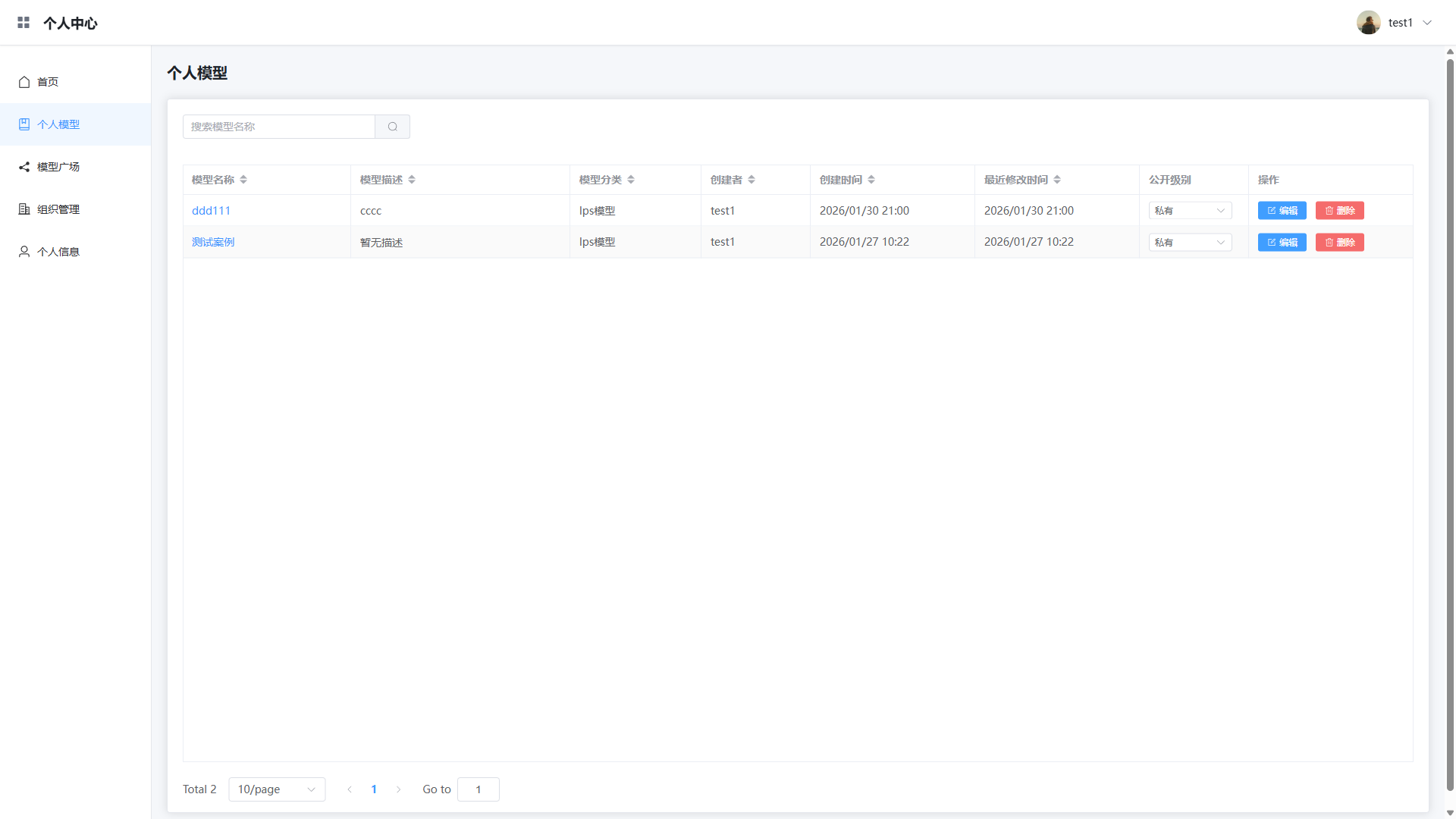
Modifying the visibility does not replace model saving. If you have just changed the topology or parameters in Simulation Workbench, please save the model first, and then adjust the visibility in the personal model to avoid sharing the content before modification.
If you need to stop sharing, change the visibility back to Private . After modification, you can enter the Model Marketplace again to check whether the model still appears in the corresponding view.
Find Models in the Model Marketplace
Enter Personal Center and click Model Marketplace on the left. The list will display the shared models that the current account has permission to view, including model name, description, simulation type, creator, time and other information.
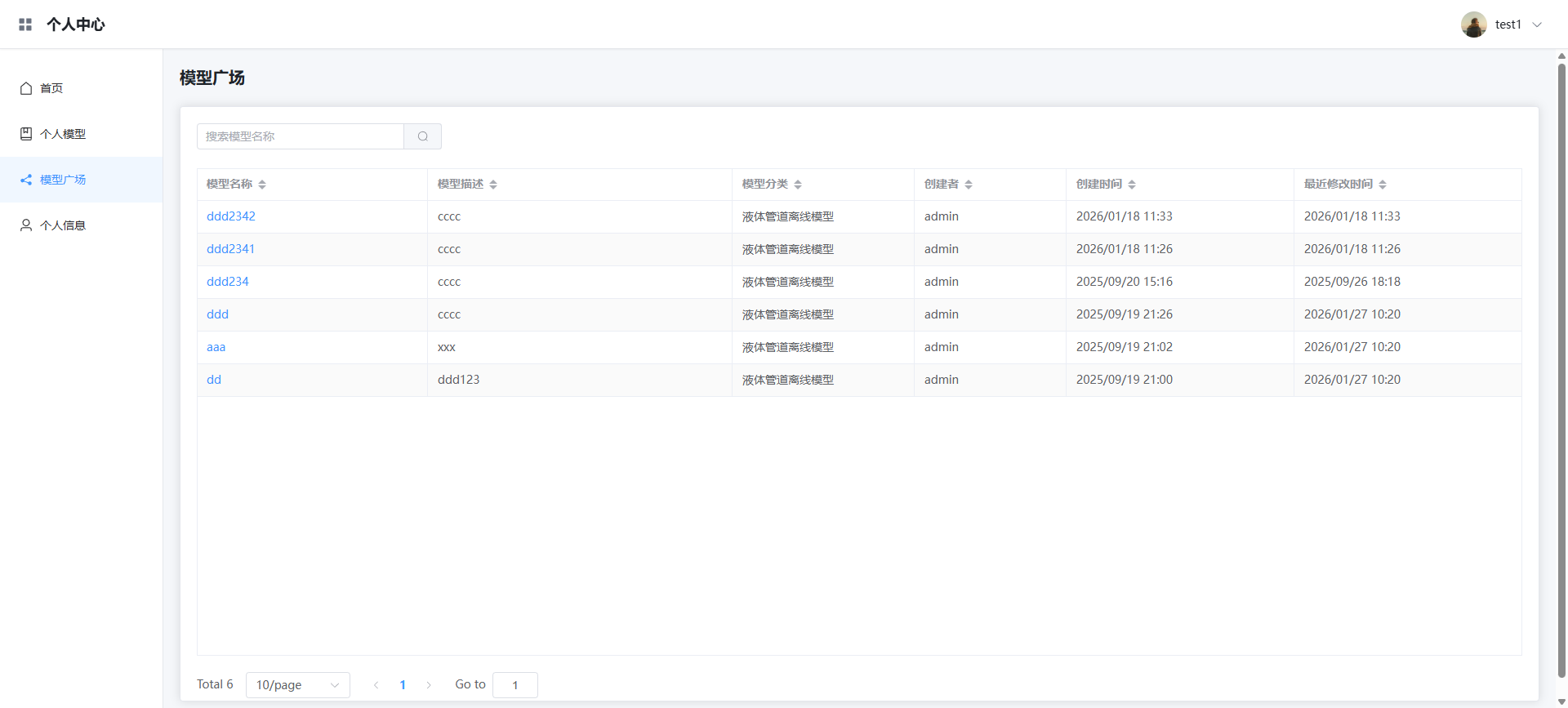
You can find it as follows:
- Select the Full Disclosure or Disclosure Within the Organization view first.
- Enter the full model name or keywords in the search box.
- When still unsure, check against the creator, model description, creation time, or last modification time.
- Click the model name to open the model in a new tab.
If you only know the approximate name of the model, clear the original search criteria and then search using shorter keywords. When there are many search results, you can narrow the scope by sorting by header.
Why Shared Models Are Read-Only
Models in the Model Marketplace are created by other users. Opening it in read-only mode can prevent viewers from accidentally changing the original model being used by the creator, and also makes it easier for multiple people to start their own work from the same shared model.
In the read-only state, you can view the model content, but cannot directly overwrite the original model. When you need to adjust the topology, parameters, or names, you should first save it to your personal model.
Organization members see the same shared model, but will not jointly modify the creator's original model. Everyone should save as their own model when they need to modify it.
Save Shared Model to Personal Model
- Click the model name in the Model Marketplace to open a read-only model.
- Select Save As in Simulation Workbench.
- Follow the prompts on the page to fill in the name and description of the new model.
- Confirm to save.
- Return to Personal Models in Personal Center to confirm that the new model has appeared.
- Open a new model from your personal model and make topology or parameter modifications.
It is recommended to clearly state the purpose of the copy in the name or description, such as which scheme comparison it is used for or who maintains it, to avoid confusion with the original model. The saved model belongs to your personal model, and the public scope should be rechecked based on new usage scenarios.
For the differences between saving as, importing and exporting, please refer to Import, Export, and Copy Models.
What Should I Do If Organization Members Cannot See the Model?
After making a model visible to the organization, if organization members can't find it in the Model Marketplace, they can check in the following order:
- The Confirm Model Visibility. model cannot be private; it should be set to public if you want it to be visible to users outside your organization.
- Confirm the Viewed View. Organization-visible models should be found in the Disclosure Within the Organization view, and public models should be found in the Full Disclosure view.
- Clear Search Criteria. Delete the old keywords in the search box and restore the filtering or sorting conditions of the list before searching again.
- Confirm Model Information. Ask the creator to provide an accurate model name and check the creator and last modification time to avoid finding models with the same name.
- Confirm Organizational Relationships. The creator and viewer should belong to the same organization. Both parties can view the organizations they belong to in Personal Center at Organizational Management.
- Confirm Membership Status. If the viewer has just joined the organization, has left the organization, or their membership has changed, ask the organization administrator to check the member list.
- Recheck Settings. The creator returns to the personal model list, confirms that the public level has been saved successfully, and then asks members to refresh the Model Marketplace.
If you still can't see it after completing the above checks, please record the model name, creator, organizations to which both parties belong, current visibility level and Model Marketplace screenshot, and then contact the organization administrator. Administrators can check organization membership by referring to Manage Users, Organizations, and Permissions.
Checklist Before Sharing Your Model
Before changing the disclosure scope, it is recommended to confirm item by item:
- The model has been saved and the latest modification time in the personal model list is as expected;
- Model names and descriptions are illustrative of purpose and will not be confused with older scenarios or test models;
- The correct visibility scope has been selected, and the organization's internal model has not been mistakenly set to be visible to all users;
- Models do not contain account numbers, passwords, access tokens, or data that should not be shared;
- The topology and necessary parameters have been checked and the recipient can understand the current state of the model;
- To allow members to continue making changes, it has been stated that a personal copy should be created using Save As;
- The model has been searched for and opened in the corresponding view of the Model Marketplace after sharing.
If the model is still being adjusted frequently, use Private or Organization Visible first. After the model is stable and confirmed to be suitable for wider use, it will be changed to Public.