Connect an external AI assistant through MCP
This guide covers your own AI client (e.g. codex, claude code, workbuddy, doubao, qwen, etc.): page authorization, MCP pairing, connection management, and reviewing model operations. For questions, attachments and conversations inside NexusFlow, start with Use the built-in intelligent assistant.
Both options use the same Workbench permission boundary. The permission, review and undo guidance below applies to both; copying connection information and configuring an external client applies only to external clients.
MCP (Model Context Protocol) connects an AI client to the current page. It can inspect the model, edit its draft, validate it, start a simulation and access jobs already loaded on the page, within the permissions you grant. It cannot open other models or save the current draft for you. Permitted operations do not receive an additional universal platform confirmation.
Open AI Control
- Open the target model or unsaved draft in Workbench.
- Click AI Control in the bottom status bar.
- Check Current object and deselect unnecessary permissions.
- Enable the switch at the top right.
Permission choices are locked while authorization is active. Disable AI Control before changing them, then enable and pair again.
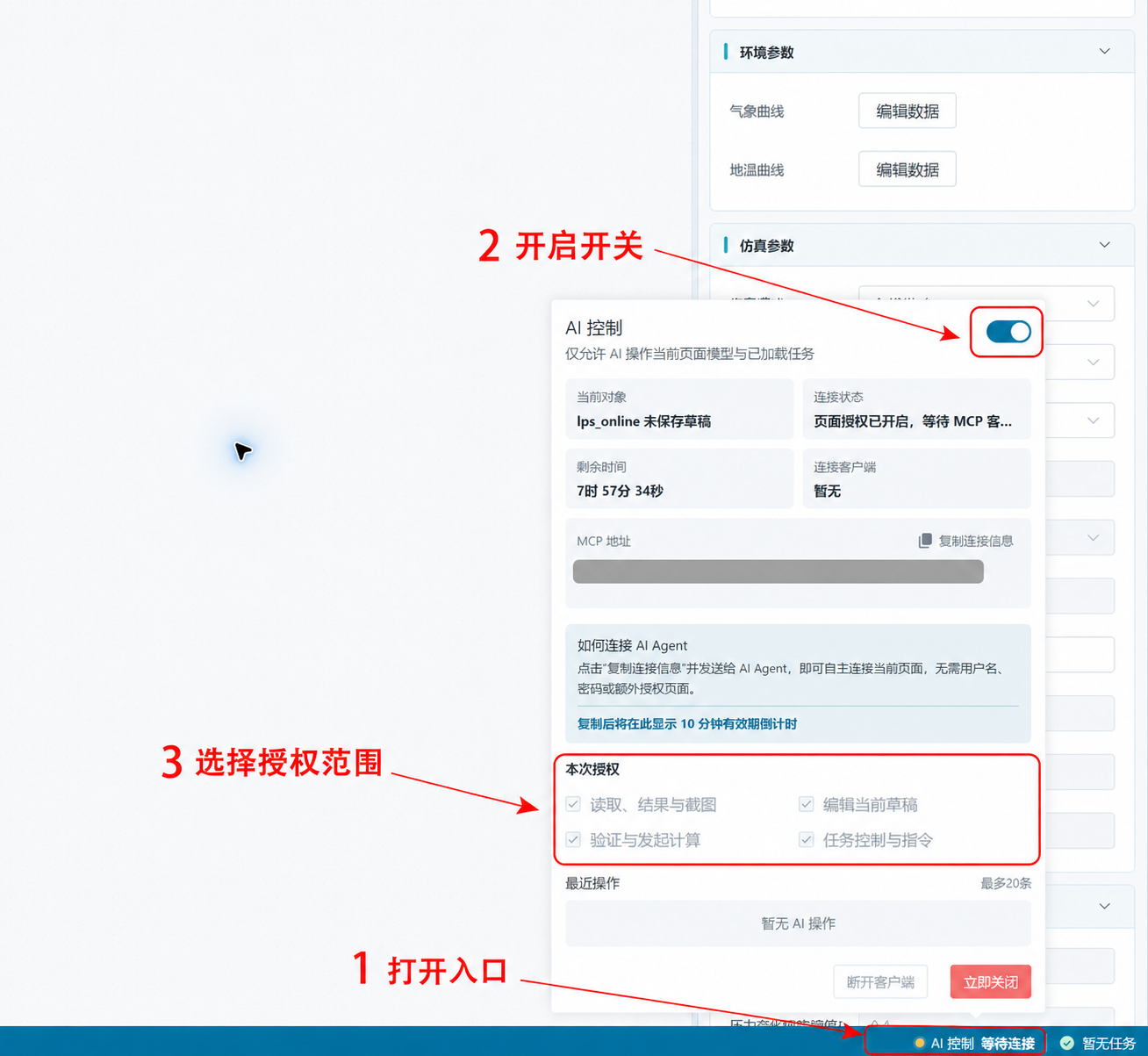
The panel shows the current object, connection status, remaining time, MCP address, permissions and recent operations. The temporary MCP address is hidden in this screenshot.
Choose permission scopes
| Permission | What it allows | Effect |
|---|---|---|
| Read, results and screenshots | Inspect the model, component definitions, Workbench knowledge, loaded jobs, results, statistics and screenshots | Read-only access may include business data |
| Edit current draft | Add, remove or move components; edit labels and parameters; connect ports; change sheets and layout; undo or redo; adjust dashboards and legends | Changes enter the unsaved draft immediately |
| Validate and start computation | Validate the model and create and start a job from the current draft after validation passes | Validation and starting share one permission; starting consumes resources |
| Task control and commands | Pause, resume or terminate loaded jobs, save runtime snapshots, send component commands or remove jobs from the page | Directly affects jobs and may not be reversible |
For inspection, grant only read access. Keep read access alongside other scopes so the assistant can obtain current definitions, revisions and job states.
Pair an external client
- Enable AI Control and click Copy connection information.
- Send the complete copied content to the intended AI client, rather than only the displayed MCP address.
- Ask it to connect and read context without editing or starting a simulation.
- Wait for Waiting for connection to become Connected.
- Verify Connected client before issuing instructions.
Use the complete connection information below to connect to the current
NexusFlow Workbench. First read the current object, model revision and loaded
jobs. Summarize only; do not edit, validate or start computation.

<Paste the complete copied connection information here>
The connection information is a temporary credential. Share it only with the intended client, never in public documentation, source control or group messages. Quick pairing does not require your platform username, password or login token.
If the client cannot interpret the copied information, it must support remote MCP over Streamable HTTP. Add the displayed MCP address in its MCP settings and follow its standard OAuth authorization flow. Ordinary chat interfaces do not necessarily support custom MCP connections.
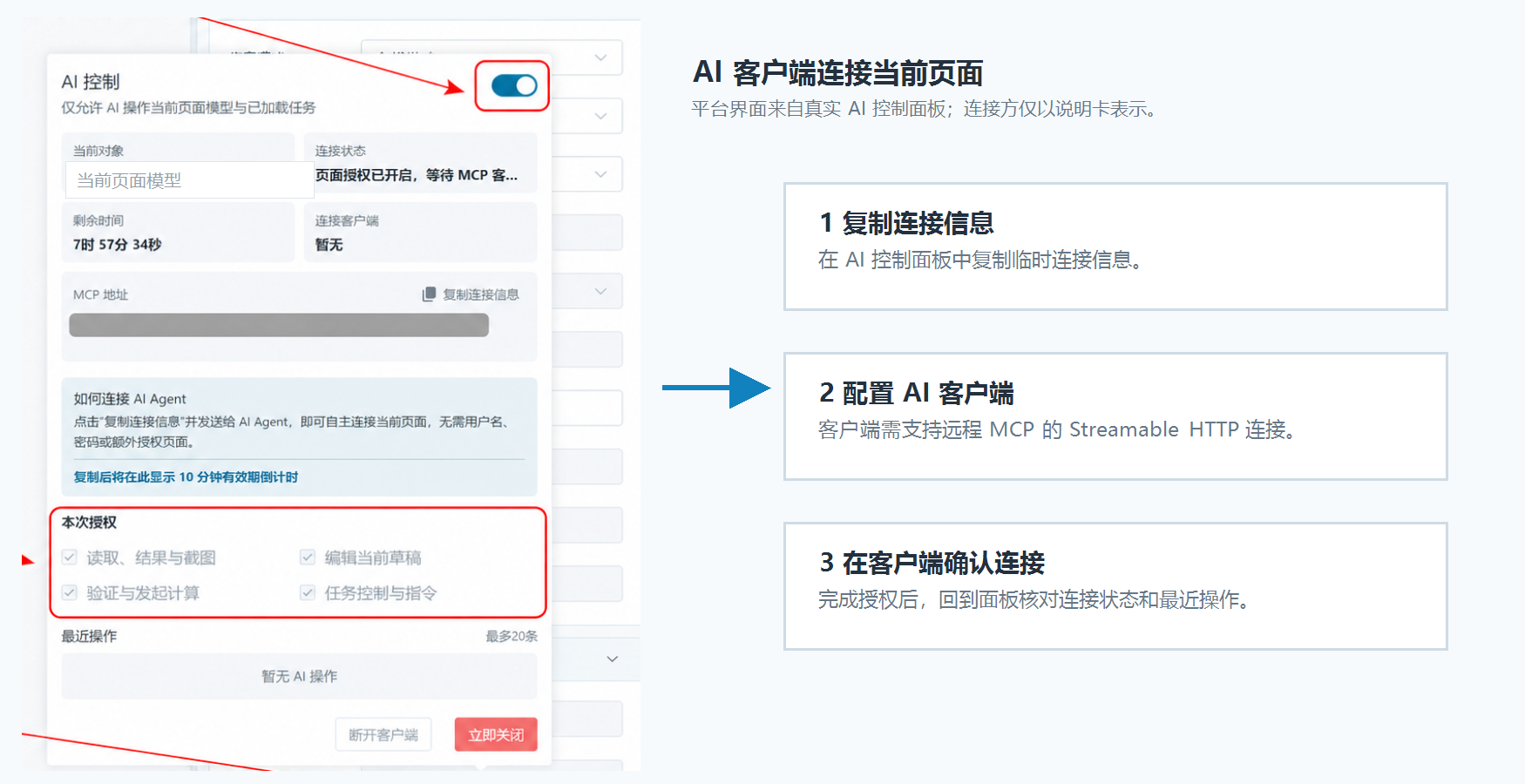
Pairing and session lifetime
| Item | Lifetime or restriction |
|---|---|
| Copied pairing information | Valid for 10 minutes and one successful use |
| Newly copied information | Invalidates previous unused information |
| Page authorization | Remaining time is displayed; maximum eight hours |
| Connected client | Works while the page authorization and connection remain valid |
Copying is disabled after connection. To switch clients, click Disconnect client, then copy new information. This preserves page authorization and returns to the waiting state. Close now or disabling the switch revokes the entire page authorization.
Refreshing or closing the page, switching models or Workbenches, losing the page connection, revocation or expiry invalidates the connection. Enable authorization and pair again on the new page.
What the assistant can and cannot do
With suitable permissions, the assistant can inspect topology, ports, parameters and definitions; capture the page or drawing; edit draft objects, including port and branch connections, in an undoable batch; validate and start jobs; query loaded results and statistics; adjust dashboards; and control loaded jobs or send available component commands. Available objects, commands and results depend on the current Workbench and loaded content. Include professional constraints and units in your requests.
It cannot search or open models outside the current page, create or share model-library records, save the current draft to the platform, access unloaded jobs, administer users or services, or undo completed job commands through model history. Successful editing means the draft changed, not that the model was saved.
Confirmation and a practical workflow
Enabled permissions are the primary boundary. Read operations do not change the model. Edits write immediately to the draft. Validation alone does not save or start a job, while a start request validates and then creates and starts a job when validation passes. Task controls act on the current job state.
Some AI clients provide their own confirmations, but this depends on client settings. Ask for a plan first, then explicitly confirm the intended action:
Read the model and list the exact objects, parameter changes and expected
impact. Do not execute yet. After I confirm, apply one related batch of edits,
report the changed objects and capture the result. Do not save the model.
For inspection, use read permission only. For editing, save a known starting point manually, review one related batch at a time and verify it before saving. For simulation, review validation, confirm the model and proposed job name, then start and check the new job. Computation uses the current draft snapshot; later draft edits do not change that snapshot.
Before task control, confirm the job name, state, target component, command and impact. A terminated job cannot resume from the same point, and model undo cannot retract a sent command. A conversational agreement is not permission isolation; grant only the scopes needed for the current step.
Review changes
- Inspect Recent operations in AI Control for operation names, status and time. The latest entry is first; the list retains up to 20 entries.
- Ask for the affected objects and locate or capture them on the canvas.
- Check the destination sheet, connection direction and topology.
- Select edited components and verify values, units and conditional parameters.
- Validate the model and resolve new errors or warnings.
- Save manually once satisfied.
Recent operations is an activity log, not a complete before-and-after parameter diff. Use the canvas, parameter panel, screenshots and validation to review important edits.
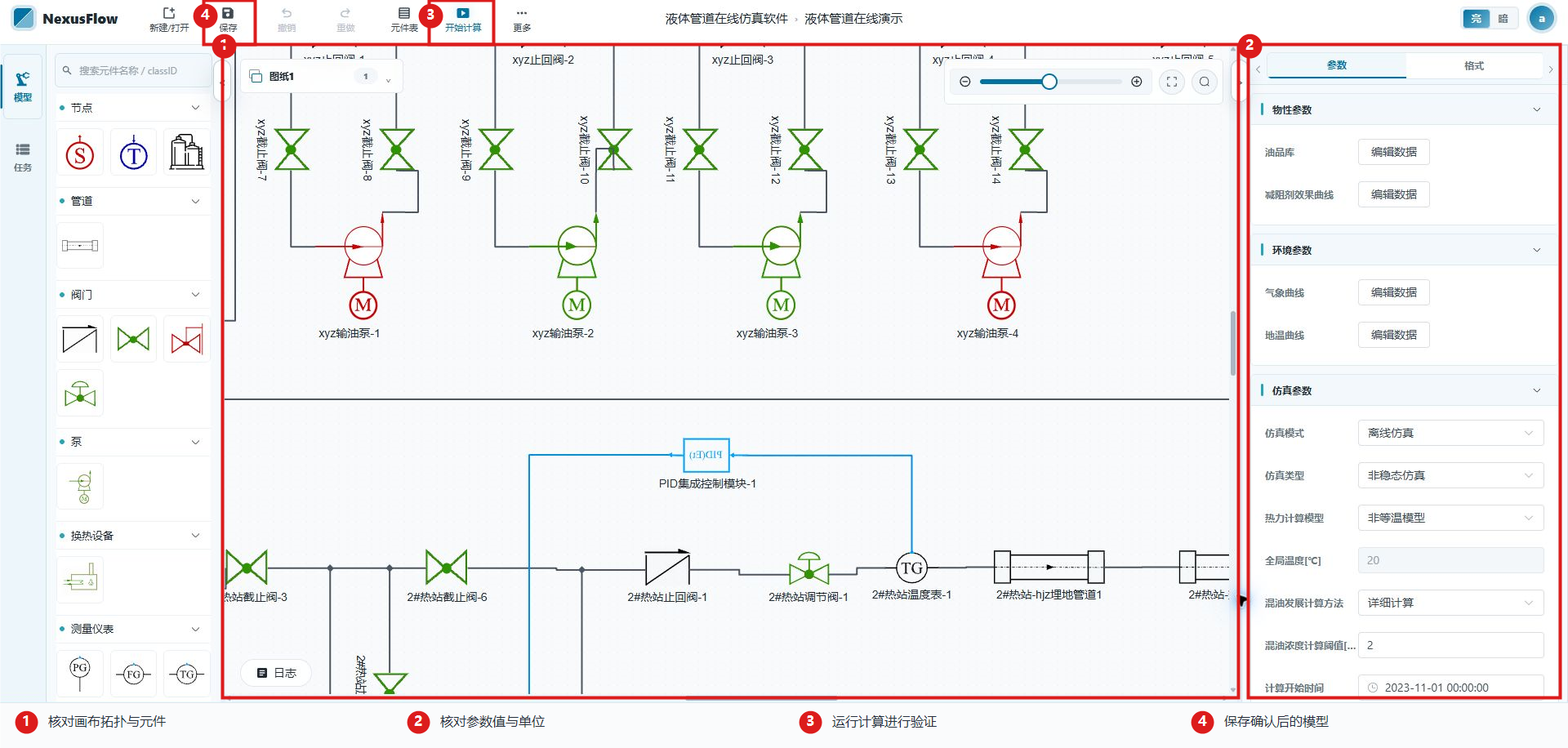
Undo changes
Multiple operations in one AI edit request form one draft history entry. If a step fails, completed steps in that batch roll back. After success, use the page undo command or Ctrl+Z to undo the batch. The assistant can also undo with edit permission.
Undo applies to the latest history entry. If you edited manually after the AI batch, check the order so that you do not unexpectedly undo your own work first. Undoing the draft does not stop jobs or retract commands.
If the model revision changed after the assistant read it, ask it to read the latest revision and rebuild the plan instead of repeatedly retrying stale edits.
Status and connection problems
| Status | Meaning and next step |
|---|---|
| Closed | Choose scopes and enable authorization when needed |
| Waiting for connection | Copy fresh information and pair the client |
| Connected | Verify the client before requesting operations |
| Executing | Wait for the operation; avoid editing the same objects concurrently |
| Error | Record the message and re-enable authorization if appropriate |
Use Close now when finished. Use Disconnect client to switch clients. If an unfamiliar client appears, disconnect it and revoke page authorization.
| Problem | What to check |
|---|---|
| No AI Control entry | Open a Workbench model or task page; ask the administrator whether the deployment supports it |
| Enabling fails | Select at least one scope and check access to the model and Workbench |
| Stays waiting | Use complete, fresh pairing information; check Streamable HTTP support, network reachability and OAuth completion |
| Cannot pair another client | Only one client is allowed; disconnect the current client first |
| Permission denied | Disable authorization, choose the required scope, re-enable and pair again |
| Job not found | Load the target job on the current page, then request a fresh job list |
| Revision conflict | Read the current model and confirm a new plan |
| Connection fails after refresh | Reauthorize and pair on the current page |
| Client asks for a platform password | Do not provide it; use quick pairing or standard OAuth |