Manage platform environment variables
The Environment variables page in System operations displays runtime configuration for the primary and compute nodes. It allows online changes only for variables explicitly marked as editable. Applying a change may restart related services and briefly interrupt sign-in, model saving, task execution, or result access.
Only super administrators can open this page. The operator should understand each variable, affected services, and the recovery procedure. Stop and consult deployment documentation if the purpose is unclear.
Confirm the maintenance window, affected users, and active tasks before editing. Record the current state and prepare a usable configuration backup. Apply one coherent change set at a time and verify services and user functions immediately afterwards.
Open the Environment variables page
- Open System operations in the account center.
- Select Environment variables.
- Choose the target node at the upper left.
- Wait for the variable list to load before searching or editing.
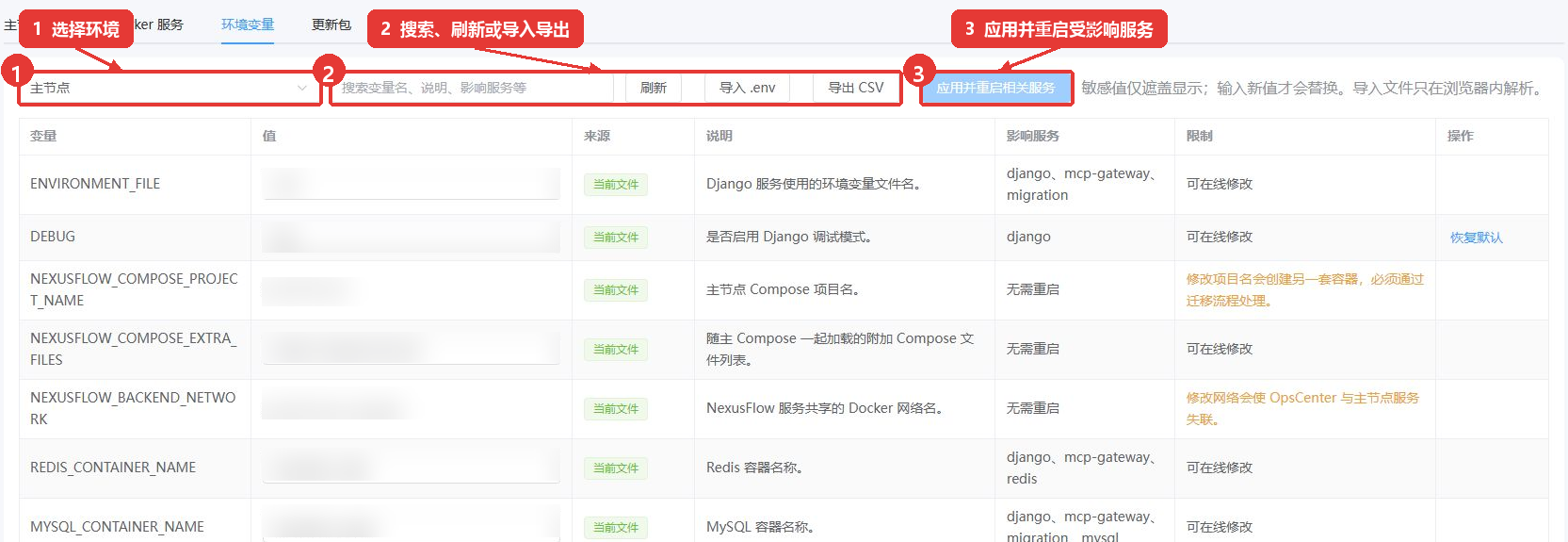
Choose the correct target node
The target list contains:
- Primary node, which hosts shared platform and management services;
- Compute nodes, which host computing services and show their current status.
Changing the target reloads that node's variables. Two nodes may use the same variable name with different values or effects, so verify the target again before every change.
If a compute node is disabled and marked as requiring an upgrade, it does not support online environment maintenance. Upgrade its node-management component through the maintenance procedure before using this page. Do not copy another node's configuration around this restriction.
Understand the variable table
| Column | Meaning | What to verify |
|---|---|---|
| Variable | Environment variable name | It must exactly match the approved change |
| Value | Current, default, or protected-sensitive value | Never infer the original value from the mask |
| Source | Current file, default configuration, or pending default restoration | Shows where the effective value comes from |
| Description | Purpose of the variable | Do not edit if the purpose is unclear |
| Affected services | Services that may need restarting after the change | Use this to plan the maintenance and verification scope |
| Restriction | Online editable or the read-only reason | Read-only variables cannot be forced through this page |
| Action | Restore default or keep current value | Available only for some set variables that have a default |
The search field matches variable name, description, affected services, source, editability, and sensitive type. Filtering changes only the displayed rows and never deletes or edits variables.
Edit a regular variable
- Select the correct target node.
- Find the variable and read its description, affected services, and restriction.
- Confirm that it is marked Online editable.
- Enter the new value.
- Review all pending changes before applying them.
Input remains a browser-side draft until it is applied. Before refreshing or changing the target, check for pending edits so that a draft is not mistaken for an effective setting.
Edit a sensitive variable
Passwords, tokens, and other sensitive values are shown only as masks. A mask means that a value exists; it is not the actual value.
- Viewing or briefly focusing the field does not replace the saved value.
- Only typing a new value creates a change.
- Do not infer the original value from mask length or characters.
- Never place a sensitive value in screenshots, logs, models, tickets, or ordinary chat messages.
If a sensitive value must be restored after a failed change, use the original configuration kept in a secure location. Exported CSV files mask sensitive values and are not recovery backups for secrets.
Restore a default value
When an editable variable is currently set in the configuration file and has a defined default, its action column shows Restore default.
After selection, the source changes to Will restore default, which is still only a draft. Select Keep current value to cancel before applying. After a successful apply, the variable no longer uses the file override and follows the platform default.
“Restore default” does not necessarily mean an empty value or the value used by another node. Review the default hint and affected services before submission.
Import a .env draft
Select Import .env to choose a local text file no larger than 1 MB. Use this format:
VARIABLE_NAME=value
ANOTHER_VARIABLE="value with spaces"
Blank lines and comments beginning with # are ignored. Variable names must be valid, and a variable may not be repeated in the same file.
Importing parses the file in the browser and fills the draft editor; it does not apply changes. NexusFlow skips:
- variables unknown to the selected target;
- variables marked read-only;
- the sensitive-value mask
********.
Review the matched and skipped counts, target node, and every new value before applying. Do not import an entire .env file from another environment without comparison.
Export a sanitized inventory
Select Export CSV to save the selected target's variables, values, sources, descriptions, affected services, restrictions, and pending actions.
Every sensitive value is replaced by a mask. The file is useful for change review and scope checks, but it is not a complete configuration backup and cannot restore passwords or tokens. Store it in a controlled location because variable names and service information may still be internal.
Apply changes and restart related services
When drafts exist, Apply and restart related services becomes available.
- Select the button and read the variable names and related services in the confirmation dialog.
- Verify the target node, number of changes, and affected scope.
- Confirm the maintenance window and recovery material.
- Select Apply and wait for a definite result.
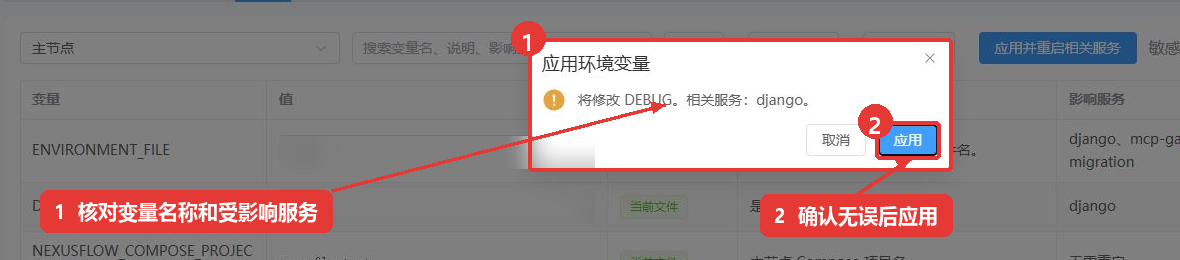
After a successful apply, the page reloads the variable list. Do not end maintenance based only on the success message. Verify that:
- each value or source matches the intended result;
- related services return to normal and logs do not accumulate errors;
- compute-node status and latest synchronization are normal;
- affected paths such as sign-in, account center, model saving, task creation, and result access work;
- active tasks reach expected states rather than remaining in transitional states.
Handle failures and conflicts
| Symptom | Response |
|---|---|
| Variable is read-only | Read the restriction reason and use the deployment procedure instead of overriding it outside the page |
| Compute node is disabled and requires upgrade | Upgrade the node-management component, then reload the page |
| Import creates no applicable changes | Check whether every entry was unknown, read-only, or a masked sensitive value |
| The configuration changed or a revision conflict appears | Reload the latest list, compare it with the approved change, and edit again instead of resubmitting the stale draft |
| Apply fails | Save the full message and inspect the target node and related service logs; do not broaden the change before finding the cause |
| Apply succeeds but a function fails | Stop further changes, use the prepared recovery procedure, and verify services and user functions again |
Do not edit the same node from multiple browser windows. Another administrator or maintenance process may have updated the configuration, so treat a freshly loaded page as the current source of truth.
Before-and-after checklist
Before applying
- Confirm the target node, variable names, new values, and reason.
- Read descriptions, affected services, and restrictions.
- Schedule a maintenance window and inspect active tasks.
- Retain a complete recoverable configuration; do not rely on the sanitized CSV for secrets.
- Prepare checks for service state, logs, and affected user functions.
After applying
- Reload the page and verify values and sources.
- Verify related services, compute nodes, and logs.
- Test affected sign-in, model, task, and result paths.
- Record the operator, time, target node, variables, and verification result.
- Retain recovery material until the observation period ends.