Simulation Job Status Reference
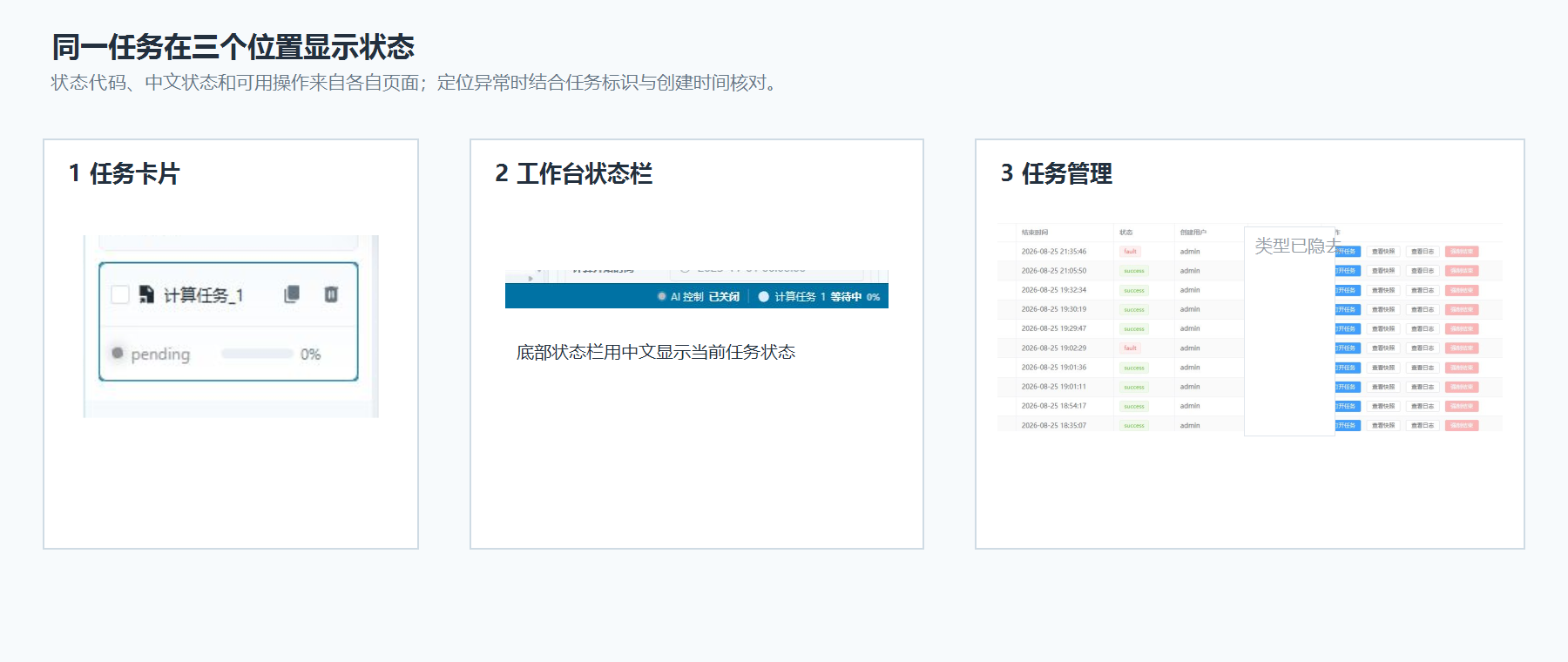
The job card and the job management page of Personal Center may directly display the English status code, while the status bar at the bottom of Simulation Workbench displays the corresponding Chinese name. This page focuses on what these statuses mean and how to handle them.
See Create and Control Simulation Jobs for complete steps to create, pause, resume, and terminate jobs. See Restore Jobs and Understand Result Retention for the boundaries of result expiration, job snapshot cleanup and job reopening.
Status Code Quick Check
| Status Code | Chinese Meaning | Is It Over | Current Meaning and Available Actions |
|---|---|---|---|
pending | Pending | No | The job has been created and is waiting for computing resources or waiting for the computing program to start. The job can be terminated; the "Issue operation command" button may be available, but the command may not be executed when the job is not ready. Running snapshots cannot be paused or saved. |
running | Running | No | The calculation is in progress. You can pause, terminate, issue operation instructions or save running snapshots. |
pausing | Pausing | No | A pause request has been issued and the calculation program is switching states. You can terminate, issue operating instructions, or save running snapshots; you cannot pause repeatedly or resume immediately. |
paused | Paused | No | Calculation has been paused. You can resume calculations, terminate, issue operation instructions, or save running snapshots. |
stopping | Stopping | No | The termination request has been sent and the platform is ending the calculation. The Pause, Resume, Terminate, Command and Run Snapshot buttons are unavailable. |
stopped | Stopped | Yes | The job has ended according to the termination request and cannot be resumed. You can view saved data and logs, or delete browser local jobs. |
success | Completed | Yes | The calculation program ends normally. You can view logs and results, or delete browser-local jobs. |
fault | Fault | Yes | The job ended abnormally due to problems with the calculation input, calculation program, or operating environment. You should check the logs first and then decide whether to modify the model and recalculate or contact the platform administrator. |
Deleting browser local jobs is not equivalent to deleting server job records, and when deleting unfinished local jobs, an attempt will be made to terminate the calculation. See Restore Jobs and Understand Result Retention for specific boundaries.
Common Status Transfers
Most jobs will vary along the following path:
The status is updated jointly by the computing program and the platform, and the page refreshes automatically. The status switching may take time, or it may directly go from "Waiting" to "Exception" due to startup failure. Don't judge whether a job is OK based on progress numbers alone; look at both status and logs.
Verification Failure Is Not a Job Exception
After clicking "Start Calculation", the platform will first verify the current model. If the page prompts "Topology verification failed", the job has not been created yet, so the new fault job will not appear in the job list.
At this point you should return to the model view and open the bottom "Log" panel:
- Start processing from the first verification error and locate the component or connection according to the entry in the log.
- Fix topology, component parameters or global parameters.
- Review using Verify Simulation Model.
- After the verification is passed, click "Start Calculation" again.
For the topology connection method, see Add Components and Build Model Topology, and for the parameter error handling method, see Configure Component and Global Parameters. If the verification service itself reports an error, the log does not show any modifiable model issues, or multiple models cannot be verified, then contact the platform administrator.
Waiting: Should We Wait First or Investigate Immediately?
pending indicates that the job has been created, but the calculation has not actually started yet. It is normal for "Waiting" to appear briefly when a job is just created. The waiting time will also become longer when computing resources are busy.
You can wait and observe the following changes:
- Whether the status enters
running; - Whether the progress begins to change;
- Whether startup or queuing information appears in the job log;
- Are other new missions on the same platform also waiting?
Normal wait times vary between workspaces and compute sizes, and the platform does not have a fixed number of minutes that applies to all jobs. When the following situations occur, you should check the logs and contact the platform administrator:
- The waiting time is significantly longer than the usual level for similar jobs, and there is still no change after refreshing the page;
- Multiple new jobs continue to stay at
pending; - The log clearly indicates that computing resources, images, licenses, or startup environments are unavailable;
- The page cannot obtain job status or job log.
If it is confirmed that this calculation is no longer needed, the waiting job can be terminated directly without waiting for it to enter operation.
Pausing and Stopping: Don’T Repeat Operations
pausing and stopping are both transition states, indicating that the request has been submitted, but the calculation program has not yet completed switching.
pausingwill enterpausedunder normal circumstances. Only use "Resume Calculation" after entering "Paused".stoppingwill enterstoppedunder normal circumstances. After entering "Stopped", the job cannot be resumed.
Continue to wait when the dwell time is short, and do not continuously click the control button or refresh repeatedly. If the status remains unchanged for a long time, refresh the page first and check the latest log; if there is still no change after refreshing, or the log shows that the computing process cannot respond to the control request, please record the job ID and contact the platform administrator. Administrators can further check or forcibly end jobs on the job management page of Personal Center based on permissions.
Paused Is Not a Fault
paused is a stable state and will not automatically recover. Confirm whether the job still needs to continue:
- When you need to continue calculation, click "Resume Calculation" and wait for the status to return to
running; - When the calculation is no longer needed, click "End Calculation" and the waiting state enters
stopped; - When you need to preserve the current running state, you can save a running snapshot, but you must confirm that the snapshot eventually becomes "available".
If the job is not temporarily suspended by you but enters paused, first check the job log and command record to confirm whether it was triggered by another authorized user or computing program; if the reason is unknown, contact the platform administrator.
What Is the Difference Between Stopped, Completed and Exception?
Stopped stopped
Indicates that the job has received a termination request and has ended. This is usually the result of user active termination and does not equal a platform failure. The job only retains the data that has been generated and saved before stopping, and the results may be incomplete.
If no one actively terminates the job but "Stopped" is displayed, check the stop time and last message in the job log, and then ask the platform administrator to check the control record.
Completed success
It means that the calculation program ends normally, but it does not mean that the model settings and calculation results must meet business expectations. Logs should still be checked for warnings, critical variables, and result ranges, see View and Analyze Simulation Results for details.
Exception fault
Indicates that the job was not completed normally. When processing, start from the first error in the job log, do not just look at the last associated error.
Common judgment methods are as follows:
| Log Trail | Recommended Treatment |
|---|---|
| Parameter values, boundary conditions, initial conditions or input data do not meet requirements | Return the model to modify the input and create a new job after verification. |
| The calculation does not converge, the step size is inappropriate, or the solution conditions are not established. | Adjust parameters according to the requirements of the current calculation method, and then create a new job |
| The component definition or calculation program explicitly prompts that the current operation is not supported | Confirm the selected workspace and model usage, and contact the maintainer of the space if necessary |
| Compute resources, images, licenses, networks, or services are unavailable | Keep logs and contact platform administrators |
| The log is empty, cannot be loaded, or only shows connection failure | Refresh the page first; if you still cannot obtain it, contact the platform administrator. |
Modifying the model will not change this exception job. Starting the calculation again after correction will create a new job, making it easier to retain the original log and check the differences.
Result Expired Is Not a Job Status
"The job result has expired and the result stream cannot be read" describes the availability of the server result data, not the job life cycle status such as pending or running. A job can still display success , stopped , or fault while its server results stream has expired.
After results expire:
- Job records may still appear in Personal Center;
- If the job snapshot is still there, it is still possible to open read-only topology and parameters;
- Data previously received by the current browser may still be displayed;
- The server cannot restore results that have been cleaned and are not saved locally.
Do not treat expiration of results as a recalculation failure, and do not refresh repeatedly waiting for results to be restored. See Restore Jobs and Understand Result Retention for the scope of retention and actions that can be taken.
Job Does Not Exist or Does Not Have Access Rights
When opening a job through a history link or Personal Center, the page may prompt "The job is unavailable or does not have permission to access, and has been returned to the job list." This type of problem occurs during the reading of job records or job snapshots, and is not in the fault state.
First check in order:
- Whether the currently logged-in account is the creator of the job or is still in an organization that has permission to manage the job.
- Whether the job ID in the link is complete and comes from the correct platform environment.
- Can the job be searched in Personal Center's "Job Management"?
- When the job can be searched, whether "open job" prompts that the job snapshot has been cleaned.
If Personal Center cannot find the job, it may be that the current account does not have permission to view it, the job ID is wrong, or the server job record no longer exists. Ordinary users cannot determine the cause based on the local job name alone. They should give the complete job ID, current account and opening time to the platform administrator for verification.
If there is still a local cache in the same browser, you may still be able to view content that has been saved locally, but you will not be able to resume server jobs, re-fetch missing results, or bypass access permissions.
When to Wait, Read Logs, or Contact an Administrator
| Current Situation | Suggestions |
|---|---|
Just entered pending, pausing or stopping | Wait for the status switch first and do not repeat the submission operation. |
| Verification failed, the log can be located at component, connection or parameter | Modify the model according to the log, no administrator processing is required |
The progress in running remains unchanged temporarily, but the log still outputs normally. | Keep watching; different calculation programs update progress at different frequencies |
paused | Resume or terminate as needed, it is not an abnormal state |
fault and the log gives clear input or solution error | Modify the model and create a new job |
fault and the log points to platform resources or operating environment | Contact the platform administrator |
| The transition state obviously exceeds the usual time for similar jobs and remains unchanged after refreshing. | Contact the platform administrator after checking the logs |
| Results expired | View existing local data or recalculate on demand without waiting for old results to be automatically restored |
| The job does not exist, there is no access permission, or the job log cannot be obtained. | Contact the platform administrator after checking the account and job ID. |
When contacting the administrator, try to provide the following information at once: job ID, model name, workspace, creation time, current status, first error log, and time of problem occurrence. If there is a clear prompt on the page and the complete prompt text or screenshot is attached, it is easier to locate the problem than just saying "the job failed."