Restore Jobs and Understand Result Retention
After creating a simulation job, the platform will simultaneously create a server job record and save a local job data in the current browser. There is no need to click "Save Job" separately. However, the location, purpose and retention time of these data are different.
This page only explains whether the job can be reopened and what content may still be available. For the job running control, see Create and Control Simulation Jobs. For the method of filtering jobs and viewing snapshots and logs in Personal Center, see Find and Handle Tasks in the Account Center. For the method of viewing the results, see View and Analyze Simulation Results.
Let’S First Distinguish Four Types of Data
| Data | Save Location | Main Content | Main Purpose |
|---|---|---|---|
| Browser local job data | Current browser website storage | Job name, job snapshot, received job messages, and local chart and legend configuration | Quickly restore job pages in the same browser |
| Server job record | server | Job ID, creator, workspace, model, status, progress and creation time, etc. | Query jobs in Personal Center and confirm job identity and status |
| Job snapshot | Current browser and server | Model topology, parameters and component definitions when creating jobs | Restore the input used in this calculation and open the read-only job view |
| Run snapshot | server | Calculate the internal state saved by the program at a certain running time | Let a new job start from this running state |
The job result stream is not part of the running snapshot. The result stream is used for plotting and result analysis; the running snapshot is used to start new calculations and cannot replace the result data, nor will it restore the old job to its original running position.
Refresh or Reopen the Current Page
When you reopen the model in the same browser and the same website address, Simulation Workbench will look for local job data belonging to the model and restore compatible jobs to the job list on the left. Refreshing the page usually doesn't make these jobs disappear immediately.
What you can see after recovery depends on what was actually saved locally:
- Job snapshots and job messages that have been written locally can continue to be viewed;
- Data not yet received still needs to be obtained from the server;
- If the server result stream has been cleaned up, the locally missing parts can no longer be filled in from the server;
- If the server job does not exist or the current account does not have access rights, the local cache may still be viewable, but the status will no longer be synchronized.
Browser local storage is not a long-term archive. Clearing website data, using an incognito window, changing the website address, the browser actively recycling storage, or the local data version is no longer compatible after a platform upgrade, may make local jobs irrecoverable.
Open the Job After Changing Browsers or Devices
Browser local job data will not be automatically synchronized with the account. After switching to a browser, computer or mobile device, when you open the same model directly, the job list on the left may be empty; this does not mean that the server job record has been deleted.
You should now reopen Personal Center from the job management page:
- Enter Job Management.
- Filter jobs based on job ID, creating user, status, or Workbench type.
- Find the target job and click Open Job.
- Simulation Workbench will read server job records and job snapshots, and re-establish local job data in the current browser.
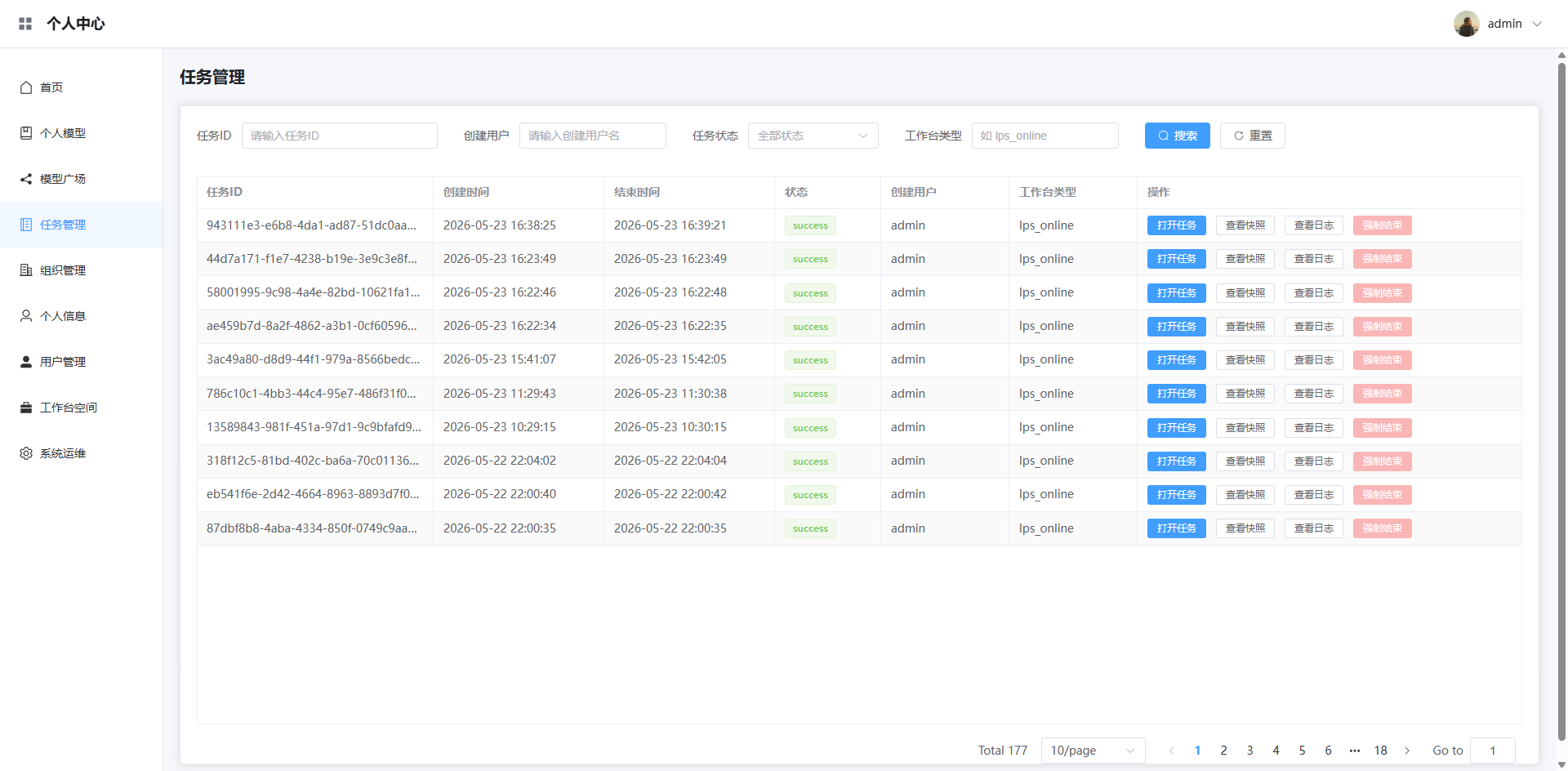
The job management page only displays jobs that the current account has permission to view. Regular users typically see jobs they create; organization administrators and super administrators may also see jobs within their scope of management. For complete instructions on filtering, viewing logs, and forcibly ending abnormal jobs, see Find and Handle Tasks in the Account Center.
When the job is reopened from the server, the locally customized job name will not be synchronized, and the page may use names such as the model name or "Historical Job" instead. The job ID and creation time should be combined to confirm whether it is the target job.
Why the Job Is Still in the List but Cannot Be Opened
Server job records, job snapshots, and result streams are cleaned up separately, so there may be a situation where "job records are still there, but some content is no longer available."
Job Snapshot Has Been Cleaned
The current platform default cleans up server snapshots that are older than 30 days and are no longer used as current versions of any models. Server job records will be retained when job snapshots are cleaned, so jobs may still appear in "Job Management", but "Open Jobs" and "View Snapshots" will prompt "Job snapshots have been cleaned regularly and historical jobs cannot be opened."
30 days is the default cleanup condition and is not a fixed retention commitment for each job. Snapshots that are still referenced by the current version of the model may be retained longer, and platform administrators can adjust the actual configuration.
Job Result Stream Has Expired
By default, the current platform clears the result flow data on the server 3 days after the job ends, while retaining job records. As long as the job snapshot exists, it is still possible to open read-only topology and parameters; but the server can no longer reissue the cleaned results. Whether the data previously received locally is complete shall be determined by the actual display on the current job page.
The retention time of the results stream can be adjusted by the platform administrator, and job lists should not be archived as results. Data that needs to be saved for a long time should be exported in a timely manner according to the method in View and Analyze Simulation Results.
The Current Account Does Not Have Access Rights
Job permissions are determined based on the creator and management scope. Account changes, organizational relationship adjustments, or the use of other accounts may result in the original job being unable to be opened. When encountering "The job is not available or has no access rights", please confirm your login account first, and then give the job ID to the platform administrator to check the permissions.
Server Job Record Does Not Exist
The current scheduled cleanup will clean up the result stream and old snapshots, and will not automatically delete server job records. If the server job record is otherwise deleted, Personal Center will no longer be able to open it via the job ID. Even if the local cache in the same browser is still there, it can only provide content that has been saved locally, and cannot restore server records or continue synchronization.
Manage Browser Local Job Data
The "Local Browser Storage" in the status bar at the bottom of Simulation Workbench will display the space occupied by the current website and the jobs saved in this browser for each model. You can free up space using the following operations:
- "Delete selected": delete the selected browser local job;
- "Clear 30 days ago": Manually delete browser local jobs created 30 days ago.
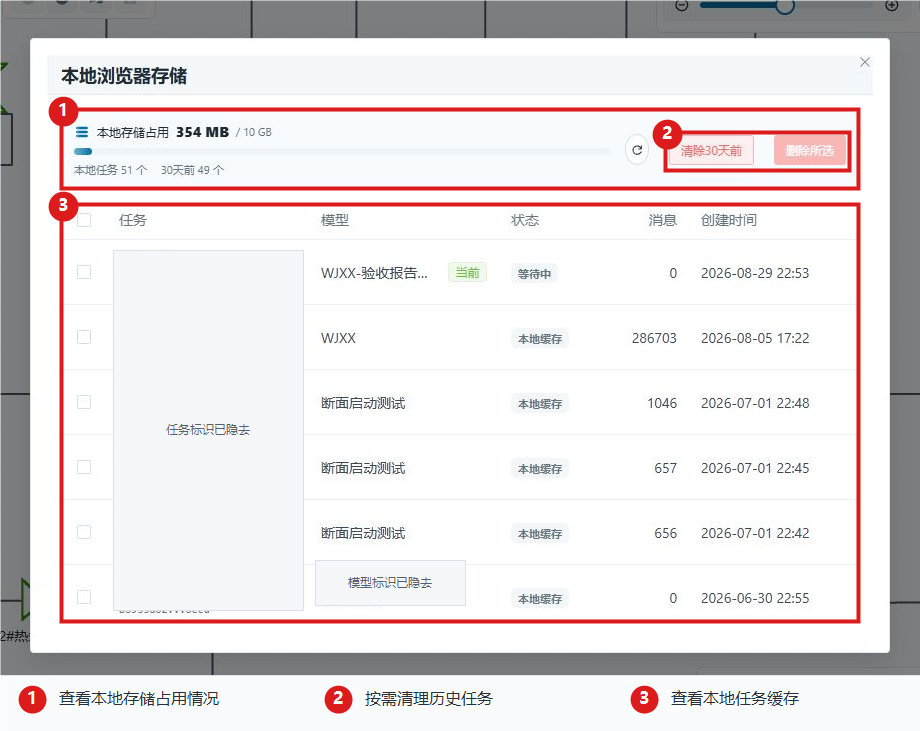
The "clear 30 days ago" here is a manual local cleanup, and the server cleans up old job snapshots according to default rules, which are two separate things. Cleaning local data will not delete server job records, server job snapshots, or running snapshots; as long as the server data is still available and the account has permissions, the job can still be reopened from Personal Center later.
If the selected job is currently loaded, when deleting the local job, an attempt will be made to terminate unfinished calculations; if there are only unloaded caches left by other models, the cleanup operation will only delete the local data. To avoid accidentally stopping the job, do not use local storage cleanup instead of job control. The running job should be terminated according to the steps in Create and Control Simulation Jobs and the status should be confirmed before clearing the local data.
Save Running Snapshot
Running snapshots save the internal running status of the calculation program. They do not include a set of independently editable models, nor are they equivalent to a backup of job results. The current platform provides two saving methods.
Save Manually While Job Is Running
When the job is "Running", "Pausing" or "Paused", the "Save Running Snapshot" in the upper left corner of the job view is available. After clicking, you can fill in the name; when the name is left blank, the platform will generate a default name based on the job name and save time.
After the save request is issued, the running snapshot will first enter "Saving". Only once it becomes "available" can it be used to start a new job. When the save times out or the calculation program fails to provide valid data, the snapshot will enter "Failed" and cannot be used for startup.
Automatically Save When Calculation Ends Normally
Expand "Calculation Configuration" in the global parameters of the model, enable "Save running snapshot at the end of calculation", and fill in the "Running Snapshot Name". The platform will reserve this snapshot when the job is created; it will not become available until the job ends normally and the snapshot is returned successfully.
Jobs that end abnormally or are forcibly stopped will not generate usable automatic running snapshots. Don't rely solely on this option to save important running status; if you need to save it midway, you should manually save it in the allowed job status and confirm success.
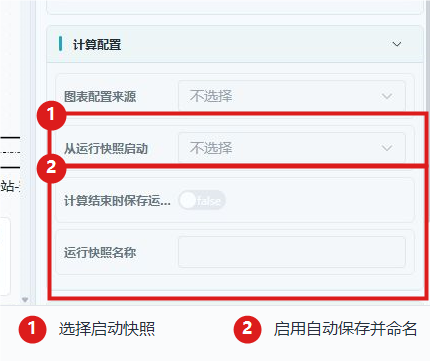
Number, Status, and Validity Period of Running Snapshots
The current implementation adopts the following restrictions:
| Project | Current Restrictions |
|---|---|
| Quantity | Platform checks capacity by current user and model; retains up to 3 running snapshots of the same model that are "Saving" or "Available" |
| Saveable job status | Manual saving is only available when "Running" "Pausing" or "Paused" |
| Status available for startup | Only "Available" running snapshots can be selected; "Saving", "Failed" and "Expired" are not available. |
| Validity period | 1 day after creation, the running data will be cleared after expiration |
| Single snapshot size | Maximum 512 MB. Saving will fail if the limit is exceeded. |
| Permissions | You can only use running snapshots generated by source jobs that the current account has access to. |
Both "Saving" and "Available" will occupy the quantity. If the interface prompts that the running snapshot is full, you should delete the available snapshots that are no longer needed and then save them; if the snapshot stays in "Saving" for a long time and takes up capacity, please contact the platform administrator to check.
Running snapshots that have expired, failed to save, or been deleted will not appear in the available list of "Start from running snapshots." Even if the snapshot has been selected in the model parameters, the platform will still check its status, validity period, permissions and data files again when starting calculation; it will not start from this snapshot if the check fails.
Start a New Job from a Running Snapshot
- Return to the model view and confirm that the topology and parameters of the current model are suitable for this calculation.
- Find "Launch from running snapshot" in the "Compute Configuration" of the global parameters.
- Select an available snapshot with the correct name and creation time.
- Click "Start Calculation" to create a new job.
The new job still uses the topology and parameters of the current model, and only uses the selected running snapshot as the starting state of the calculation program. It does not continue the original job, nor does it overwrite the original job. If you do not need to start from a snapshot, please set this parameter to "Do Not Select".
Running snapshots in the available list have delete entries. After deletion, you can no longer start from this snapshot; if it is selected by the current model, the platform will restore the parameter to its default value. Deleting a running snapshot does not delete the source job, job snapshot, or browser local job.
Determine Whether It Can Be Restored Based on Usage Scenarios
| Scene | What to Rely On | What to Pay Attention To |
|---|---|---|
| Refresh the page in the same browser | Browser local job data | Data not received locally still relies on the server |
| Reopen the same browser later model | Compatible local mission data for this model | Clearing website data or local upgrade may make the cache disappear |
| Change browser or device | Server job records and job snapshots in Personal Center | Should be opened from Job Management, model pages will not automatically sync job lists for older browsers |
| The job record is still there and the job snapshot has been cleared | Server job record | Unable to re-create read-only job view from this |
| The result stream has expired | Data that has been received locally and job snapshots that are still available | The server cannot compensate for missing results |
| Running snapshots are still available | Current model and running snapshot | Only new jobs can be created, and the original job itself cannot be restored. |
If the job needs to be archived for a long time, the model should be saved separately, the necessary results should be exported in a timely manner, and the job ID and creation time should be recorded. Browser local data, server job records, and short-term running snapshots should not be regarded as complete, permanent job backups.