Find and handle tasks in the account center
Task management in the account center lists simulation task records retained by the server. You can filter by task ID, creator, status, or workspace type, then open a task view, inspect the submitted model snapshot, or read task logs.
Use this page to find tasks created in another browser or device, or tasks created earlier. The task list beside a model primarily stores records in the current browser. See Task storage, recovery, and retention for the difference.
Which tasks can you see?
| Account role | Visible tasks |
|---|---|
| Regular user | Tasks created by that user |
| Organization administrator | Tasks in managed organizations |
| Super administrator | All tasks on the platform |
Seeing a task record does not guarantee that its snapshot and logs are still available. Some actions may fail after snapshot cleanup, log expiration, or a change in workspace access.
Open Task management
- Sign in and open the account center.
- Select Task management from the left navigation.
- Check the creator and workspace type before acting on a task.
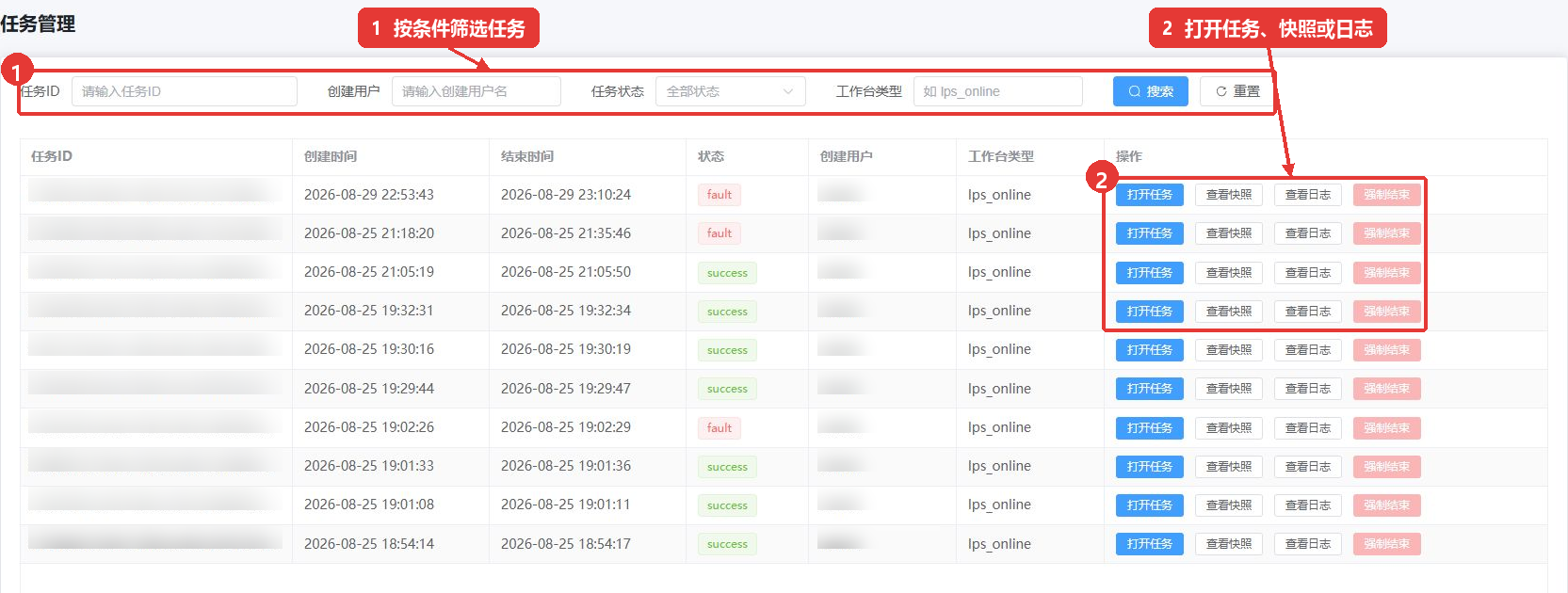
Filter and identify tasks
You can combine these filters:
- Task ID for an exact ID copied from a log, link, or incident record;
- Creator to narrow tasks by user when you are an administrator;
- Status to select
pending,running,pausing,paused,stopping,stopped,success, orfault; - Workspace type to distinguish tasks created by different simulation types.
Select Search to load matching results. Select Reset to clear the filters and reload the list. Task IDs are often long, so retain the complete value when copying one.
Use Created at, Finished at, and Status together to determine whether a task is still active. An empty finish time does not by itself prove that a task is running normally.
Choose the correct action
| Action | Purpose | Main limitation |
|---|---|---|
| Open task | Open the read-only task view in the corresponding simulation workspace | Requires an available task snapshot and permission to enter that workspace |
| View snapshot | Inspect the submitted model and parameters as a tree and copy the JSON | Unavailable after snapshot cleanup |
| View logs | Filter task logs by level or keyword | Logs may be unavailable because of task stage, retention, or a runtime failure |
| Force stop | Directly request termination of an unfinished runtime instance | An exception-handling action; completed, failed, or stopped tasks cannot be stopped again |
Task management does not delete server task records. Deleting a task in the simulation workspace only removes browser-local task data and does not delete the server record shown here.
Open a task view
Find the task and select Open task. NexusFlow opens a read-only task view in the workspace type recorded by the task and shows the model state saved at submission.
If the page says that the task snapshot has been cleaned and the historical task cannot be opened, the task record remains but the snapshot required to reconstruct the view is gone. You may still be able to inspect logs. For long-term model retention, use a saved model or an exported model file rather than relying on task records.
Inspect and copy a task snapshot
Select View snapshot to inspect the task snapshot as a tree. Expand nodes to verify model identifiers, component parameters, and global settings. Select Copy JSON when the data must be passed to development or operations staff for deeper diagnosis.
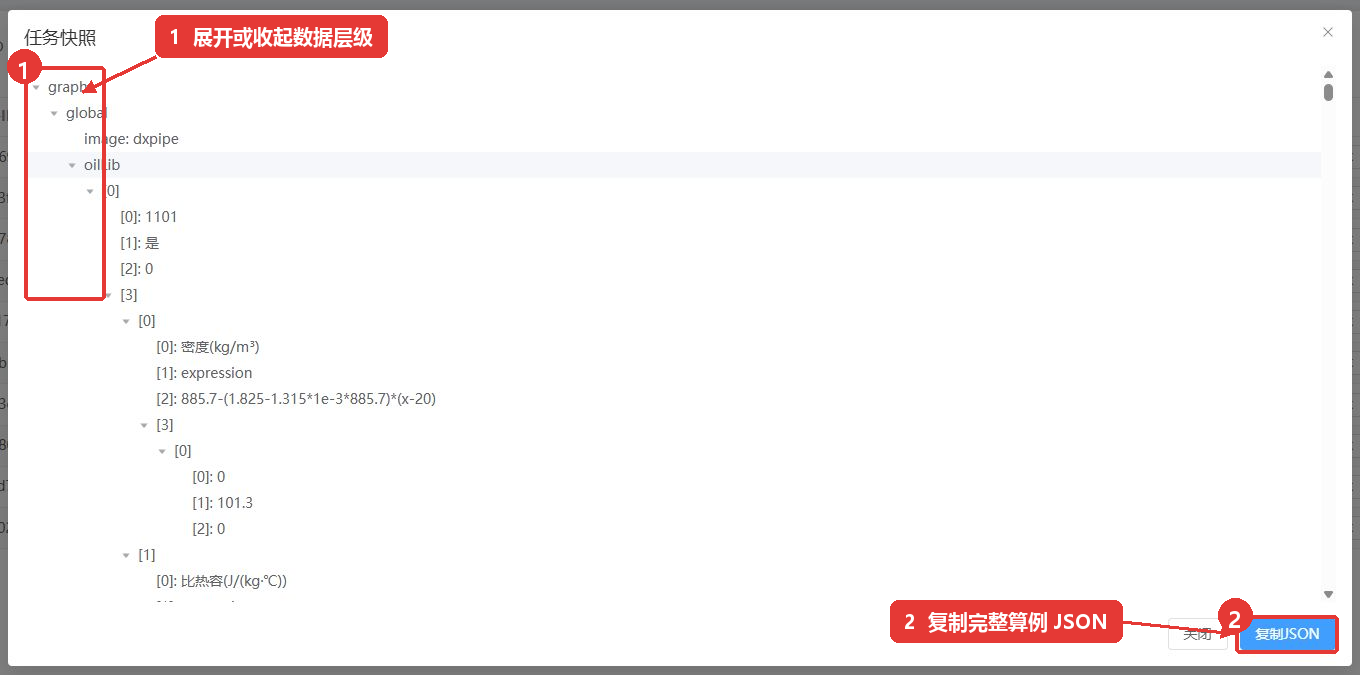
A snapshot may contain model parameters, resource identifiers, or business data. Share it only with people who need it for diagnosis, and remove passwords, tokens, internal addresses, and sensitive model details first.
Inspect and filter task logs
Select View logs to:
- filter by
info,warning, orerror; - search log messages by keyword;
- select Query to reload from the first page;
- watch periodically refreshed content while the dialog remains open;
- change the page size or move to another page;
- select Copy logs to copy the logs currently displayed on the page.
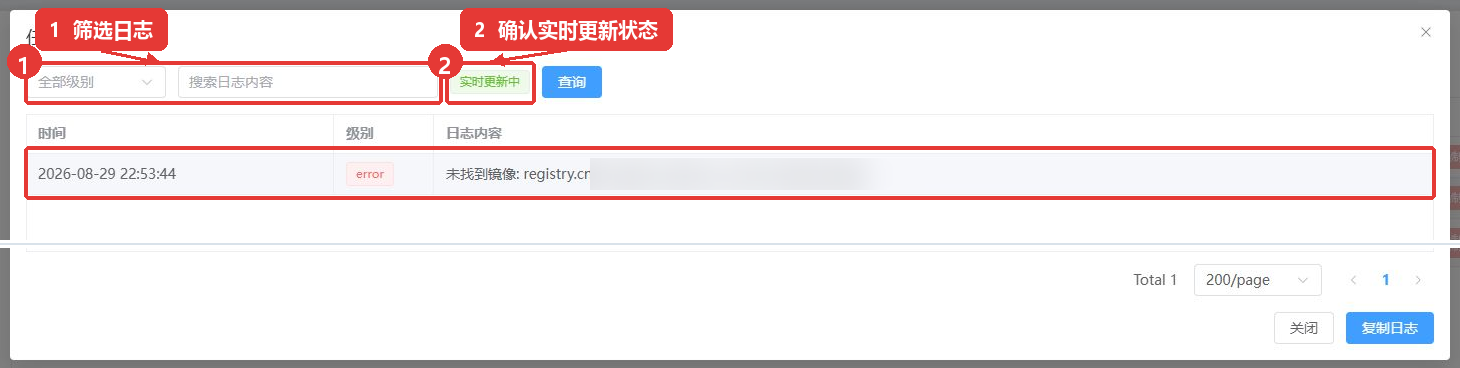
When diagnosing a failure, retain the first meaningful error and the necessary context before and after it, not only the last line. If logs are unavailable, record the stated reason, task ID, and creation time for the administrator.
When to use Force stop
For normal shutdown, first use Stop calculation in the simulation workspace so that the task follows its standard control flow. Use Force stop only when a task remains in a waiting, running, pausing, paused, or stopping state for too long, normal controls do not respond, or computing resources must be released urgently.
Before force-stopping a task:
- verify the task ID, creator, and workspace type;
- save the current status and important logs;
- make sure another user is not depending on the task;
- select Force stop and confirm the target again.
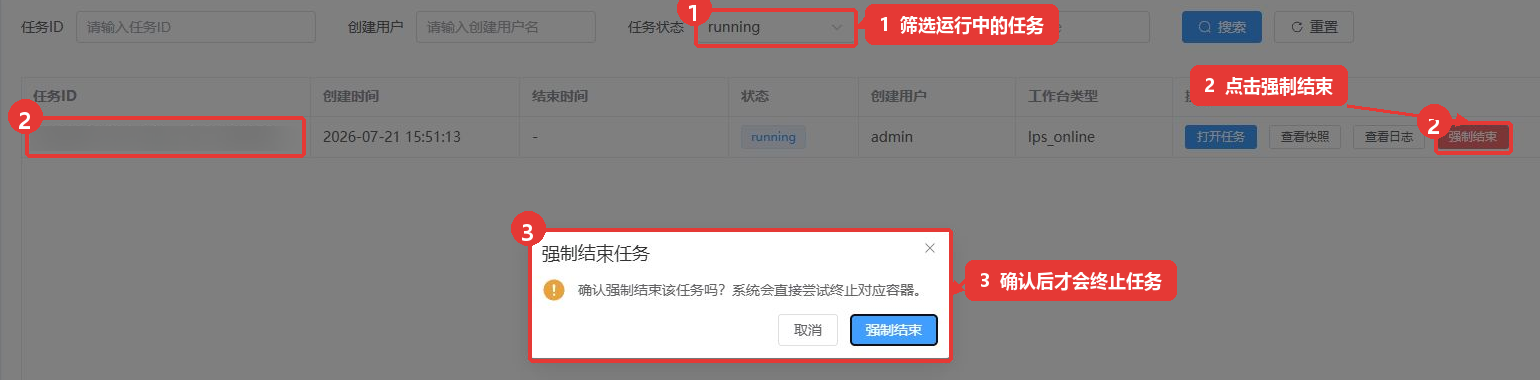
The page may report that the task stopped immediately or that the request was submitted. Refresh the list and continue checking logs until the task reaches a final state. Do not click repeatedly, and do not treat “request submitted” as completion.
Force stop may bypass normal shutdown work, leaving incomplete results or unusable runtime snapshots. Afterwards, verify the task status, logs, and related computing resources.
Common questions
Why is the task listed but cannot be opened?
The most common reason is task snapshot cleanup. Workspace access may also have changed. Read the page message, then check snapshot retention and workspace permissions separately.
Why do filtered log results change during automatic refresh?
While the dialog is open, NexusFlow periodically reruns the current query. New log entries may change the total and current page while the task is active.
Why is Force stop disabled?
A task in success, fault, or stopped has already ended and cannot be force-stopped again. Inspect its logs and results instead.