Maintain your profile and password
After signing in to NexusFlow, you can review your account, organizations, and expiration date on the profile page. You can also update your name, phone number, and sign-in password. Usernames, email addresses, organization memberships, and account types are maintained by administrators and cannot be changed here by regular users.
This page covers routine maintenance of your own account. For editing another user or resetting another user's password, see Manage users, organizations, and permissions.
Open the profile page
- Sign in and open the account center.
- Select Profile from the left navigation.
- Check the username to make sure you are maintaining the correct account.
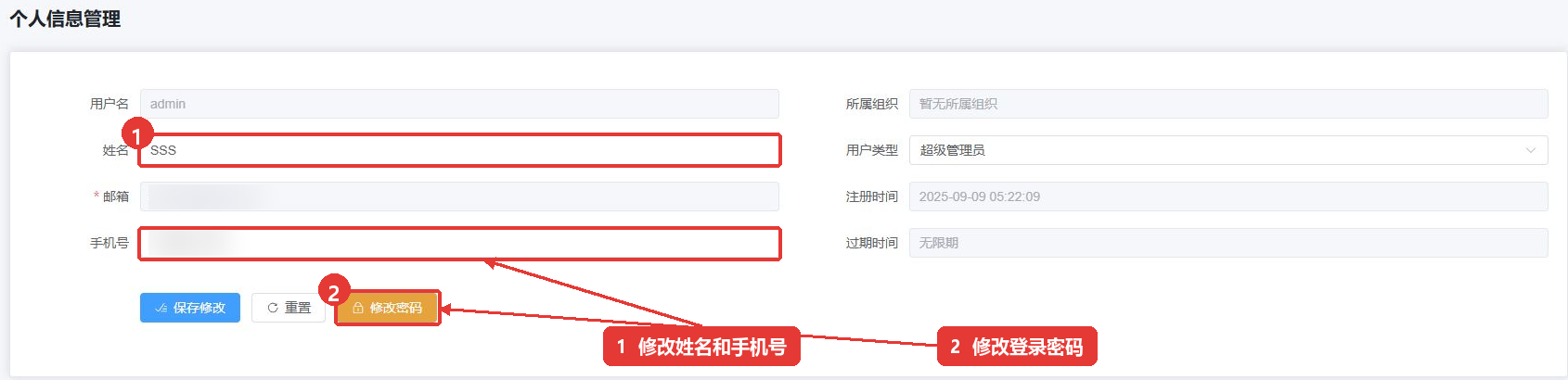
Know which fields are editable
| Field | Self-service | Description |
|---|---|---|
| Username | No | The unique sign-in name. Contact an administrator if it must be changed. |
| Name | Yes | The name displayed for this user. |
| No | The email address bound to the account. Contact an administrator to change it. | |
| Phone number | Yes | An optional contact number. |
| Organizations | No | The organizations the account has joined. |
| User type | No | Whether the account is a regular or administrative account. |
| Registration date | No | When the account was created. |
| Expiration date | No | When a temporary or time-limited account expires. |
A read-only field is not a page error. Organization membership, account type, and expiration affect available menus and resources and must be maintained by an authorized administrator.
Update your name and phone number
- Enter the new Name or Phone number.
- Select Save changes.
- After the success message appears, verify the saved values on the page.
Selecting Reset discards unsaved edits on the current page and reloads the most recently saved account information. It does not clear your profile or reset your password.
If saving fails, check the phone number format and network connection. If the problem continues, record the page message and time and contact an administrator instead of repeatedly submitting different values.
Change your sign-in password
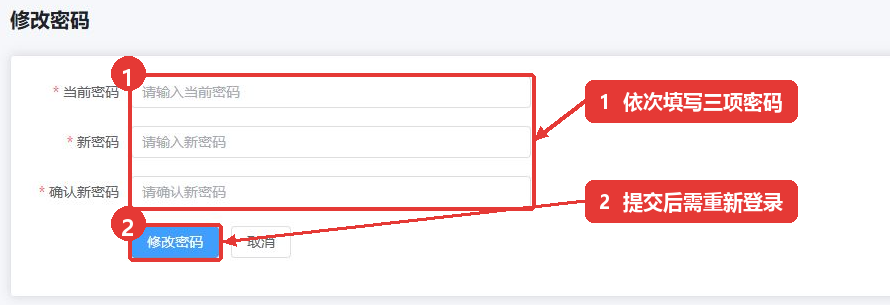
Select Change password on the profile page, then enter:
- Current password: the password you currently use;
- New password: a compliant password that differs from the current one;
- Confirm new password: the same new password again.
After a successful change, NexusFlow signs you out. Sign in again with the new password; the old password is no longer valid.
Password requirements
The new password must:
- contain 12 to 128 characters;
- include uppercase letters, lowercase letters, numbers, and special characters;
- use special characters from
!@#$%^&*(),.?":{}|<>; - not contain the username or the account portion before
@in the email address; account text shorter than three characters is not checked; - differ from the current password.
Use a long password that is unique to NexusFlow. Do not reuse a password from email, messaging, or another system, and do not place passwords in model notes, task logs, or shared files.
If you forgot the current password
The profile page can change a password only when the current password is known. If you have forgotten it, ask an administrator with user-management permission to reset it.
The administrator does not need your old password. After the reset password is delivered through a secure channel, sign in and change it to a password known only to you. Never send an old password, new password, or verification code in a normal chat or support ticket.
Common questions
Why can I not edit the email, organizations, or account type?
These fields are used for sign-in, authorization, and account management. Regular users can only view them. Tell an administrator which field must change and why.
Why did the page return to sign-in after a password change?
This is expected. A successful password change invalidates the previous sign-in session.
Why does the old name or phone number remain after saving?
Refresh the profile page and check whether a save error appeared. If the platform still returns the old value, record the operation time and page message and contact an administrator.